Ruotare lo schermo su iPhone o iPod touch
Lo schermo su iPhone e iPod touch può ruotare, consentendoti di visualizzare le app in modalità verticale oppure orizzontale. Scopri come ruotare lo schermo su iPhone o iPod touch oppure richiedi assistenza se il passaggio da una modalità all'altra non funziona.
Alcune app non supportano la rotazione, perciò lo schermo potrebbe non ruotare anche se la funzione Blocco orientamento verticale non è attivata.
Ruotare lo schermo su iPhone senza il tasto Home
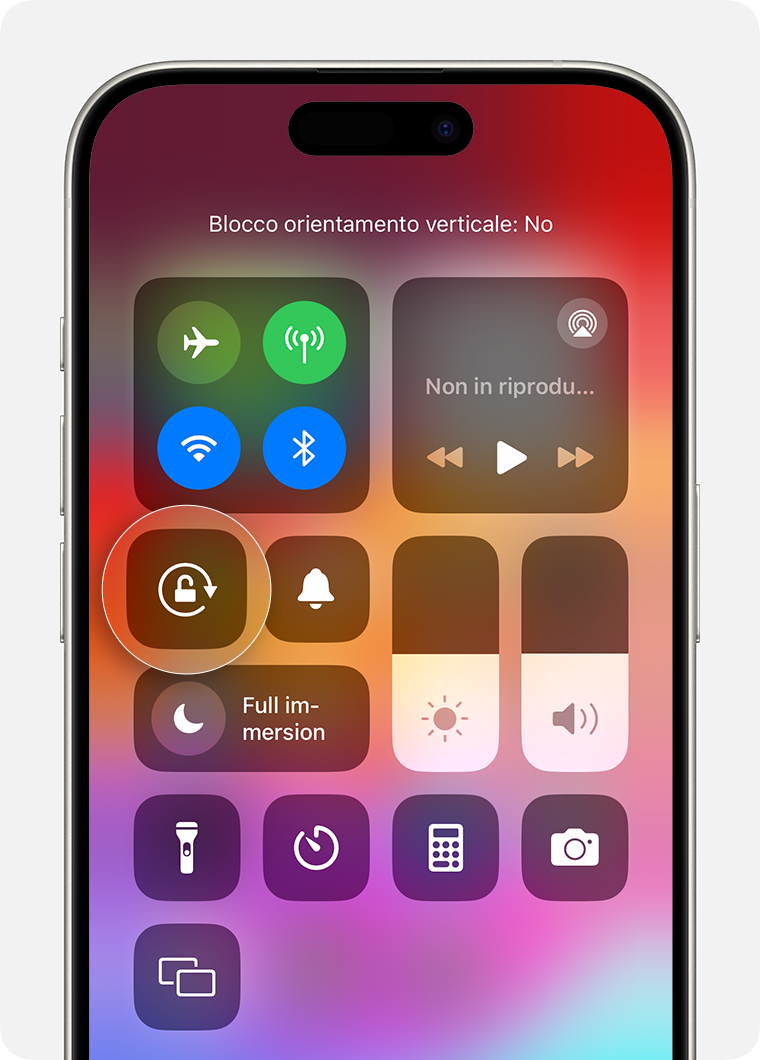
Scorri verso il basso dall'angolo in alto a destra dello schermo per aprire Centro di Controllo.
Tocca il pulsante Blocco orientamento verticale
 per assicurarti che sia disattivato.
Gira l'iPhone lateralmente.
Se la rotazione dello schermo non funziona ancora, prova un'altra app, come Safari o Messaggi, che è compatibile con la modalità orizzontale.
Scopri come ruotare lo schermo su iPad.
Ruotare lo schermo su iPhone o iPod touch con il tasto Home
Scorri dal basso dello schermo verso l'alto per aprire il Centro di Controllo.
Tocca il pulsante Blocco orientamento verticale
 per assicurarti che sia disattivato.
Gira l'iPhone o l'iPod touch lateralmente.
Se lo schermo ancora non ruota, prova a utilizzare un'altra app, come Safari o Messaggi, che notoriamente funziona in modalità orizzontale.
Serve ancora aiuto?
Contatta il supporto Apple per il tuo iPhone o iPod touch.

