اس کنٹرول میں ترمیم کرنے سے یہ صفحہ آٹومیٹک طریقے سے اپڈیٹ ہو جائے گا
Mac User Guide
- Welcome
- What’s new in macOS Tahoe
-
- Intro to Apple Intelligence
- Translate messages and calls
- Create original images with Image Playground
- Create your own emoji with Genmoji
- Use Apple Intelligence with Siri
- Find the right words with Writing Tools
- Summarise notifications and reduce interruptions
- Use ChatGPT with Apple Intelligence
- Apple Intelligence and privacy
- Block access to Apple Intelligence features
-
- Intro to Continuity
- Use AirDrop to send items to nearby devices
- Hand off tasks between devices
- Control your iPhone from your Mac
- Copy and paste between devices
- Stream video and audio with AirPlay
- Make and receive calls and text messages on your Mac
- Use your iPhone internet connection with your Mac
- Share your Wi-Fi password with another device
- Use iPhone as a webcam
- Insert sketches, photos and scans from iPhone or iPad
- Unlock your Mac with Apple Watch
- Use your iPad as a second display
- Use one keyboard and mouse to control Mac and iPad
- Sync music, books and more between devices
- Resources for your Mac
- Resources for your Apple devices
- Copyright and trademarks
Finder sidebar
Finder windows have a sidebar that provides quick access to items you use frequently.
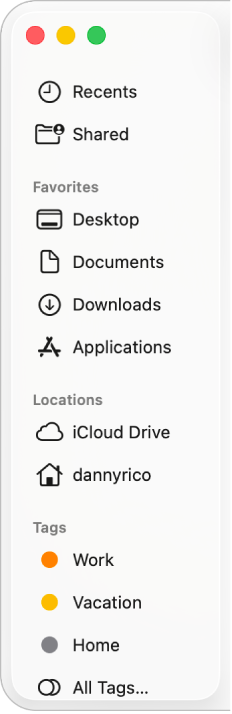
If you don’t see the sidebar, press Control-Command-S.
The sidebar is divided into three sections: Favourites, Locations and Tags. If you don’t see any items in a section, they may be hidden — click  at the right of the section to reveal any hidden items.
To customise the Finder sidebar, click  in the Dock, choose Finder > Settings, click Sidebar, then select the items you want to see in each section. When selected in Finder Sidebar settings, Recents and Shared always appear above the Favourites section, and can’t be moved. You can reorder items in the Favourites and Tags section, but not in the Locations section.
آپ کے تاثرات کا شکریہ۔