iPhone User Guide
- Welcome
- What’s new in iOS 12
-
- Wake and unlock
- Learn basic gestures
- Learn gestures for iPhone X and later
- Use 3D Touch for previews and shortcuts
- Explore the Home screen and apps
- Change the settings
- Take a screenshot
- Adjust the volume
- Change the sounds and vibrations
- Search for content
- Use and customize Control Center
- View and organize Today View
- Access features from the Lock screen
- Travel with iPhone
- Set screen time, allowances, and limits
- Sync iPhone using iTunes
- Charge and monitor the battery
- Learn the meaning of the status icons
-
- Accessories included with iPhone
- Connect Bluetooth devices
- Stream audio and video to other devices
- Control audio on multiple devices
- AirPrint
- Use Apple EarPods
- Apple Watch
- Use Magic Keyboard
- Wireless charging
- Handoff
- Use Universal Clipboard
- Make and receive Wi-Fi calls
- Use iPhone as a Wi-Fi hotspot
- Share your iPhone Internet connection
- Transfer files with iTunes
-
-
- Get started with accessibility features
- Accessibility shortcuts
-
-
- Turn on and practice VoiceOver
- Change your VoiceOver settings
- Learn VoiceOver gestures
- Operate iPhone using VoiceOver gestures
- Control VoiceOver using the rotor
- Use the onscreen keyboard
- Write with your finger
- Control VoiceOver with Magic Keyboard
- Type onscreen braille using VoiceOver
- Use a braille display
- Use VoiceOver in apps
- Speak selection, speak screen, typing feedback
- Zoom in on the screen
- Magnifier
- Display settings
- Face ID and attention
-
- Guided Access
-
- Important safety information
- Important handling information
- Get information about your iPhone
- View or change cellular settings
- Learn more about iPhone software and service
- FCC compliance statement
- ISED Canada compliance statement
- Class 1 Laser information
- Apple and the environment
- Disposal and recycling information
- Copyright
Play content in Videos on iPhone
In the Videos app  , you can stream content from iTunes or download it for offline viewing. Play, pause, or skip to any point in the video. Choose the language, subtitles, playback quality, and more. You can even stream to your Apple TV using AirPlay.
Play a movie or TV show
Tap the title to see the details screen.
Do any of the following:
Stream the video: Tap
 to stream the video over your Internet connection.
Download the content: Tap
 . After you download the content, you can watch it even when you’re not connected to the Internet.
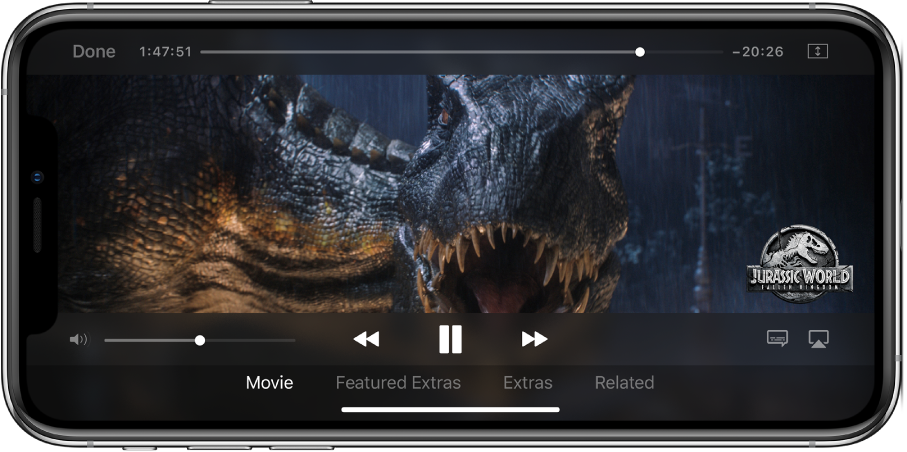
During playback, tap the screen to see the following controls:

Play

Pause

Skip to the beginning of the chapter; touch and hold to rewind

Skip to the next the chapter; touch and hold to fast-forward

Change the aspect ratio; if you don’t see the scaling control, the video already fits the screen perfectly

Display subtitles and closed captions (not available for all content)

Change your Videos settings
Go to Settings
 > Videos.
You can change settings such as the following:
Start Playing: Choose where to resume video playback.
Show only the downloaded videos: Turn off Show iTunes Purchases.
Use Cellular Data for Playback: Turn it off to restrict playback to a Wi-Fi connection.
Playback Quality: Choose Best Available or Good.
Note: High-quality playback requires a faster Internet connection and uses more data.
To see subtitles and closed captions for the deaf and hard of hearing, go to Settings > General > Accessibility > Subtitles & Captioning, then turn on Closed Captions + SDH. Tap Style to change their appearance.
WARNING: For important information about avoiding hearing loss, see Important safety information for iPhone.