
Adjust the sound quality in iTunes on Mac
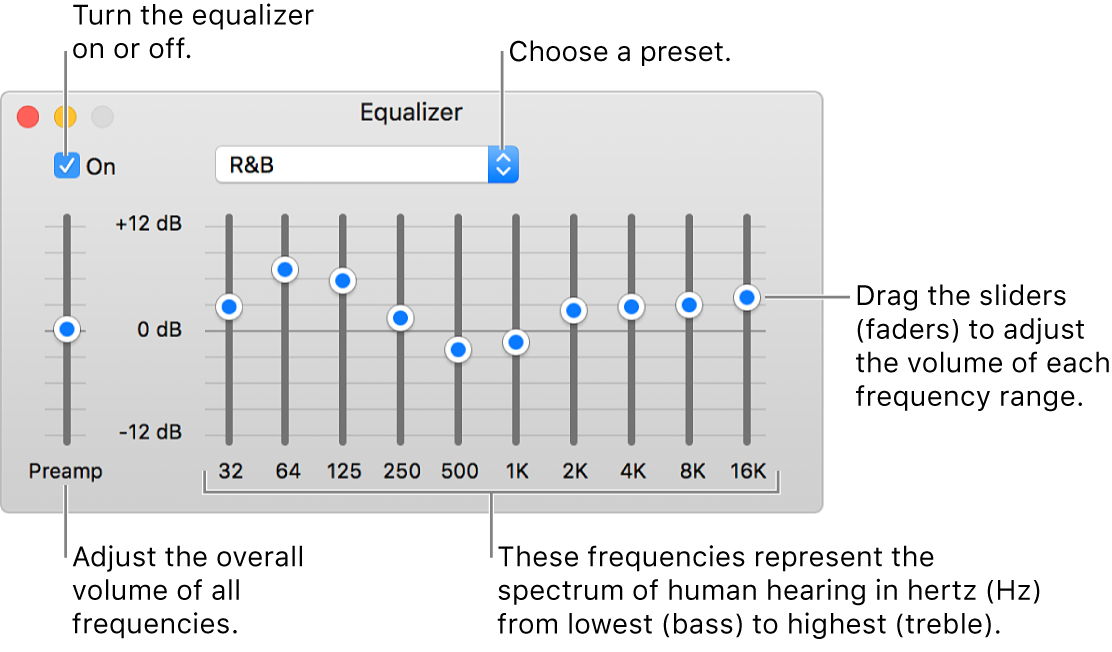
With the iTunes equalizer, you can fine-tune specific frequencies of the sound spectrum. You can customize the sound for different genres, rooms in your home, or specific speakers. You can choose from more than 20 presets of the most commonly used equalizer settings, or adjust the settings manually and save your customized settings as a preset that you can use again.
You can also add depth and enliven the quality of your music by adjusting the Sound Enhancer.
Use the iTunes equalizer
In the iTunes app
on your Mac, choose Window > Equalizer.Do one of the following:
Choose a preset option from the pop-up menu.
Drag the frequency sliders up or down to increase or decrease the volume of a frequency (in decibels).
The equalizer’s settings apply to all songs until you change the settings, except for songs that have equalizer presets assigned to them (see instructions below).
Create your own equalizer presets
In the iTunes app
on your Mac, choose Window > Equalizer.Drag the sliders to adjust the frequency settings the way you want.
Choose Make Preset from the pop-up menu and name your preset.
To rename or delete a preset, choose Edit List from the pop-up menu.
Choose equalizer presets for specific songs
In the iTunes app
on your Mac, select a song in the iTunes window.Choose Edit > Song Info, then click Options.
Choose a setting from the Equalizer Preset pop-up menu.
To choose presets for other songs, use the Next and Previous buttons.
Click OK.
The equalizer preset you chose applies to the song whenever you play it.
Adjust the Sound Enhancer
The Sound Enhancer increases the perceived “wideness” of the stereo effect by modifying bass and treble response.
In the iTunes app
on your Mac, choose iTunes > Preferences, then click Playback.Make sure Sound Enhancer is selected.
To increase or decrease the effect of the Sound Enhancer, drag the slider.