Use Find My to locate your lost Apple device or AirTag
If you lose your Apple device, a personal item connected to an AirTag, or another Find My network accessory, you can use Find My to locate it, mark it as lost to protect your device and personal information, or erase it if you believe it's permanently lost or stolen.
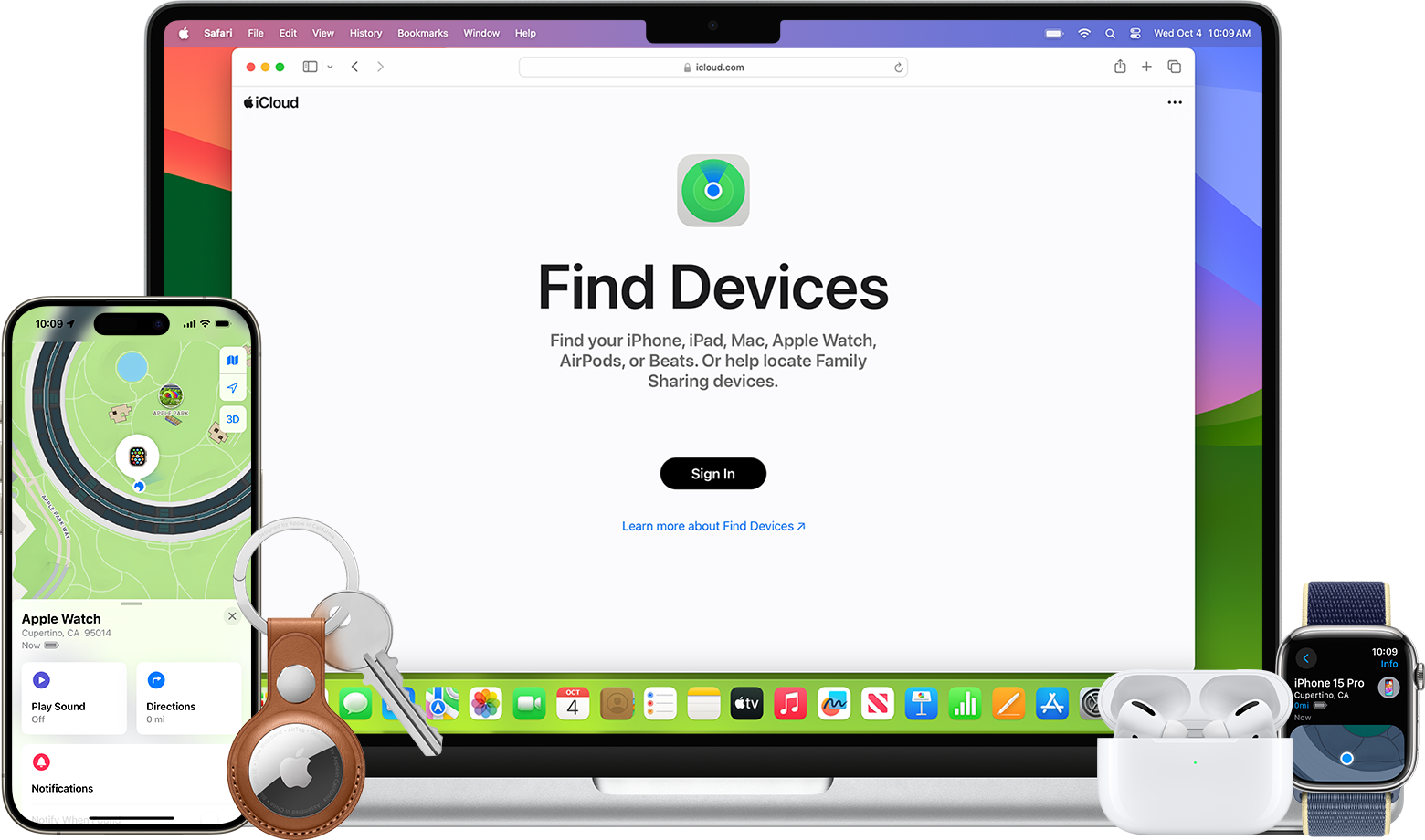
Find your stuff with Find My
If you lost or misplaced an Apple device or a personal item with an AirTag attached, use Find My to locate your device or item on a map. You can get directions to its approximate location and, when you're nearby, play a sound or even get help finding its exact location. You can also help find a family member's device if you belong to a Family Sharing group, or help find an AirTag that someone shared with you.
Learn which Find My features are available for your device or item
Find your Apple device or AirTag with the Find My app
Open the Find My app on another Apple device.
Choose Devices or Items.
Select the lost device or item to find it on a map.
Choose Directions to open its location in Maps.
If you're close, tap Play Sound.
If your iPhone has Ultra Wideband, tap Find Nearby to show the distance and direction to your AirTag or AirPods Pro 2 or later.
You can also find your devices at icloud.com/find. You can only locate AirTag and Find My network accessories with the Find My app on iPhone, iPad, and Mac, or the Find Items app on Apple Watch.
Mark your device or item as lost
While you look for your device or item, mark it as lost. This puts your device in Lost Mode, which locks it with a passcode or your Apple Account password. For devices compatible with Apple Pay, it suspends payment cards and passes. You can also display a message so others can contact you if they find your device or item.
In the Find My app, select your missing device or item under Devices or Items.
Scroll down to the section labeled "Lost [device]" or "Lost [item]."
To mark your device or item as lost, tap Lost Mode or Show Contact Info. For AirTag, you can also tap Share Item Location, though this doesn't mark the AirTag as lost. Learn more about sharing the location of an item.
Follow the onscreen steps to display your contact information for your missing device or item. This allows others to contact you if they find your lost device or item.
If you don't have an iPhone or other Apple device to use Find My
If you don't have an iPhone or other Apple device to use Find My, you can use Find Devices on iCloud.com or use a family member's device.
If Find My shows "No location found", "Offline", or your item isn't listed
If Find My can't display your device or item's current location, for example if your device's battery has run out, you can see its last known location for up to seven days in the Find My app.
If more than seven days have passed since your device last sent its location to Apple through the Find My network, Find My can't display a location. Instead it shows "No location found."
If your device is online but is unable to send its location (for example, if there's an issue with Location Services), Find My can't display a location. Instead it shows "Not sharing location • Online."
If your item isn't listed or appearing in Find My, update to the latest iOS, iPadOS, macOS, or watchOS. AirTag (2nd generation) requires OS 26.2.1 or later.
If you turned on Stolen Device Protection for your iPhone and use it to change your Apple Account password while in an unfamiliar location, the location of your devices may not be visible at icloud.com/find.
Your device's location is shown on icloud.com/find if it's powered on and has a network connection. If you turned on Send Last Location, your device will try to upload its location just before it needs to be charged. Locations are shown on iCloud.com for up to 24 hours.
The Find My network is a crowdsourced network of over a billion Apple devices that use Bluetooth technology to detect the location of an accessory or device, and report their approximate location back to the owner. It's all anonymous and encrypted to protect everyone's privacy.
Learn how to turn on the Find My network for your iPhone
Learn how to turn on the Find My network for your AirPods
If you need to erase your device
If you don't have two-factor authentication turned on for your Apple Account, you can't erase a device remotely using the Find My app. Instead, you need to use iCloud.com to erase your device, or you can first turn on two-factor authentication.
If you erase a device with iOS 15 or later, or iPadOS 15 or later, you can still use Find My to find the device. Otherwise, you won't be able to find your device after you erase it. You might still be able to find your Mac or Apple Watch if it's near a previously-used Wi-Fi network.
Before you erase your device, make sure that you've tried everything else. Erasing your device can't be undone.
Erase a device in Find My
In the Find My app, choose Devices.
Select your lost device.
Scroll down and choose Erase or Erase This Device.
Complete the onscreen steps to continue.
Erase a device on iCloud.com
Sign in to icloud.com/find.
Choose your lost device.
Select Erase [Device], then tap Erase to confirm.
Need more help?
Tell us more about what's happening, and we’ll suggest what you can do next.
