Use Express Transit with Apple Pay in China mainland
Learn how to use Express Transit with Apple Pay on your iPhone or Apple Watch.
What you need
To use Express Transit with Apple Pay in China mainland, you need:
To set up your transit card with Apple Pay on a compatible iPhone or Apple Watch.
You can check with your transit agency to see which devices are compatible with your transit card. Device requirements might vary by city.
Pay for your ride with your transit card using Apple Pay
You can use Express Transit with Apple Pay to pay for transit services, like metro and buses.2
Enter the ticket gates and hold the top of your iPhone or the display of your Apple Watch near the middle of the ticket gate scanner until you feel a vibration.
You'll see Done and a checkmark on the display. Your iPhone or Apple Watch must be turned on, but it doesn't have to be connected to a network. With Express Transit, you don't need to validate with Face ID, Touch ID, or your passcode, and you don't need to wake or unlock your device or open an app.
Exit the ticket gates and hold the top of your iPhone or the display of your Apple Watch near the middle of the ticket gate scanner until you feel a vibration
On your iPhone, Express Cards with power reserve is available for up to five hours when your iPhone needs to be charged. You can press the side button to check if Express Cards are available when your iPhone needs to be charged. Doing this often might significantly reduce the power reserve for Express Cards. If you choose to turn off your iPhone, this feature will not be available.
Pay in stores
To pay in stores with your default credit or debit card on your iPhone:
On an iPhone with Touch ID, double-click the Home button when your iPhone is locked, or select your card in Wallet and authenticate. Then hold your iPhone near the reader.
On iPhone X or later, double-click the side button and authenticate with Face ID. Then hold your iPhone near the reader.
If a station agent needs to service your transit card in Apple Pay, put your device into Service Mode before you hand it to the station agent:
On your iPhone, open the Wallet app, tap the More button
 , tap Card Details
 , then open Service Mode and authenticate with Face ID, Touch ID, or your passcode.
For your Apple Watch, remove it from your wrist, enter the passcode to unlock it, and double-click the side button. Then, select your transit card, firmly press the screen, tap Service Mode, and ask the station agent to hold your Watch with the display facing down.
Change your Express Transit card
The first transit card that you add to Wallet is your Express Transit card. If you add more transit cards and want to change your Express Transit card, use these steps.
Change your Express Transit card on your iPhone
Go to the Settings app, then tap Wallet & Apple Pay.
On iPhone 6s, iPhone 6s Plus, and later, tap Express Transit Card. On iPhone 6 and iPhone 6 Plus, tap Automatic Transit Card.
Choose a new transit card, then authorize with Face ID, Touch ID, or your passcode.
Change your Express Transit card on your Apple Watch
Open the Watch app on your iPhone.
Go to the My Watch tab, tap Wallet & Apple Pay, then tap Express Transit Card.
Choose a new card, then authorize by entering your passcode on your Apple Watch.
If you don't want a card set for Express Transit, choose None.
Check the balance on your transit card
On your iPhone, open the Wallet app, then tap your transit card. Your current balance is displayed.
On your Apple Watch, double-click the side button and swipe to your transit card to see your balance.
Get low balance notifications
In the Wallet app, tap your transit card.
Tap the More button
, then tap Card Details. Tap Balance, then tap No Reminder. Follow the steps to set up notifications.
If your transit card balance is not updated
On your iPhone, open the Wallet app.
Tap your transit card
Tap the More button
, then tap Card Details.Turn on Service Mode, then authenticate with Face ID, Touch ID, or your passcode.
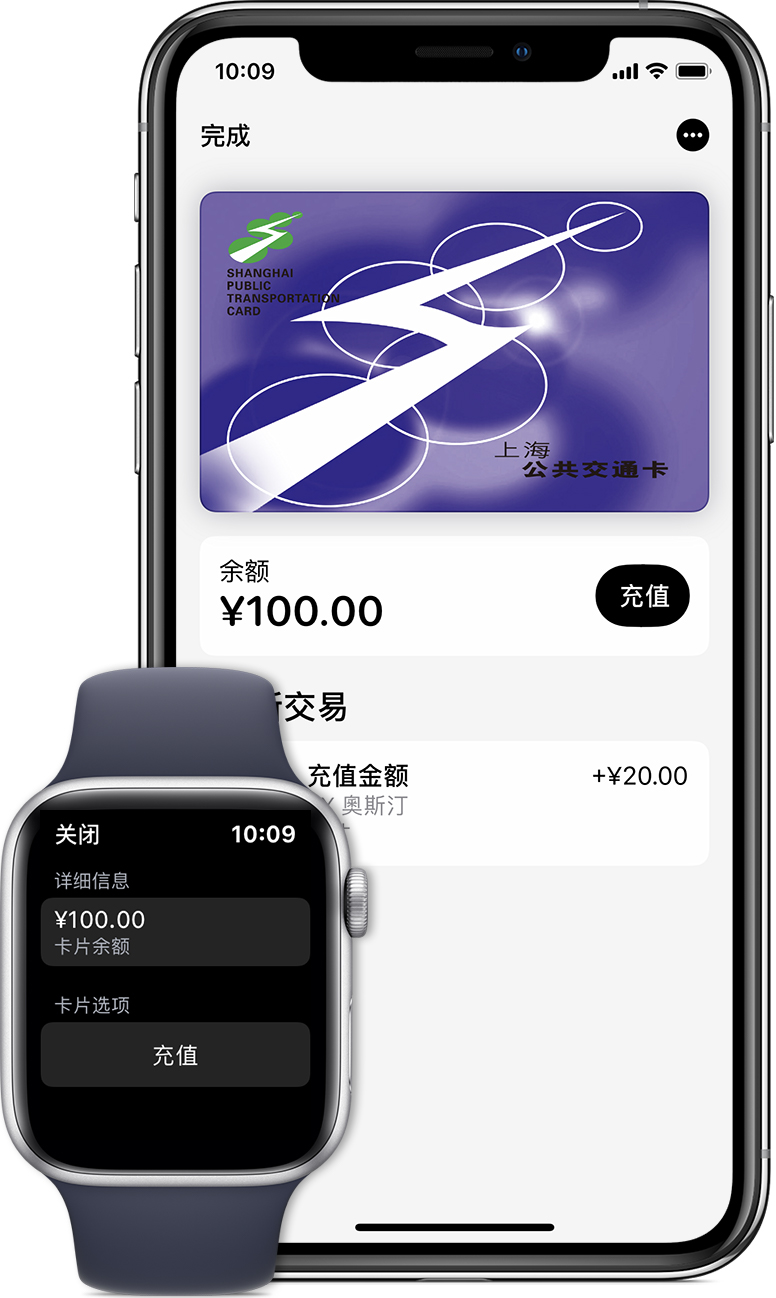
To turn off Service Mode, tap on the card. If your balance is still incorrect, restart your iPhone.
Add money to your transit card
To add money to your transit card, use a China UnionPay credit or debit card that you've added to Wallet. The minimum and maximum amount that you can add to your iPhone or Apple Watch might vary by transit agency.
Add money on your iPhone
Open the Wallet app.
Tap the transit card that you want to add money to.
Tap Add Money, then choose an amount and tap Add.
Select your UnionPay credit or debit card and use Face ID, Touch ID, or your passcode to complete the transaction.
Add money on your Apple Watch
Open the Wallet app.
Tap your transit card.
Scroll to Card Options and tap Add Money.
Follow the instructions on the screen.
Before you start your trip, make sure that you have enough money on your transit card in Apple Pay for the entire journey. Also, make sure that your battery has enough charge to last the entire journey.
You can also add money via your transit agency's app.
Learn more
Express Mode for transit is only available in select cities and transit systems. Requires eligible device and OS version. See here for details.
In Shanghai, you can use your transit card to pay for metro, buses, ferries, and maglev.
Information about products not manufactured by Apple, or independent websites not controlled or tested by Apple, is provided without recommendation or endorsement. Apple assumes no responsibility with regard to the selection, performance, or use of third-party websites or products. Apple makes no representations regarding third-party website accuracy or reliability. Contact the vendor for additional information.