Watch Formula 1 in the Apple TV app
The Formula 1 (F1) screen in the Apple TV app gives you access to Formula 1 events when you subscribe to Apple TV (U.S. only).
In addition to pre- and post-race programming, you can choose from multiple video feeds during live events, including all 22 onboard driver cameras, live data, a driver tracker, and more.
Note: Some Formula 1 events may be available to watch on a promotional basis, but full access to all events, shows, and features requires a subscription to Apple TV.
Watch Formula 1
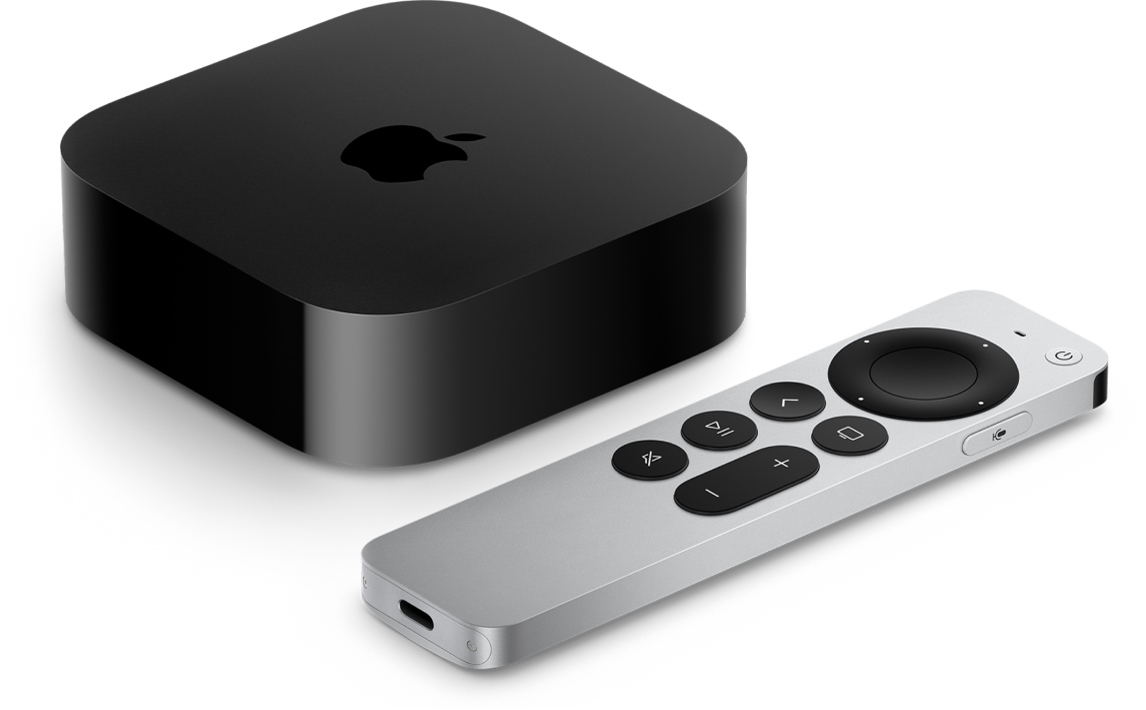
Go to the Apple TV app
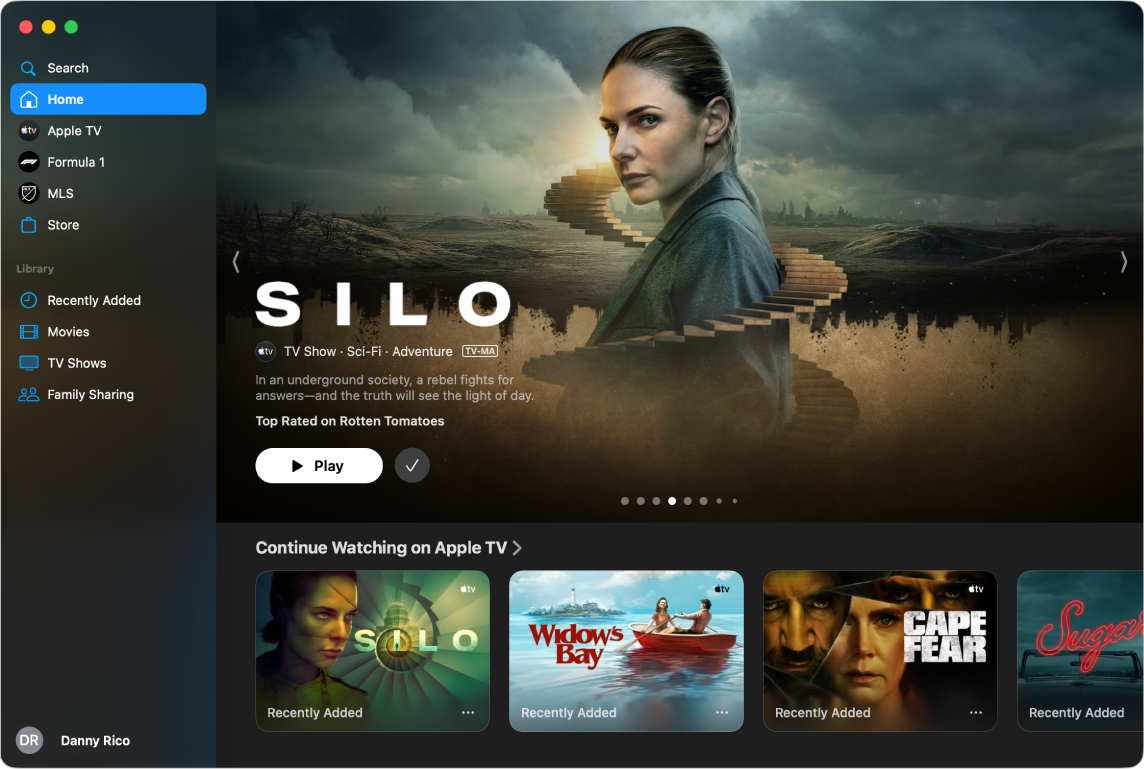
on your smart TV, streaming device, or gaming console.Open the sidebar, then select Formula 1.
Do any of the following:
Explore featured events: View featured events at the top of the F1 screen by selecting
to progress through items. Press left on the smart TV or device remote to go back.Select
to get more information about an event.Browse available events, programming, and more: Navigate down to a category row, then navigate left or right to view available options.
Tip: When browsing a row, you can scroll up to highlight the row title, then select it to view all items in that category or view more information about the collection.
Choose live streams to watch: When an event is live, navigate down, then choose a stream.
Follow Formula 1: Select Follow F1. See Follow sports teams and scores in the Apple TV app.
Note: When you follow Formula 1, live events automatically appear in the Continue Watching row.
To start watching, select an event; or, if you haven’t subscribed to Apple TV, follow the onscreen instructions to subscribe.
If an event is in progress, it plays automatically as a preview on the F1 screen. Select Watch Live or press and hold the clickpad or touch surface, then choose options to Watch Live, Start Over, or select a different commentary language. All events are available with both English and Spanish commentary.
While watching a live event, show playback controls, then do any of the following:
Get more information about the event: Select Info.
Choose an F1 live stream: Select Feeds, then select an option.
Browse other live sports: Select Live Sports.
Go back to the event: Select Continue Watching.
To close the playback controls, press the back button on your smart TV or device remote.
Note: To turn off live scores, see Follow sports teams and scores in the Apple TV app.
Change audio options during F1 events
While you’re watching an event, show playback controls.
Select
.Choose an option from the pop-up menu:
Reduce Loud Sounds: Lower the overall sound level by reducing the dynamic range so that loud music and sound effects aren’t as loud as other sounds.
Audio Track: Choose a broadcast language you want to switch to.
To close the pop-up menu, press the back button on your smart TV or device remote.