આ કંટ્રોલમાં ફેરફાર કરવાથી આ પેજ ઑટોમૅટિક રીતે અપડેટ થઈ જશે.
Mac Pro Essentials
- Welcome
- New features on your Mac Pro
-
- Important safety information
- Important handling information
- Ergonomics
- Regulatory information
- FCC compliance statement
- ISED Canada compliance statement
- EU compliance statement
- Japan VCCI Class B statement
- ENERGY STAR® compliance statement
- Apple and the environment
- Disposal and recycling information
- Software License Agreement
- Copyright
Launchpad
Launchpad on your Mac is a central location where you can see and open apps that are on your Mac.
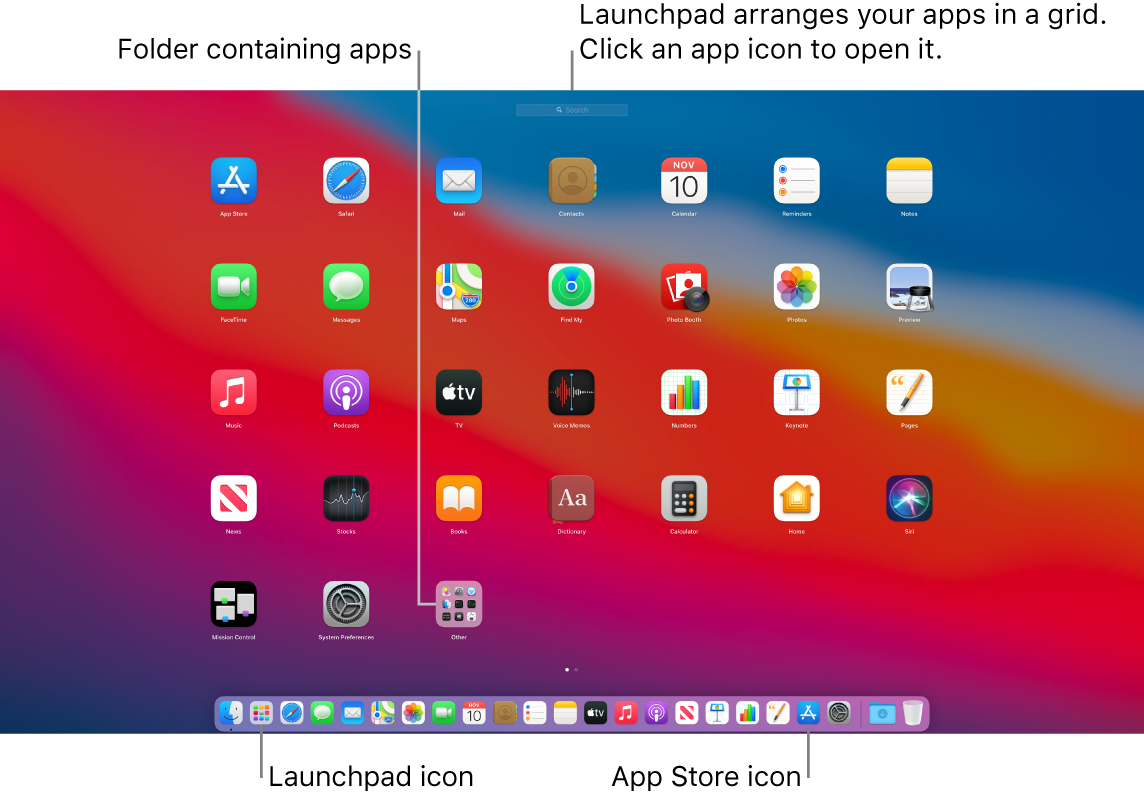
Open and close Launchpad. Click the Launchpad icon  in the Dock to open Launchpad. To close it, press Esc or click anywhere on the screen (except on an app icon).
Search for an app. Type its name in the search field at the top of Launchpad. To move to another page in Launchpad, press Command-Left Arrow or Command-Right Arrow.
Organize apps in Launchpad. Launchpad organizes your apps in a grid. Drag an app to a new location to rearrange apps. Drag an app onto another app to create a folder. Drag more apps to the new folder to add them. To remove an app from a folder, drag it out.
Learn more. See the Apple Support article Use Launchpad on your Mac.
તમારા પ્રતિસાદ બદલ ખૂબ ખૂબ આભાર.