
Diagnose Mac startup issues
It’s important to understand what types of startup issues users might encounter. When a Mac won’t start properly, understanding safe mode, startup disk issues, and disk verification helps you provide effective solutions to get users back to work.
Startup issues can show different icons on the screen:
Question mark: A folder with a flashing question mark means that the startup disk is no longer available or doesn’t contain a working version of macOS.
See the Apple Support article If your Mac starts up to a question mark.
Circle with a line through it: A prohibitory symbol, which looks like a circle with a line or slash through it, means that the startup disk contains a Mac operating system, but it’s not a version or build of macOS that the Mac can use.
See the Apple Support article If your Mac starts up to a circle with a line through it.
Globe with warning symbol: A globe with a warning symbol (exclamation point) means that the Mac tried to start up from macOS Recovery over the internet, but couldn’t.
See the Apple Support article How to start up from macOS Recovery.
Apple logo: The Mac shows an Apple logo when it finds your built-in or external startup disk. As startup continues, you should see a progress bar, with or without the Apple logo. This screen might alternate with a blank screen several times.
See the Apple Support article If your Mac starts up to an Apple logo or progress bar.
Blank (empty) screen: A blank screen (black, gray, or blue) should appear once or more as the Mac starts up. In some instances, the Mac seems to be turning on but is stuck on a blank screen.
See the Apple Support article If your Mac starts up to a blank screen.
Options with a gear icon: The startup options window shows icons for each available startup disk, a gear icon labeled Options, and buttons for Shut Down and Restart.
See the Apple Support article If your Mac starts up to Options with a gear icon.
Exclamation point in a circle: In very rare circumstances, such as when a power failure interrupts macOS installation, the Mac might start up to a circled exclamation point. This means that the firmware stored in the computer’s memory needs to be revived or restored.
See the Apple Support article How to revive or restore Mac firmware.
Activation Lock: If the previously owned Mac shows an Activation Lock window that asks for someone else’s Apple Account, the previous owner may need to remove Activation Lock.
See the Apple Support article Activation Lock for Mac.
System lock PIN code: The Mac might ask for a PIN code when it has been remotely locked using Find My because the owner thinks the Mac is lost or stolen. Enter the four- or six-digit passcode to continue.
Image of mouse or keyboard: If the user sees a line drawing of the underside of a Magic Mouse or backside of a Magic Keyboard, with a small arrow next to the power switch in the drawing, the Mac can’t detect the built-in or external mouse, trackpad, or keyboard.
See the Apple Support article If your keyboard or mouse won’t connect during Mac setup.
Display icon with warning symbol: A large display icon with a warning symbol against a dark background on an Apple Studio Display means that it’s in recovery mode.
See the Apple Support article If an error occurred while updating your Apple Studio Display.
Safe mode
Safe mode is a startup mode that loads only essential system files and performs a basic disk check for diagnostics. Safe mode does the following:
Prevents certain software from loading as the Mac starts up, including login items and extensions that aren’t required by macOS, and fonts that weren’t installed by macOS.
Performs a basic check of the startup disk, similar to the more comprehensive check that the First Aid feature of Disk Utility performs.
Clears some system caches, including font cache, and automatically creates them again as needed.
Safe mode can resolve these issues:
Font display issues.
Caches are cleared, which can help resolve app startup issues.
Folder names appearing as “?” in a network volume.
If the issue doesn’t occur in safe mode, it’s likely related to third-party software or drivers.
To learn more about safe mode, see the Apple Support article Start up your Mac in safe mode.
Startup Security Utility
A Mac with Apple silicon uses the sophisticated security features of its signed system volume to protect a Mac against malicious tampering. By default, a Mac uses the highest level of security, called Full Security. Before a legacy extension (also known as a kernel extension or kext) can be installed on a Mac computer with Apple silicon, the security policy must be changed to Reduced Security.
If an organization-owned Mac is enrolled in a device management service, it can remotely manage kernel extensions and software updates. This management can be authorized automatically if the serial number of the managed Mac appears in Apple School Manager or Apple Business. If not, the device management service administrator can ask a local administrator to manually change the security policy to Reduced Security to authorize remote management of legacy kernel extensions.
Note: Any user who’s an administrator of their Mac can change the level of security used on the startup disk.
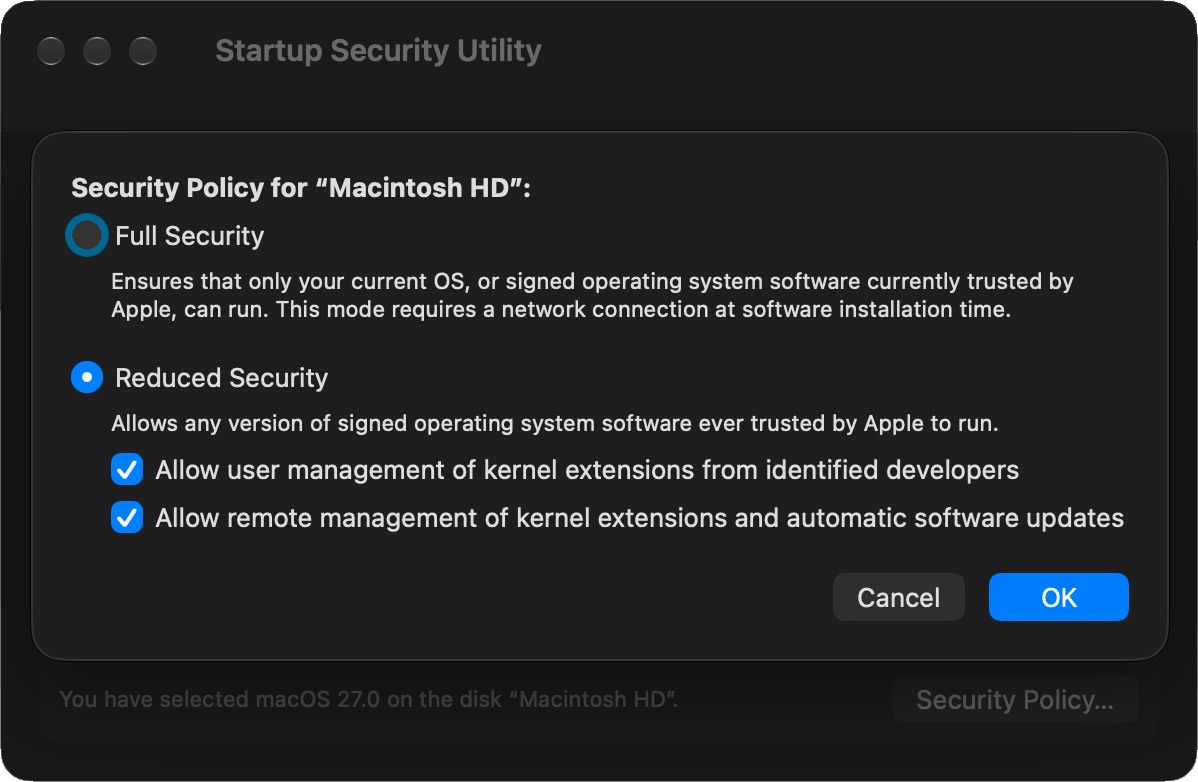
Select one of the following security options:
Full Security: Ensures that only your current operating system, or signed operating system software currently trusted by Apple, can run. This mode requires a network connection at software installation time.
Reduced Security: Allows any version of signed operating system software ever trusted by Apple to run.
If you selected Reduced Security, select any of the following options, if needed:
Allow user management of kernel extensions from identified developers: Allows installation of software that uses legacy kernel extensions.
Allow remote management of kernel extensions: Authorizes remote management of legacy kernel extensions using a device management service.
If you can’t start your Mac
What to look for:
Mac displays startup icons like question mark, prohibitory symbol, or blank screen.
Mac appears to turn on but doesn’t progress past startup screen.
Mac powers on but gets stuck during startup process.
What’s happening:
Startup disk issues, corrupted system files, or hardware issues prevent normal startup.
Steps to take:
Try starting up in safe mode to isolate software issues. Press and hold the power button until “Loading startup options” appears, then release it. Select the startup disk, press and hold Shift, then click Continue in Safe Mode.
Use macOS Recovery to run Disk Utility First Aid on your startup disk.
If Disk Utility finds errors it can’t repair, back up data and erase the disk, then reinstall macOS.
For hardware issues, run Apple Diagnostics. Press and hold the power button until “Loading startup options” appears, then release it. Press and hold Command-D until the Mac restarts.
If startup disk doesn’t appear in Disk Utility, the Mac may need service.