Use Apple Music in the Music app

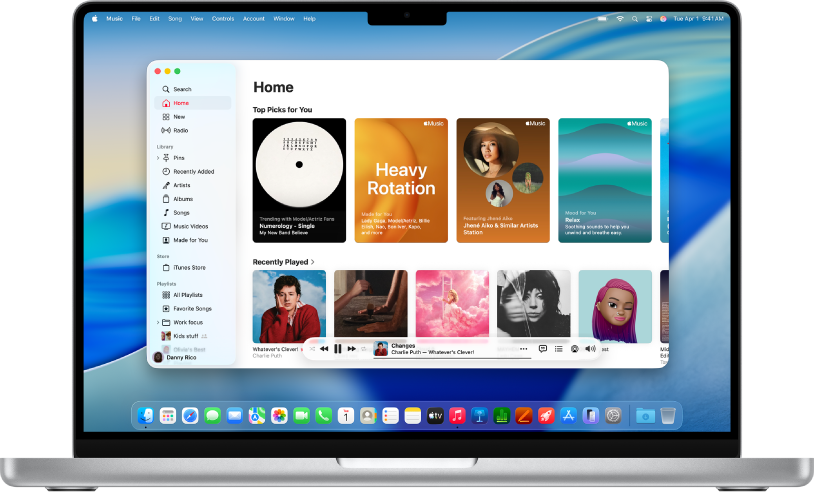
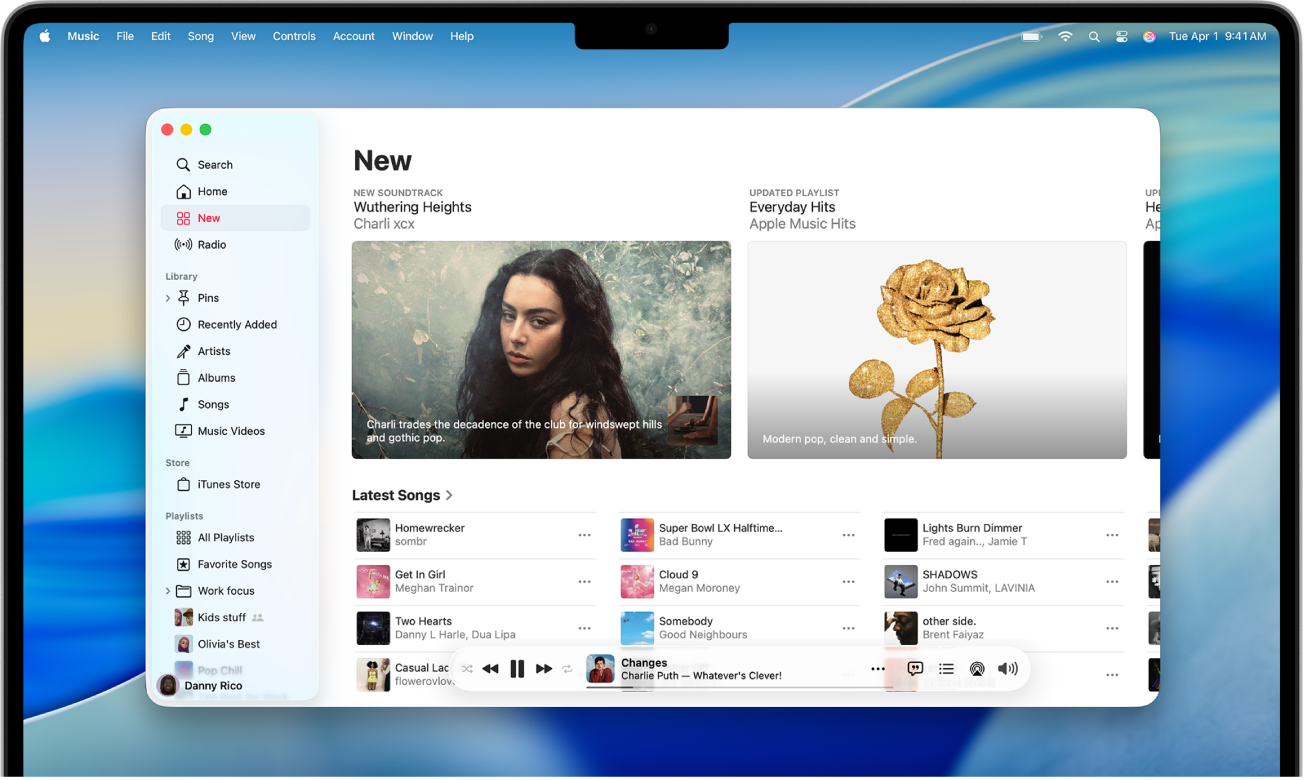
With your Apple Music membership, you can access more than 30 million songs, curated radio and playlists, and music recommendations, all in the Music app.


When you join Apple Music, you get access to a whole world of music—any of our 30 million songs and all of your songs—through the Music app.

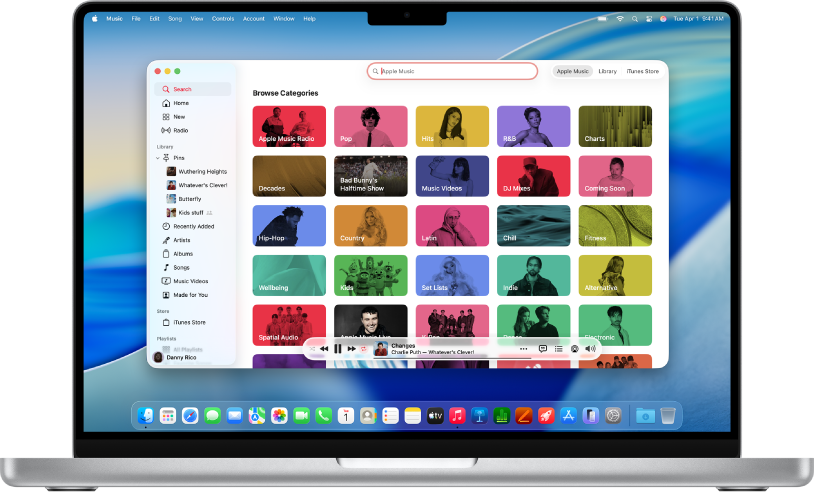
In the Library tab, you can find all of your music. The For You tab has music that's handpicked by experts just for you, and exclusive content from your favorite artists. The Browse tab shows you all of the latest hits and curated playlists. From the Radio tab, you can listen to Beats 1, our 24/7 worldwide radio station, and Apple Music's on-demand stations. And you can use the Search tab to find music that you want to listen to or see what other members are searching for.

If you're not already a member of Apple Music, join today and get 3 months free.*

Apple Music features vary by country.

Library and Playlists

The Library tab makes it easy to navigate all of your music, wherever it comes from—from the iTunes Store, from a rare import CD, or from your Apple Music membership. Every time that you add a song, album, or playlist, we keep it at the top of Library in Recently Added. Tap Edit in the upper-right corner to change which view options (Playlists, Artists, Albums, Songs, Video, Genres, Complications, Composers, and Downloaded Music) you see.

Play your music

If you want to listen to an artist's entire collection of music that you've saved to your library, find the artist in Library > Artists. Tap Shuffle All  to play all of their music.


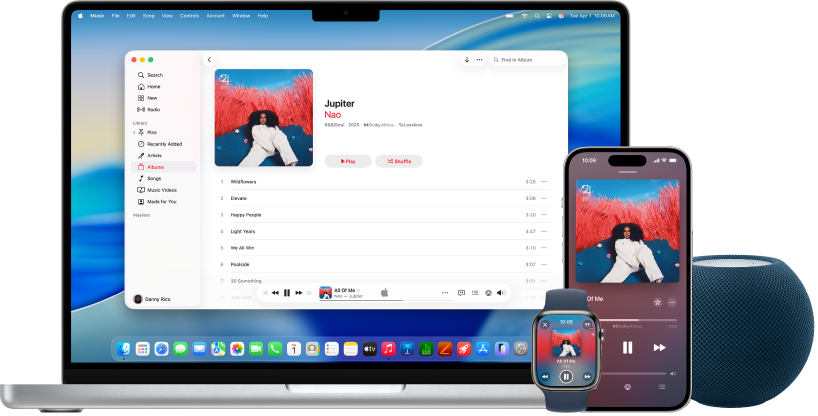
When you play a song, you see a player at the bottom of the screen. You can keep browsing other titles to find the perfect next song.

Tap or swipe up on the player at the bottom to see the Now Playing screen and controls. Tap the close icon  at the top of the screen or swipe down to close Now Playing.


Up Next, Shuffle, and Repeat

Also on the Now Playing screen, you can rewind, pause, or fast forward a song, control the volume, read song lyrics, and more.

Swipe up on Now Playing to show your Up Next queue, which lists all of the songs that you’ve selected for playback.

Drag songs with move icon to rearrange the order, or swipe left to remove a song that you’d like to skip.

Tap shuffle icon to the right of Up Next to shuffle the songs in a playlist or album.

Tap repeat icon once to play an entire playlist or album on repeat or twice to repeat one song. Tap repeat icon a third time to clear the repeat.

If you have repeat turned on, you might not see move icon .

Show Lyrics

Lyrics aren't available for all songs. When lyrics are available, tap  then Lyrics to show the lyrics, or tap Show to the right of Lyrics above Up Next.

You can't use Lyrics in Airplane Mode or when you're not connected to the Internet. And, if you have explicit content turned off, lyrics might not be visible to you if they contain explicit words.

Learn more about Lyrics in Apple Music.

Create a playlist

You can create playlists to listen to or share with friends. From the Library tab, tap Playlists, then New Playlist. Fill in details for your playlist, such as the title and description, then add music. If you like, you can also add an image. When you're happy with your playlist, tap Done in the upper-right corner.

If you don't see Playlists under Library, tap Edit in the upper-right corner, then tap Playlists to turn it on. Tap Done to return to Library.

Share your music

To share a song, press and hold the song, then tap Share Song . To share an album or playlist, tap , then Share Album or Playlist . You can share music to Facebook or Twitter, send using Mail or Messages, or copy the link.

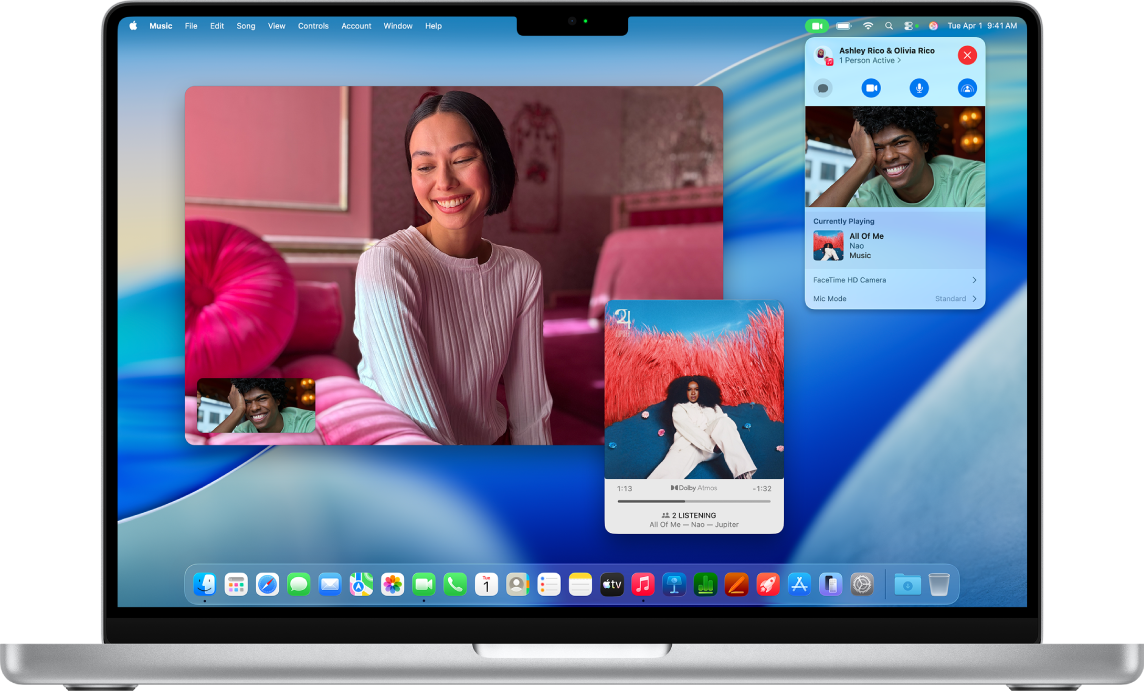
With iOS 10 or later, people you share music with in Messages can listen to or preview songs directly in the Messages app. If they have an Apple Music membership, they can play the full song. If they don’t have an Apple Music membership, they can listen to the iTunes Store preview for the item and then go to the iTunes Store to purchase it.


Listen offline

You can download songs, albums, or playlists to your device so that you can listen to them when you're not connected to the Internet**. Find the song, album, or playlist that you want to download, then tap Apple Music download icon. You'll see Downloaded icon when the download is complete. If you don't see Apple Music download iconadd the music to your Library, then download it to your device.

If you want to automatically download any music that you add to your library, go to Settings > Music, then scroll to the Downloads section and turn on Automatic Downloads.

If you want to see only music that's downloaded to your device, tap Library > Downloaded Music. A message that says "Showing only music on this [device]" appears at the top of the screen. Tap Library in the upper-left corner to see all of your music.


For You

In the For You tab, you can discover albums and playlists curated by our team of experts to match your musical tastes, updated daily. The suggestions you see in For You are influenced by:

You can also see what you’ve been playing recently, as well as posts from your favorite artists in Connect.

Connect

You can Like Connect posts, write comments to the artist, and see what other fans have to say. You can also share an artist’s post with your friends through social media. Just tap Share.

To follow an artist in Connect, search for or tap an artist to open their artist page, tap , and then tap Follow on Connect follow on Connect . When you follow an artist, any new posts that they make are automatically added to your Connect Posts feed. You can follow an artist even if you don’t have their music in your library.

To see the artists that you follow, tap your profile icon in the upper-left corner, and then tap "Find More Artists and Curators." Tap unfollow on Connect to the right of an artist to stop following them. To stop automatically following artists when you add their songs to your music library, turn off Automatically Follow Artists: Tap For You, then tap account icon or your photo. Tap "Find More Artists and Curators," then turn off Automatically Follow Artists.


Browse

Apple Music is dedicated to bringing you the latest and greatest in music. The Browse tab features music that's new, popular, and up-and-coming each week, and you can browse the Apple Music Catalog by genre.

In the Browse tab you'll also find playlists curated by Apple Music Editors and industry partners. Tap Curated Playlists to view new and featured playlists, playlists created with specific activities and moods in mind, and playlists curated by industry names you’re sure to recognize. You can also listen to genre-specific playlists.

And you can add any of these songs and playlists to your library, too.


Radio

Beats 1, our 24/7 radio station, features radio shows from legendary artists and DJs that you can listen to live or on-demand. Tune in to hear exclusive interviews, guest hosts, and the best of what’s going on in music.

Radio also features curated stations for every genre of music, or you can create your own custom stations. These stations don't have ads, and you can skip an unlimited number of songs as you listen. You can also add songs that you like to your Apple Music library.

Learn more about Radio.

You can also use Siri to search Apple Music at any time or ask Siri to help you play music using instructions like these:

  • "Play the top songs from 2016."
  • "Play more songs like this."
  • "Add the new Taylor Swift album to my library."
  • "Play an album by Pharrell Williams that you think I will like."
  • "Play Drake's top songs."
  • "Play happy music."
  • "Play something for working out."
  • "Play my new releases."


*Requires initial sign-up. At the end of the trial period, the membership will automatically renew and payment method will be charged on a monthly basis until you cancel your membership in account settings.

**You can download music on up to 10 devices. These songs are accessible only during your Apple Music membership.

Information about products not manufactured by Apple, or independent websites not controlled or tested by Apple, is provided without recommendation or endorsement. Apple assumes no responsibility with regard to the selection, performance, or use of third-party websites or products. Apple makes no representations regarding third-party website accuracy or reliability. Risks are inherent in the use of the Internet. Contact the vendor for additional information. Other company and product names may be trademarks of their respective owners.

Last Modified: