Unlock your Mac with Apple Watch
While you’re wearing Apple Watch, your Mac can sense when you’re nearby and automatically log you in. You can also use Apple Watch to approve other requests for your administrator password.
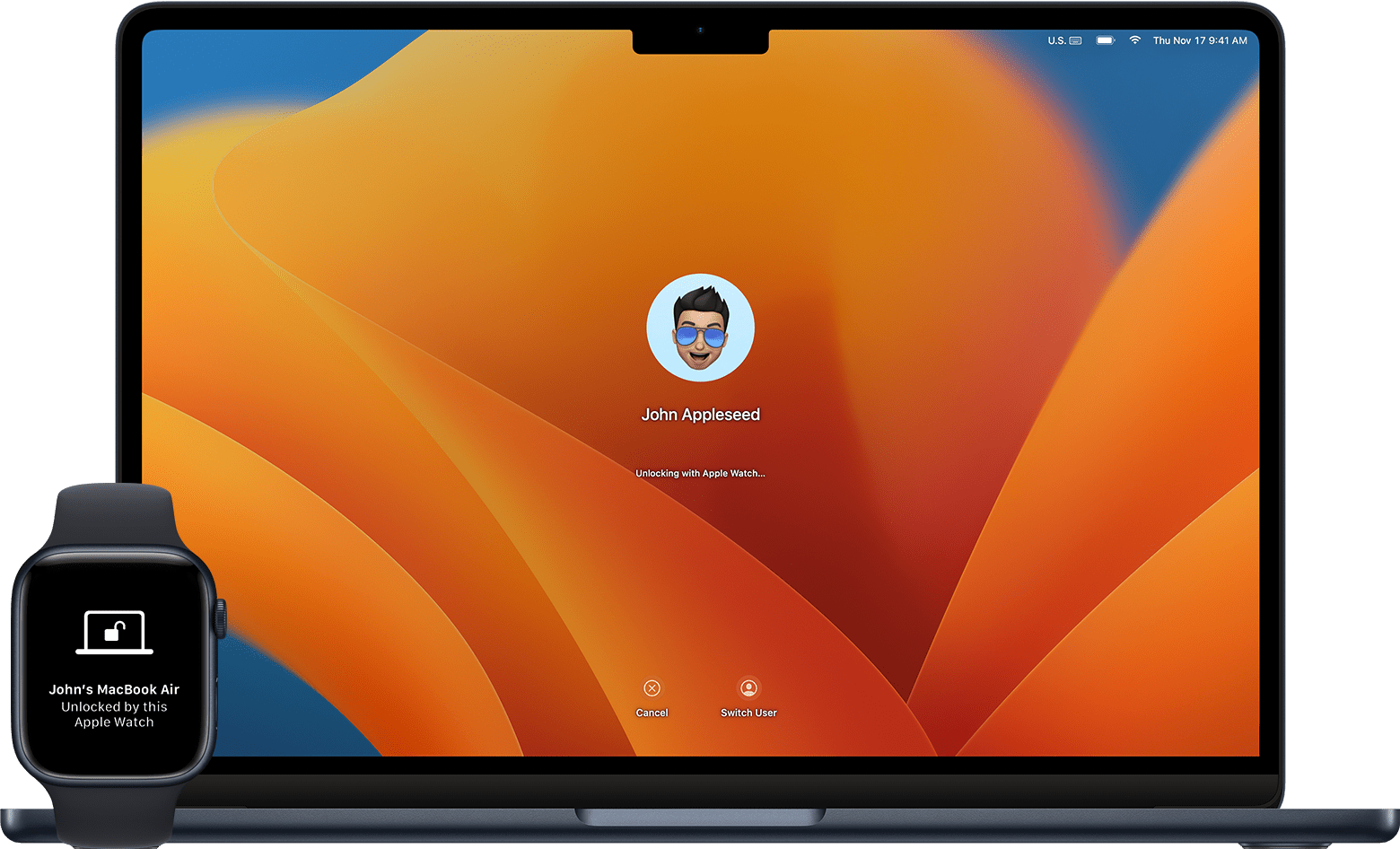
Set up Auto Unlock
Make sure that your devices meet the system requirements for Auto Unlock and are set up as follows:
Your Mac and Apple Watch have Wi-Fi and Bluetooth turned on.
Your Mac and Apple Watch are signed in with the same Apple Account using two-factor authentication.
Your Apple Watch is using a passcode.
macOS Ventura 13 or later:
From the Apple menu , choose System Settings.
In the sidebar, click Touch ID & Password (or Login Password, depending on your Mac model).
In the Apple Watch section on the right, turn on the setting for your Apple Watch.
Earlier versions of macOS:
From the Apple menu , choose System Preferences.
Click Security & Privacy.
Select ”Use your Apple Watch to unlock apps and your Mac” or “Allow your Apple Watch to unlock your Mac.”
Log in and approve password requests with Apple Watch
The first time you log in after you turn on, restart, or log out of your Mac, you must enter your password manually. After that, Apple Watch logs in for you. Just wake up your Mac when you're wearing your Apple Watch and you're logged in automatically—without typing a password.
You can also use your Apple Watch to approve many other requests to enter your administrator password. Just double-click the side button on your Apple Watch when prompted. Your administrator password is then automatically entered on your Mac.

If you need help
If you're having difficulty getting Auto Unlock to work:
Make sure that you’re wearing your unlocked Apple Watch and are very close to your Mac. If necessary, move your watch a little closer.
Open System Settings (or System Preferences) and turn off the Apple Watch setting described in the previous section. Then restart your Mac and turn the setting back on.
Install the latest macOS updates and watchOS updates.
Make sure that your Mac isn't using internet sharing or screen sharing, which are turned off by default.
