Use Emergency SOS on your Apple Watch
With Emergency SOS, you can quickly and easily call for help and alert your emergency contacts from your Apple Watch.
Here's how it works
When you make a call with Emergency SOS, your Apple Watch automatically calls local emergency services and shares your location with them.1

When the call ends, your Apple Watch sends your emergency contacts a text message with your current location, unless you choose to cancel.2 For a period of time after you enter SOS mode, your emergency contacts receive updates when your location changes. Learn how to add emergency contacts.
Emergency SOS requires a satellite connection, cellular connection, or Wi-Fi calling with an internet connection from your Apple Watch or nearby iPhone. You can use cellular models of Apple Watch to make an emergency call in many locations, provided that cellular service is available. Some cellular networks may not accept an emergency call from your Apple Watch if your Apple Watch isn’t activated, if it isn’t compatible with or configured to operate on a particular cellular network, or if isn’t set up for cellular service, or if the cellular network does not support emergency calling over IMS.
Learn more about Apple Watch GPS + Cellular.
In some countries and regions, you might need to choose the emergency service that you need. For example, in China mainland you can choose police, fire, or ambulance. And if you have Apple Watch Series 5 or later (GPS + Cellular), Apple Watch SE or later (GPS + Cellular), or any model of Ultra, your watch can also call local emergency services when you're traveling in other countries or regions.
How to call emergency services on your Apple Watch
Press and hold your watch's side button (the button below the Digital Crown) until the Emergency Call slider appears. On Apple Watch Ultra models, you can also press and hold the Action button.

Drag the Emergency Call slider to start the call immediately. Or you can keep holding the side button; after a countdown, your watch calls emergency services automatically.
Use Crash Detection and Fall Detection to call for help
If you have Apple Watch Series 8 or later, Apple Watch SE (2nd generation), or Apple Watch Ultra or later with the latest version of watchOS, your device can call emergency services and send a message to your emergency contacts when a severe car crash is detected. Learn more about using Crash Detection on Apple Watch to call for help in an accident.
Fall Detection on Apple Watch Series 4 or later and Apple Watch SE or later can connect you to emergency services when a hard fall is detected. Learn how to use Fall Detection on Apple Watch.
Turn off automatic dialing
You can change your settings so that holding the side button won't call emergency services automatically:
Open the Apple Watch app on your iPhone, then tap the My Watch tab.
Tap Emergency SOS.
Turn off Hold Side Button to Dial.
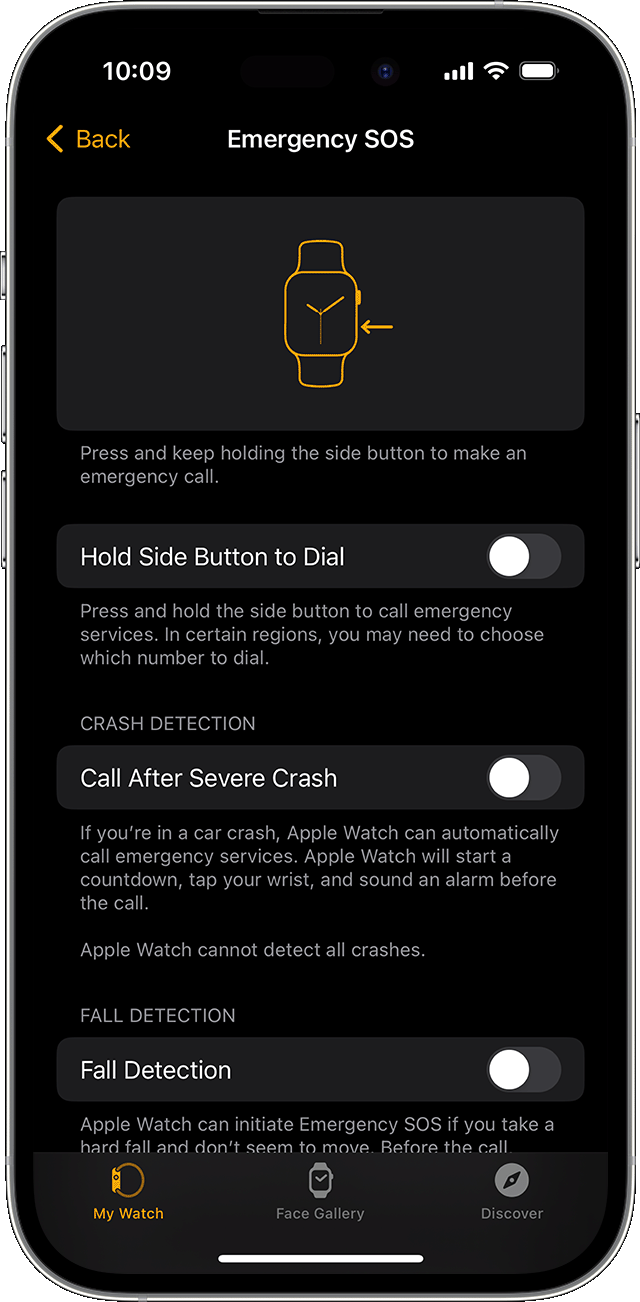
If you turn off this setting, you can still use the Emergency Call slider to make a call.
End a call that you started accidentally
If you start the Emergency SOS countdown by accident, just release the side button.
If the call has been made, but you don’t need emergency services, don’t hang up. Wait until a responder answers, then explain that you don’t need help. After that, your watch asks if you still want to send a text message to your emergency contacts. Tap No if you want to cancel the text.
Stop sharing your location
After your emergency call, your Apple Watch will remind you every four hours that your location is being shared with your emergency contacts. Tap Stop Sharing in the notification to stop sharing your location.
International emergency calling
Apple Watch Series 5 and later (GPS + Cellular), Apple Watch SE and later (GPS + Cellular), and all models of Ultra can call local emergency services when you're in another country or region. When you start an Emergency SOS call while abroad, your watch connects to local emergency services, but it may not be able to send your location or a text message to your emergency contacts.
In some countries and regions, international emergency calling works even if you haven't set up cellular service on the watch. Learn which countries and regions are supported.
Just like when you use Emergency SOS in your home country or region, your iPhone needs to be nearby if your Apple Watch isn't a cellular model.
Set up other emergency features
Location sharing with emergency services varies by country and region, and may not be available everywhere.
If you use Emergency SOS, your emergency contacts will not be automatically notified if the Messages app is not the selected Text Messaging App or is deleted.
Need more help?
Tell us more about what's happening, and we’ll suggest what you can do next.
