Use 4K and 60 frames per second video in iMovie
In iMovie on iPhone, iPad, or Mac, you can work with 4k and 60 frames per second (fps) video as long as one of the clips in your project was originally recorded in one of those formats.
Record 4k or 60 fps video
You can set your iPhone or iPad to record 4k or 60 fps video. If you're recording video with a device not made by Apple, contact the company that makes the device for instructions on how to set your device to record 4k or 60 fps video.
For superior sharpness and quality, record and edit video recorded at 4K. For a smoother and more true-to-life look, try recording and editing video at 60 fps.
Use 4k or 60 fps video in iMovie
After you've recorded 4k or 60 fps video, simply add the video clips to your project in iMovie. You can combine 4k and 60 fps video clips with other types of video clips and photos in the same project.
Use 4k or 60 fps video on iPhone or iPad
In iMovie on iPhone or iPad, make sure your project has at least one 4k or 60 fps video clip.1 You can also share a 4k or 60 fps video if your project contains only photos.
Use 4k or 60 fps video on Mac
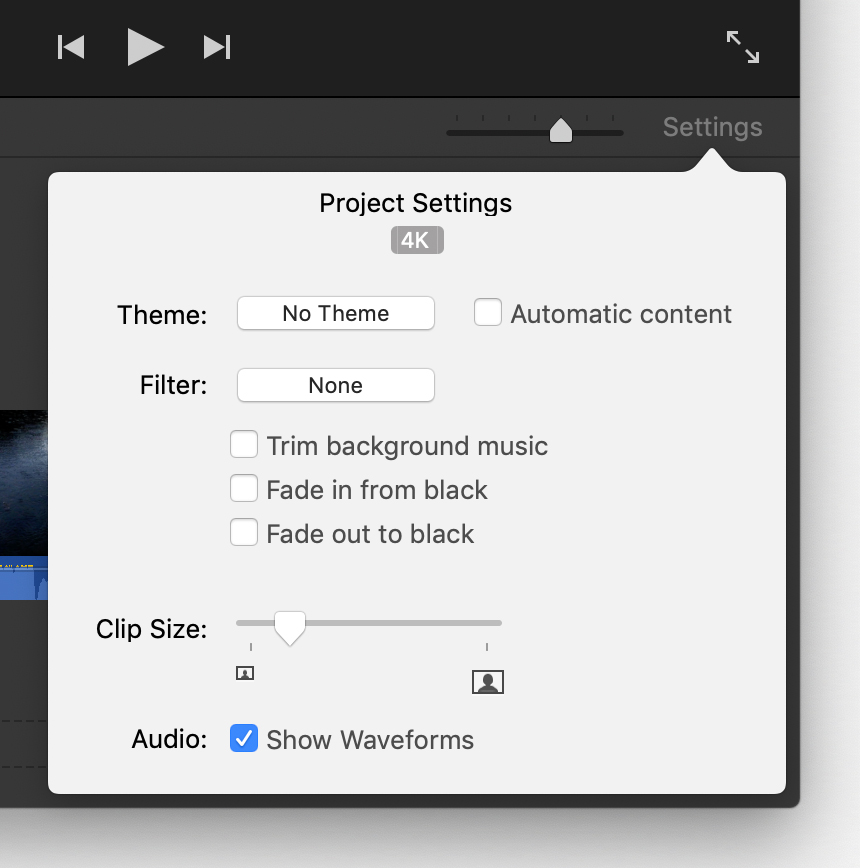
In iMovie on Mac, make sure the first clip you add to your project is a 4k or 60 fps video clip.2 The first clip you add to a project determines the format for the entire project.
To confirm your project's video format, click Settings in the upper right side of the timeline. The format of the current project appears under Project Settings in the window.
Share a 4k project from iMovie
You can share a 4k project from iMovie on iPhone, iPad, or Mac. iMovie shares 4K projects at a resolution of 3840 x 2160 in the 4K UHD format at 30 fps.
Share a 4k project on iPhone or iPad
Select a movie or trailer in the Projects view.
Tap the Share button
 .
.Tap Save Video.
Choose 4K. iMovie exports your video to the Photo Library in the Photos app.
You can also share a 4K video directly from iMovie to YouTube. When sharing to other online destinations, your movie might be converted to a lower resolution.
Share 4k video on Mac
Select a movie or trailer in the Projects view.
Click the Share button
.Click File.
In the Share window, choose 4K from the Resolution pop-up menu.
Set other options, click Next, then save your movie.
You can also share a 4K video directly from iMovie to YouTube. When sharing to other online destinations, your movie might be converted to a lower resolution.
Share 60 fps video from iMovie
You can share 60 fps video from iMovie on iPhone, iPad, or Mac. iMovie shares 60 fps projects at a resolution of 1920x1080 (also called 1080p60).
Share a 60 fps project on iPhone or iPad
Open the Settings app, tap iMovie, then select "Enable 60 fps export."
Choose the movie or trailer in the Projects view that you want to share.
Tap the Share button
.Tap Save Video.
Choose " HD - 1080p60." You can also choose resolutions lower than 1080p, while still preserving the 60 fps frame rate. iMovie exports your video to the Photo Library in the Photos app.
You can also share a 60 fps video directly from iMovie to YouTube. When sharing to other online destinations, your movie might be converted to a lower resolution.
Share a 60 fps video on Mac
Select a movie or trailer in the Projects view.
Click the Share button
.Click File.
In the Share window, choose "1080p 60" from the Resolution pop-up menu. You can also choose resolutions lower than 1080p, while still preserving the 60 fps frame rate.
Set other options, click Next, then save your movie.
You can also share a 60 fps video directly from iMovie to YouTube. When sharing to other online destinations, your movie might be converted to a lower resolution.
View a project in 4K while editing
With iMovie 10.1 or later on an iMac with Retina 5K display, you can view pixel-for-pixel 4K video while editing your movie. First, put iMovie into full screen mode—click the green button in the top-left corner of the iMovie window. Then drag the lower edge of the Viewer to expand it to its maximum size, which shows 4K video at 100% resolution.
1 For iMovie for iOS, you can edit and share 4K video on iPhone 6s, iPhone 6s Plus, iPad Air 2, iPad Pro, and later devices.
2 For iMovie for macOS, you can edit and share 4K video on Mac computers from 2011 or later with at least 4GB of memory.
Information about products not manufactured by Apple, or independent websites not controlled or tested by Apple, is provided without recommendation or endorsement. Apple assumes no responsibility with regard to the selection, performance, or use of third-party websites or products. Apple makes no representations regarding third-party website accuracy or reliability. Contact the vendor for additional information.
