Set up your Magic Keyboard, Magic Mouse, or Magic Trackpad with your Mac
If your wireless input device came in the box of your new Mac, just turn on the device to begin using it. Otherwise follow these steps to set it up.

Magic Keyboard, Magic Keyboard with Touch ID, Magic Mouse, and Magic Trackpad work wirelessly via Bluetooth when turned on and paired with your Mac.
If the device came in the box of your new Mac, it should already be paired with that Mac, and it automatically connects when you turn on the device. It's turned on when you see green under its power switch.
If the device came in its own box or you need to set it up again, follow the steps below.
Set up Magic Keyboard, Magic Mouse, or Magic Trackpad
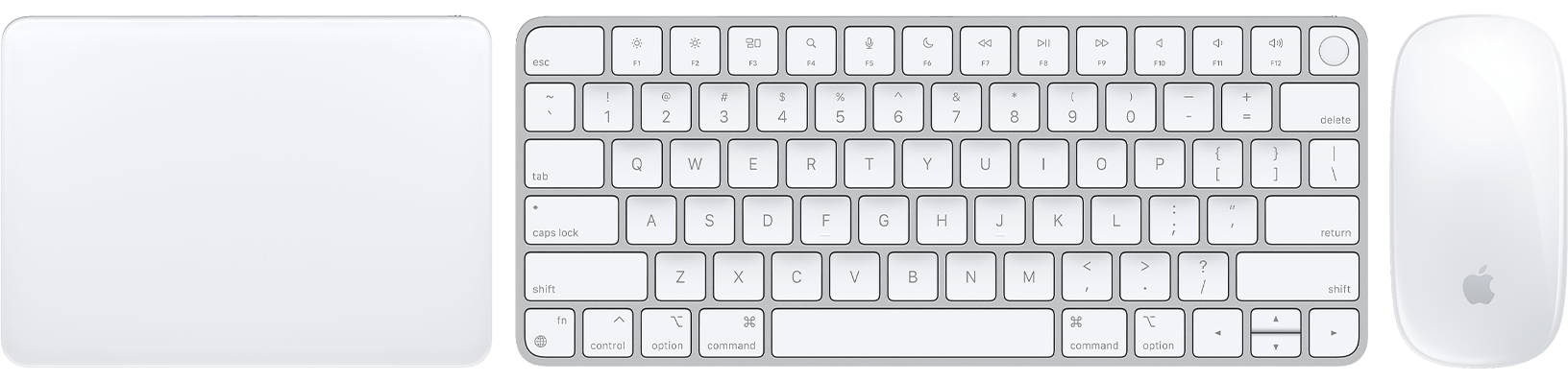
Use one of these cables to connect your wireless device to your Mac:
USB-C Cable
USB-C to Lightning Cable
Lightning to USB Cable
If you can't connect the cable because your device doesn't have a USB-C or Lightning port, follow the steps in the next section.
Turn on the device. You should see green under its power switch.
The device uses the USB connection to recharge its battery and automatically pair with your Mac. To check its charge level and confirm that it's paired, choose Apple menu , then select System Settings (or System Preferences). Click Bluetooth. The device should appear in the list of Bluetooth devices.
Unplug the device for wireless use.
Set up earlier Apple wireless input devices
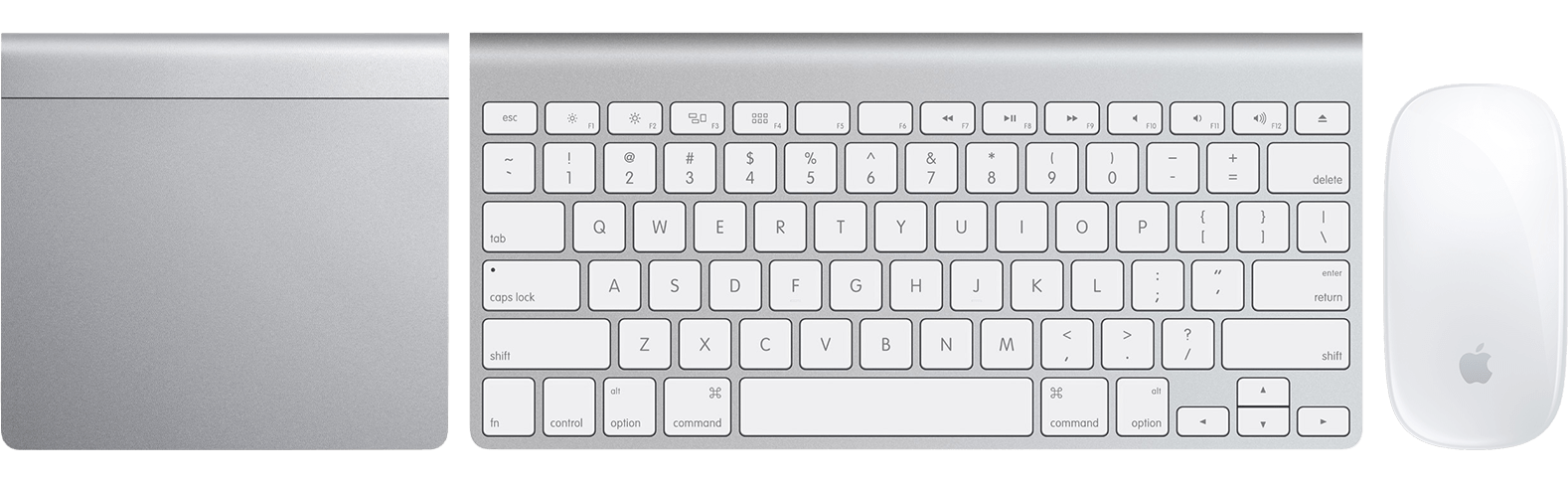
Earlier models of Apple's wireless input devices don't have a Lightning port. To set them up, you need a wired or wireless mouse or trackpad that is already connected to your Mac. If you're using a laptop computer, you can use its built-in trackpad during setup.
Turn on your device. Its LED should start blinking to show that it's discoverable and ready to be paired.
If the LED never turns on, you might need to change the device's batteries.
If the LED turns on briefly but doesn't blink, the device might be connected to another Mac that is nearby. On that Mac, choose Apple menu , then select System Settings (or System Preferences). Choose Bluetooth. Click the Show Detail button
 , then click Forget This Device. Or move your pointer over the device's name, then click the remove button
 . After removing the device, turn it off and back on.
Choose Apple menu , then select System Settings (or System Preferences). Click Bluetooth.
When your device appears in Bluetooth preferences, click Connect.
If you're asked to enter a passcode, enter the passcode on the keyboard that you're setting up. Then press Return on the same keyboard.
Learn what to do if you can't connect your Magic Keyboard, Magic Mouse, or Magic Trackpad to your Mac.
Need more help?
Tell us more about what's happening, and we’ll suggest what you can do next.
