Using the USB-C port and adapters on your MacBook (Retina, 12-inch, Early 2015) and later

Learn about the power, data-transfer, and video capabilities of the USB-C port and USB-C adapters and cables for your MacBook (Retina, 12-inch, Early 2015) and later.

USB-C port

USB-C is a next-generation industry standard that allows charging, data transfer, and video—all in one simple connector. Your MacBook comes with one USB-C port:

Through this port you can:

  • Charge your MacBook.
  • Provide power out.
  • Transfer data between your MacBook and other devices.
  • Connect video output such as HDMI, VGA, and DisplayPort.
  • Connect to other technologies, such as Ethernet.

The USB-C port on your MacBook supports data-transfer speeds at up to 5 Gbps (USB 3.1 Gen 1).

29W USB-C Power Adapter and USB-C Charge Cable

The Apple 29W USB-C Power Adapter and USB-C Charge Cable are included in the box with your MacBook. Connect the adapter to the charge cable to charge your MacBook.

Your MacBook will charge from USB-C power adapters not manufactured by Apple if they adhere to the USB Power Delivery specification.


  • You can also use the USB-C Charge Cable to transfer data at USB 2.0 speeds between your MacBook and another USB-C device.
  • Additional USB-C adapters (sold separately) allow you to use the USB-C port to connect displays and other devices to your MacBook. See the sections below for more information.


USB-C to Lightning Cable

The Apple USB-C to Lightning Cable lets you connect any device with a Lightning connector with your MacBook. It provides data transfer and power to Lightning devices. For example, you can use this cable to connect your MacBook to these devices:

  • iPhone, iPad, and iPod touch
  • Magic Mouse 2
  • Magic Keyboard
  • Magic Trackpad 2

You can also charge these devices without using your MacBook by connecting them to the USB-C to Lightning Cable and plugging the cable into the 29W USB-C power adapter.

The USB-C to Lightning Cable supports data transfer at up to 5 Gbps (USB 3.1 Gen 1). 

This cable requires no power to operate. However, devices that you plug into it might draw power from your MacBook, so you should disconnect it when you're not using it.


USB-C to USB Adapter

The Apple USB-C to USB Adapter lets you use any standard USB (USB-A) device or hub with your MacBook. It provides data transfer and power to USB-A devices. For example, you can use this adapter to connect your MacBook to these devices:

  • Portable flash drive
  • Hard drive
  • Digital camera
  • Powered USB 3 hub
  • USB to Ethernet Adapter
  • Lightning to USB Cable for charging and syncing your iPhone, iPad, or iPod touch

The USB-C to USB Adapter supports data transfer at up to 5 Gbps (USB 3.1 Gen 1). 

This adapter requires no power to operate. However, devices that you plug into it might draw power from your MacBook, so you should disconnect it when you're not using it.


USB-C Digital AV Multiport Adapter

The USB-C Digital AV Multiport Adapter allows you to simultaneously:

  • Charge your MacBook.
  • Connect to other standard USB (USB-A) devices or hubs.
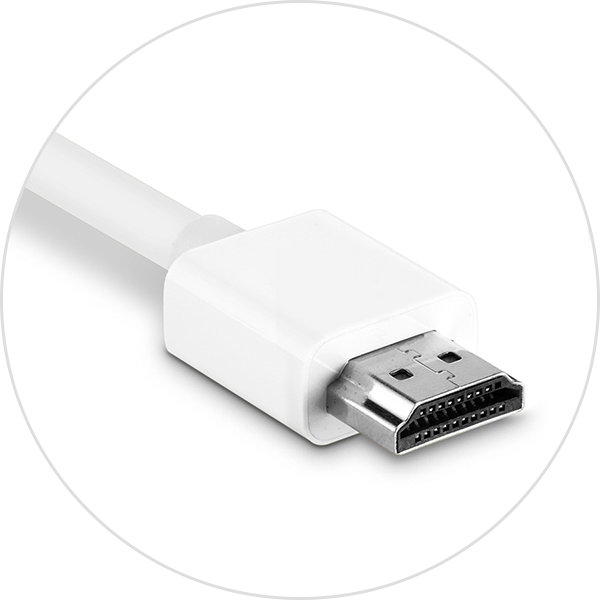
  • Connect your MacBook to external HDMI video devices such as a TV, projector, or display.

The HDMI port on this adapter supports the following:

  • TVs, displays, and projectors that you connect via HDMI
  • HDMI 1.4b
  • 720p and 1080p HDTVs, projectors, and displays at up to 1920 x 1200 resolution
  • 4K Ultra-HD TVs and displays with the following resolutions (learn more):
    • 3840 x 2160 at 30Hz
    • 4096 x 2160 at 24Hz 

The USB-A port on this adapter supports data transfer at up to 5 Gbps (USB 3.1 Gen 1). Connect standard USB devices or hubs.

The USB-C port on this adapter charges your computer, but it doesn't transfer data. Use the supplied 29W USB-C Power Adapter and USB-C Charge Cable to charge your MacBook.

This adapter draws power from your MacBook even when the MacBook is asleep. If your computer isn't connected to AC power, be sure to unplug the adapter to avoid draining your battery 


USB-C VGA Multiport Adapter

The Apple USB-C VGA Multiport Adapter allows you to simultaneously:

  • Charge your MacBook
  • Connect to other standard USB (USB-A) devices or hubs
  • Connect your MacBook to external VGA video devices such as a TV, projector, or display.

The VGA port on this adapter supports TVs, displays, and projectors that you connect via VGA. It supports these at resolutions up to 1920 x 1200.

The USB-A port on this adapter supports data transfer at up to 5 Gbps (USB 3.1 Gen 1). Connect standard USB devices or hubs.

The USB-C port on this adapter charges your computer, but it doesn't transfer data. Use the supplied 29W USB-C Power Adapter and USB-C Charge Cable to charge your MacBook.

This adapter draws power from your MacBook even when the MacBook is asleep. If your computer isn't connected to AC power, be sure to unplug the adapter to avoid draining your battery 

USB hubs and devices

You can connect USB hubs and devices to the USB-C adapters as described above.

USB hubs and other USB devices that supply power won't charge your MacBook. Use the supplied 29W USB-C Power Adapter and USB-C Charge Cable to charge your MacBook.

Some USB drives might not appear in the Finder when you plug them in. Try plugging the drive into the adapter before plugging the adapter into your MacBook. Or try connecting the drive through a powered USB A hub.

The following drives aren't compatible with the USB-C Digital AV Multiport Adapter or USB-C VGA Multiport Adapter:

  • G-Tech G-DRIVE mobile USB 3.0 Hard Drive 
  • Apple USB SuperDrive manufactured before Fall 2010 (learn more).

Ethernet adapters

You can connect your MacBook to Ethernet using certain adapters. If you use a third-party USB to Ethernet adapter, check with the manufacturer to see if you need any additional drivers.

Learn more

Learn how to move your content to your new MacBook from an older Mac.

Your MacBook with USB-C port supports USB target disk mode. You can enable target disk mode and use the following USB-C cables to transfer data. These cables are not currently available from Apple.

  • USB 3.0 or USB 3.1 USB-A to USB-C Cable: Use this cable to manually transfer data from any Mac notebook with USB-A port(s) to your MacBook with USB-C port. This cable cannot be used to migrate data using the Setup Assistant or Migration Assistant application.
  • USB 3.0 or USB 3.1 USB-C Cable (USB-C to USB-C): Use this cable to migrate data from any MacBook with a USB-C port to another MacBook with USB-C port using the Setup Assistant or Migration Assistant application. 

To enable target disk mode, hold down the T button on your keyboard while starting your MacBook. Then connect either of the USB-C cables described above. The USB-C Charge Cable (2m) supplied with your MacBook doesn't support target disk mode.

Information about products not manufactured by Apple, or independent websites not controlled or tested by Apple, is provided without recommendation or endorsement. Apple assumes no responsibility with regard to the selection, performance, or use of third-party websites or products. Apple makes no representations regarding third-party website accuracy or reliability. Risks are inherent in the use of the Internet. Contact the vendor for additional information. Other company and product names may be trademarks of their respective owners.

Last Modified: