If you need help with your Wi‑Fi password
If you don’t know or remember the password of a Wi-Fi network, these solutions might help.
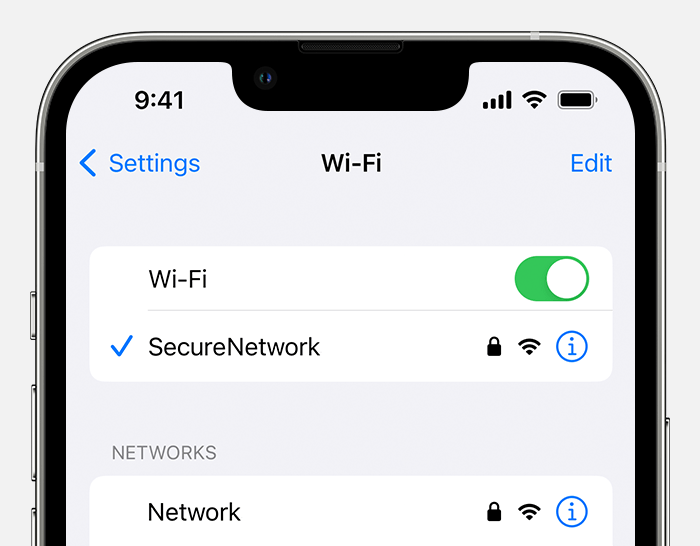
Identify a password-protected network
If a Wi-Fi network has a lock next to its name, it's a password-protected network. Wi-Fi passwords are case-sensitive, so make sure that you're typing the correct uppercase or lowercase characters.

Get the Wi-Fi password from another device
Other Apple devices that have joined the Wi-Fi network can share the network password with you. Or you can use them to see or copy the password.
Get the password from another iPhone or iPad
Get the password from another Mac
If the Mac is using macOS 13 or later, you can instead copy the password:
From the Apple menu , choose System Settings.
Click Network in the sidebar, then click Wi-Fi on the right.
Scroll down and click Advanced to open the list of known networks.
Click the More button
 next to the network name, then choose Copy Password.
Paste the password somewhere else to see it. If both devices are yours, you might be able to use Universal Clipboard to paste the password directly onto your other device.
Check for the Wi-Fi password in other places
If you administer the Wi-Fi router and can log in to its admin webpage or app, you can view or change the password of its network there.
If you’re using a public Wi‑Fi network at a library, hotel, business, or other shared space, ask a staff member for help, or look for signs or information sheets that show the network name and password. Some public Wi‑Fi networks might ask you to log in after joining the network.
Check for a label on the Wi-Fi router, check the router's documentation, or check for an information sheet left by the person or internet provider who set up the router. These locations might show the default network name (or SSID) and password (or network key), which might still be in use.
Check with the person or internet provider who set up the router. Or check with the router manufacturer. They might be a be able to help you recover or reset the password.
Forget the Wi-Fi network, then join it again
If your device previously joined the network using the network’s old password, and now you want it to join with the network’s new password, you can forget the Wi-Fi network, then join the network again. When you rejoin the network, you will be asked to enter its current password. Learn how to forget a Wi-Fi network.
Need more help?
Tell us more about what's happening, and we’ll suggest what you can do next.
