Use the Action button, side button, and other controls on your iPhone
Learn about the buttons and other controls on your iPhone.
On iPhone 16 and later models with Camera Control
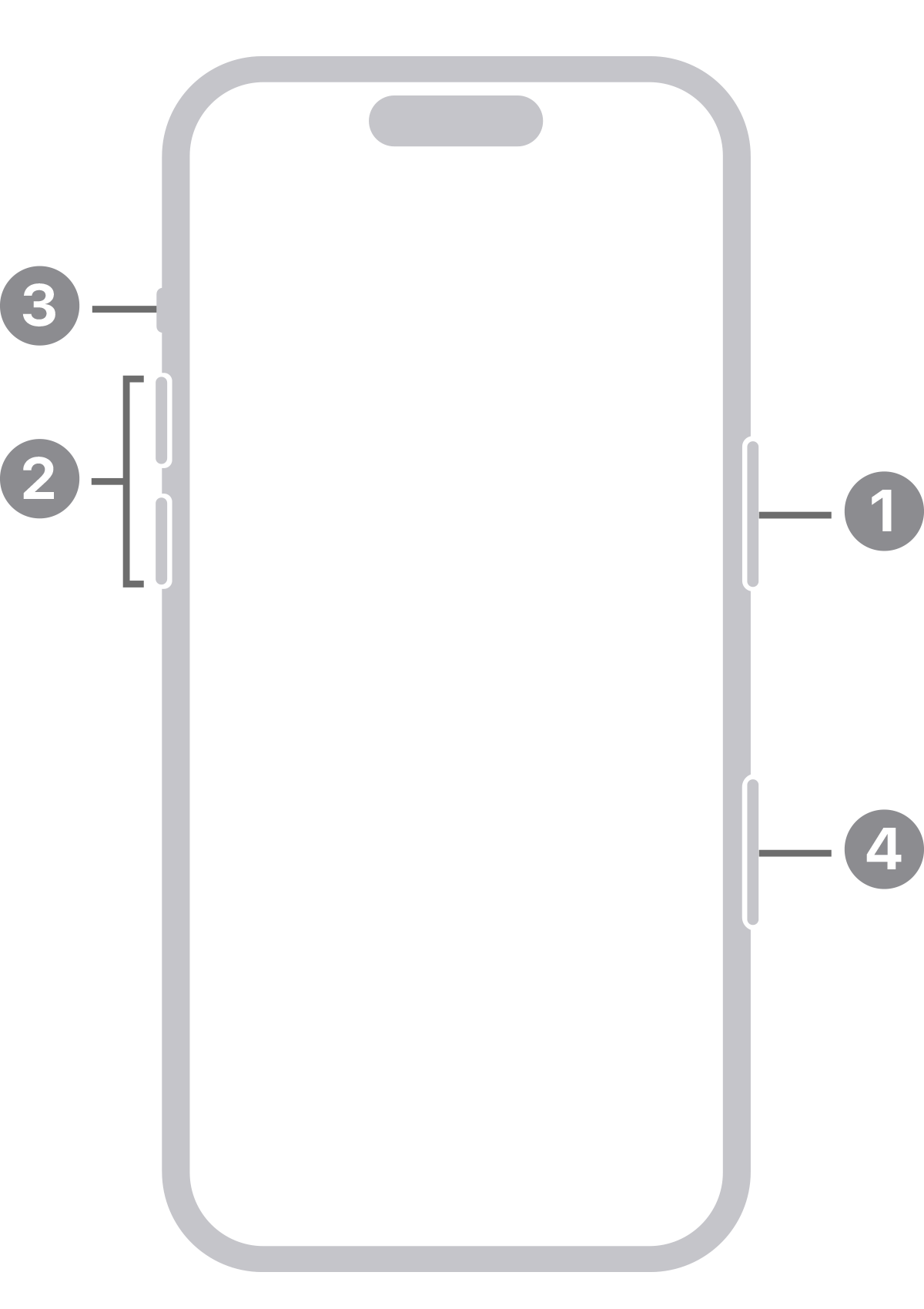
1: Side button: Use the side button to turn off your iPhone and to lock your iPhone.
2: Volume buttons: Use the volume up/down buttons to adjust the volume when listening to music, watching videos, or playing games. When you're not using other apps, the buttons will adjust the ringer volume.
3: Action button: You can choose what you want this button to do, including opening the Camera app or turning on the flashlight. By default, the Action button turns Silent mode on or off. Learn more about the Action button.
4: Camera Control: Use the Camera Control to quickly open your iPhone camera, capture photos or videos, and access camera settings. Learn more about the Camera Control.
On iPhone 17e, iPhone 16e, iPhone 15, and earlier models without a Home button

1: Side button: Use the side button to turn off your iPhone and to lock your iPhone.
2: Volume buttons: Use the volume up/down buttons to adjust the volume when listening to music, watching videos, or playing games. When you're not using other apps, the buttons will adjust the ringer volume.
3: Action button or Ring/Silent switch:
With the Action button on iPhone 17e, iPhone 16e, and iPhone 15 Pro models: You can choose what you want this button to do, including opening the Camera app or turning on the flashlight. By default, the Action button turns Silent mode on or off. Learn more about the Action button.
With the Ring/Silent switch: If the switch shows orange, your iPhone is in Silent mode and will vibrate for incoming calls or alerts. When in Silent mode, the alarms you set in the Clock app will still sound, and calls from favorite contacts will still ring.
On iPhone 8 and earlier models

1: Side button: Use the side button to turn off your iPhone and to lock your iPhone.
2: Volume buttons: Use the volume up/down buttons to adjust the volume when listening to music, watching videos, or playing games. When you're not using other apps, the buttons will adjust the ringer volume.
3: Ring/Silent switch: If the switch shows orange, your iPhone is in Silent mode and will vibrate for incoming calls or alerts. When in Silent mode, the alarms you set in the Clock app will still sound, and calls from favorite contacts will still ring.
4: Home button with Touch ID: Use the Home button to unlock your device or make purchases using Touch ID. Press the Home button once to go to the Home screen. Press the Home button twice to bring up the App Switcher.
Learn more
Find out how to identify your iPhone model.
Learn how to use AssistiveTouch to adjust volume, lock your screen, use multi-finger gestures, restart your device, or replace pressing buttons with just a tap.
To put your iPhone to sleep: On iPhone 6 and later, and on iPhone SE (2nd generation) and later, press the side button to wake your iPhone or put it to sleep. On iPhone SE (1st generation) and earlier, press the top button.