Move from your current iPhone, iPad, or iPod touch to a lower capacity device
Learn how to optimize your content and reduce your usage so that you can move to a device with less storage.
Check your storage
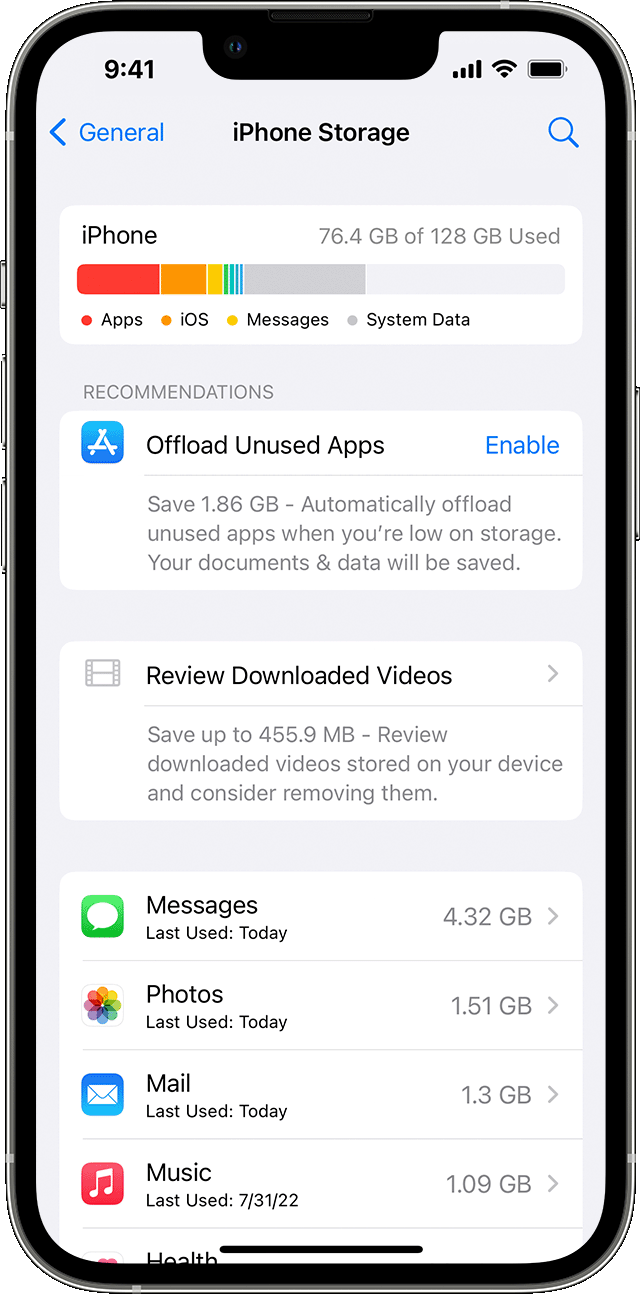
Before you move to a new device, check how much storage your current device uses. If all your data fits on the new device, you can transfer your data to the new device without removing anything.
If you're moving to a lower-capacity device, you might need to optimize or remove some of your existing content. Find out what takes up the most space on your device:
Go to Settings.
Tap General.
Tap [Device] Storage.
Learn more about data usage on your iPhone, iPad, or iPod touch.
Manage your storage
There are a few ways to manage or reduce the storage on your device.
Audio, movies, series, and books
Learn how to delete music, movies, TV shows, and books from your device.
Photos and videos
To reduce the space that your photos and videos use, you can import photos and videos from your camera roll to your computer. To delete photos from your camera roll after you import them:
Tap Select.
Select the photos that you want to delete.
Tap the Trash button
 .
.
If you want to view the photos on your device after removing them from your camera roll, sync them from your photo library. When you sync your photo library to your computer, it optimizes synced photos, saving space. You can also sync a smaller selection of your photo library to save space.
Apps
To reduce the storage space that your apps use:
If the app stores data on the device, see if it can store its data in the cloud. Check the app's documentation or contact the app developer for more information.
Need more help?
Tell us more about what's happening, and we’ll suggest what you can do next.
