Control personalized ads on the App Store, Apple News, and Stocks
Learn how to limit the personalization of ads delivered by Apple on your iPhone, iPad, iPod touch, and Mac, and how to turn off location-based ads delivered by Apple on your iPhone, iPad, iPod touch, and Mac.
Apple-delivered advertising helps people discover apps, products, and services while respecting user privacy. To deliver personalized ads, Apple uses information about you to serve ads that are more relevant to you. You can learn more about the information Apple uses to serve advertisements to you while protecting your privacy.
If you don't want to receive personalized ads, you can choose to turn off the Personalized Ads setting on your iPhone, iPad and iPod touch, and Mac. This may not decrease the number of ads you receive, but the ads may be less relevant to you.
You can also turn off location-based ads on your iPhone, iPad and iPod touch, and Mac.
Personalized ads
Turn off personalized ads on your device to limit Apple from using information to serve ads that may be more relevant to you.
Block personalized ads on your iPhone, iPad, or iPod touch
Go to Settings > Privacy & Security* > Apple Advertising.
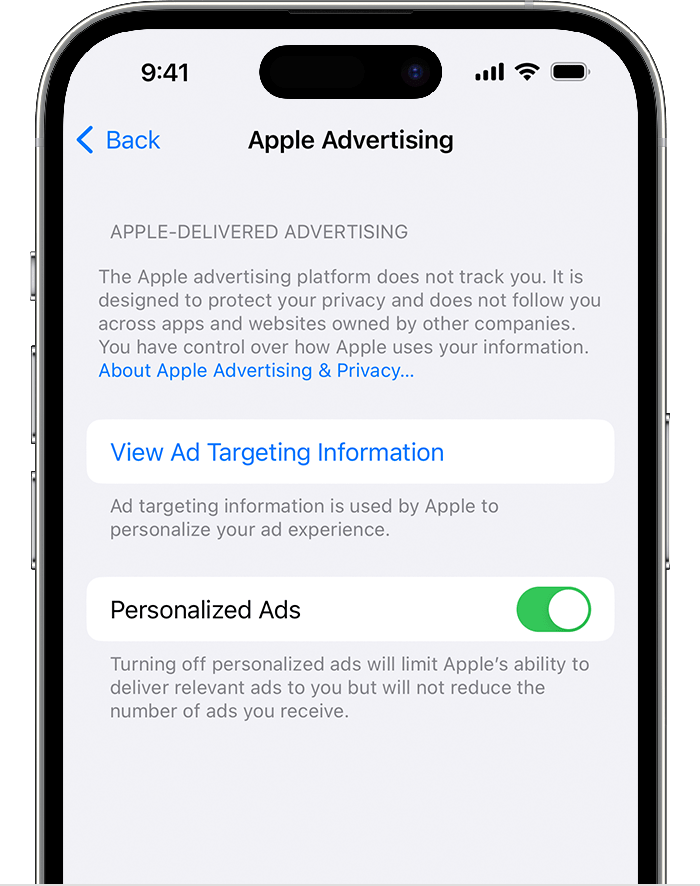
Turn off Personalized Ads.
*In earlier versions of iOS and iPadOS, this setting is called "Privacy."
Block personalized ads on your Mac
Choose the Apple menu > System Settings, then click Privacy & Security. In macOS Monterey or earlier, go to System Preferences, click Security & Privacy, then select the Privacy tab.
Select Apple Advertising.
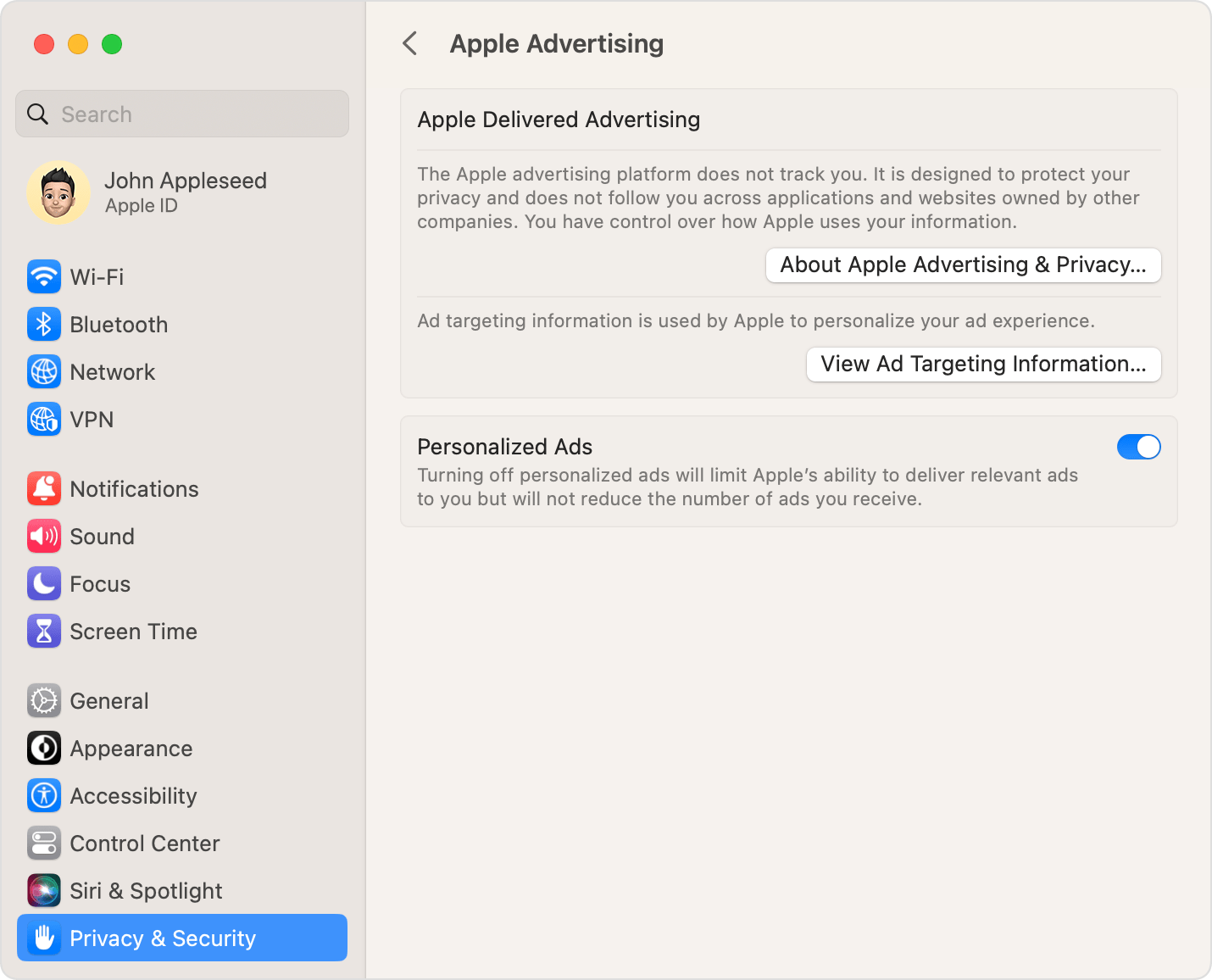
Deselect Personalized Ads.
Location-based ads
If you grant the App Store or Apple News access to your device location, Apple’s advertising platform might use the current location of your device to provide you with geographically-targeted ads on the App Store and on Apple News.
You can turn off geographically-targeted ads.
Block location-based ads on your iPhone, iPad, or iPod touch
Go to Settings > Privacy & Security* > Location Services.
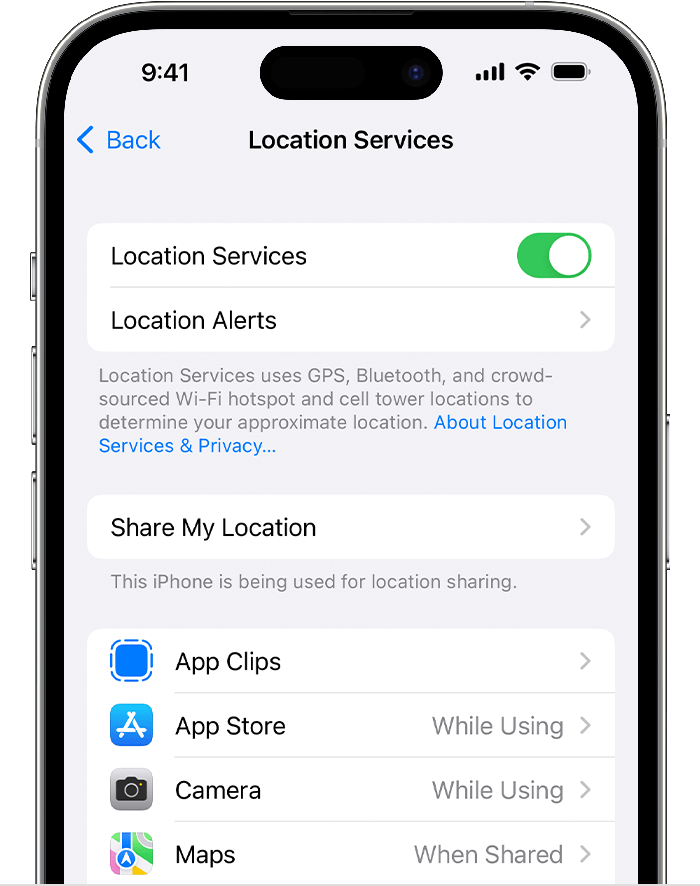
Either turn off Location Services or select App Store or News from the list and set Allow Location Access to Never.
Learn more about privacy and Location Services in iOS and iPadOS.
*In earlier versions of iOS and iPadOS, this setting is called "Privacy."
Block location-based ads on your Mac
Choose the Apple menu > System Settings, then click Privacy & Security. In macOS Monterey or earlier, go to System Preferences, click Security & Privacy, then select the Privacy tab.
Select Location Services.
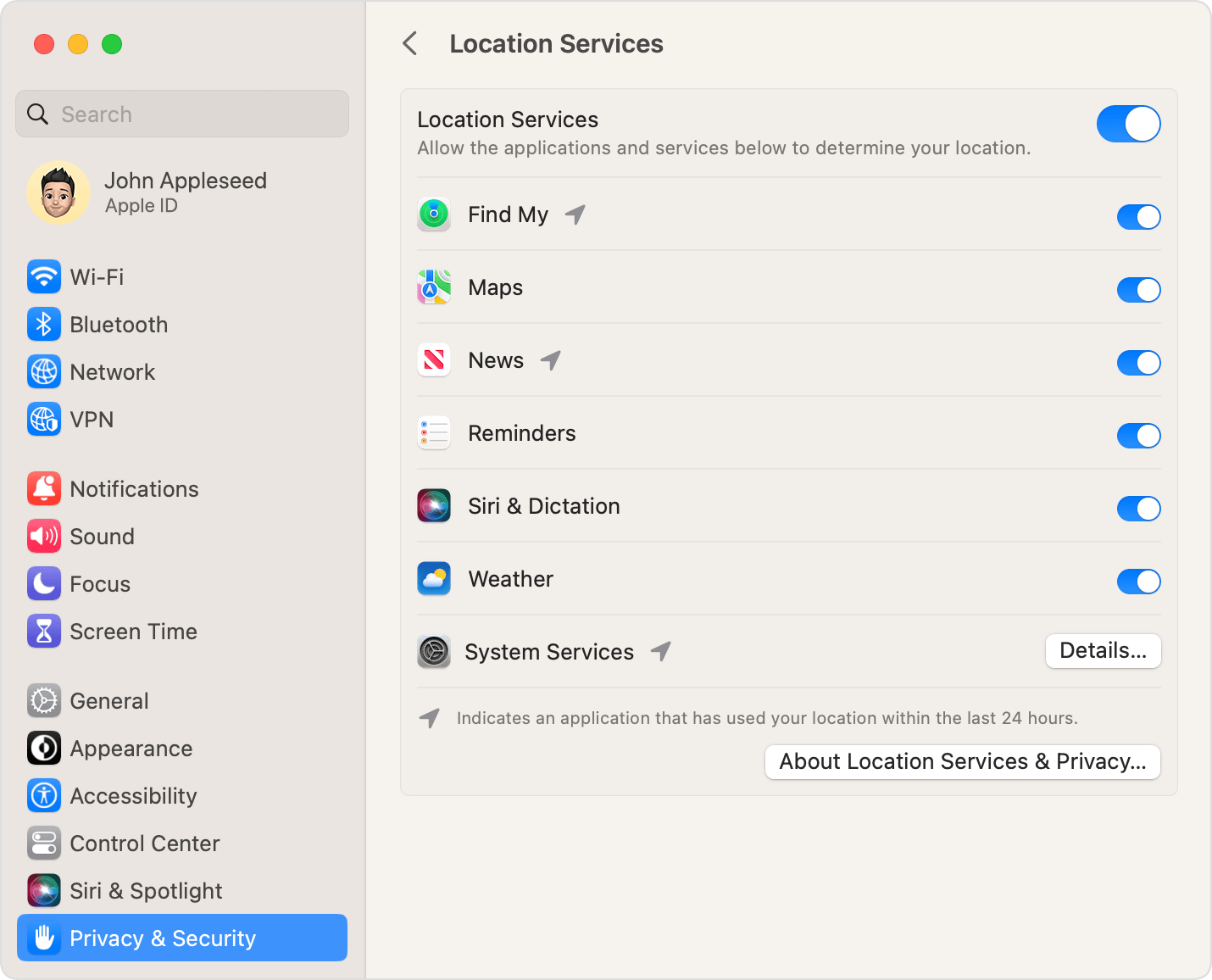
Deselect either Location Services or News.
Learn more
Learn About Advertising & Privacy.
Learn more about advertising with Apple.
Find out how location services work on your iPhone, iPad, and iPod touch.
Learn more about Apple and privacy.