Use Restrictions in iTunes on your PC
Use Restrictions to block or limit certain features and services in iTunes on your computer, including access to explicit content in the iTunes Store.
Using Restrictions in iTunes on your PC, you can turn off access to:
Apple Podcasts
iTunes Store
Apple Music
Shared libraries
You can also set restrictions so that someone using your computer can't listen to music with explicit content, watch movies or TV shows with specific ratings, or download apps that have specific age ratings.
How to set restrictions in iTunes on your PC
Open the Windows menu and go to all apps.
Right-click iTunes, then choose More > Run as administrator.
On the panel that appears, select the items that you want to disable and restrict. You can also set rating levels for movies, TV shows, and apps using the menus to the right of these items.
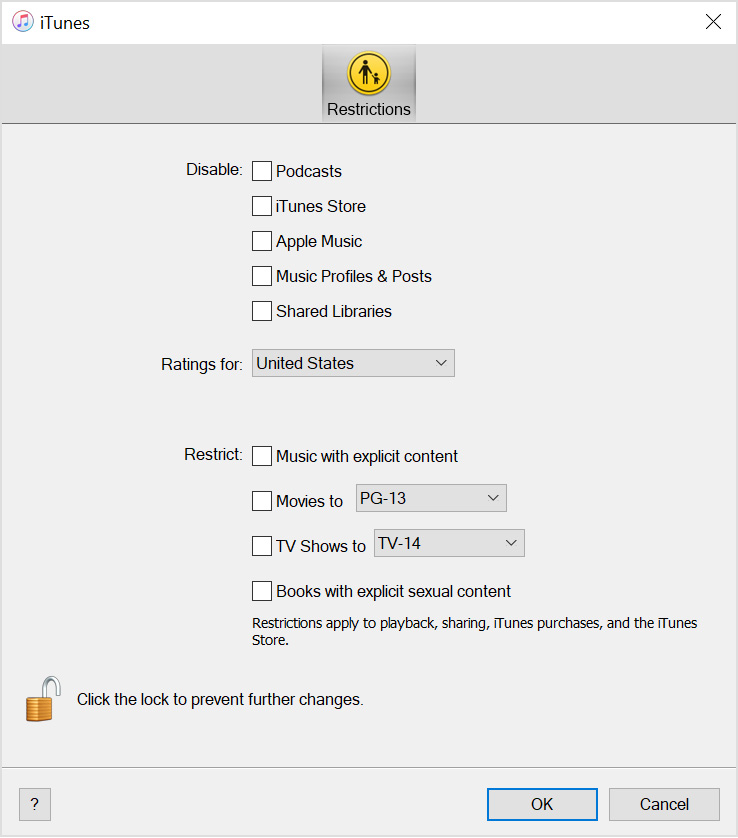
If you want to make sure that other people can't make changes to your restrictions, click the lock icon in the lower-left corner of the window and enter the administrator password for your computer. If you later want to make changes to what you disable or restrict, click the lock icon and enter your password when prompted.
Click OK to confirm your choices.
These instructions apply to iTunes from the Microsoft Store. If you downloaded iTunes for Windows from Apple’s website, you can find restrictions under Edit > Preferences > Restrictions.
Learn more
You can also use Restrictions on your Mac, iPhone, iPad, or iPod touch, and Apple TV.