Eject your iPod from your computer
Learn when and how to eject your iPod from your computer before you disconnect the USB cable.
You don't need to eject your iPod before you disconnect the USB cable from your computer if:
You use an iPod touch. You never have to eject an iPod touch.
You see a message that says Charging.
You see a message that says "OK to disconnect."
You see the iPod main menu, where you select Music, Settings, or Extras.
The LED light on your iPod shuffle is solid amber or solid green.
You need to eject your iPod before you disconnect the USB cable if:
You see a message that says "Do not disconnect."
You see a message that says Connected, Eject Before Disconnecting.
You see a message that says "Sync in Progress, Please Wait."
The LED light on your iPod shuffle blinks amber.
You turned on the "Enable disc use" option for your iPod in iTunes.
You turned on the "Manually manage music and videos" option for your iPod in iTunes.
How to eject your iPod
In iTunes, locate and view your iPod.
From the sidebar on the left-hand side of the iTunes window, click the eject
 icon, or press the Command and E keys on your keyboard.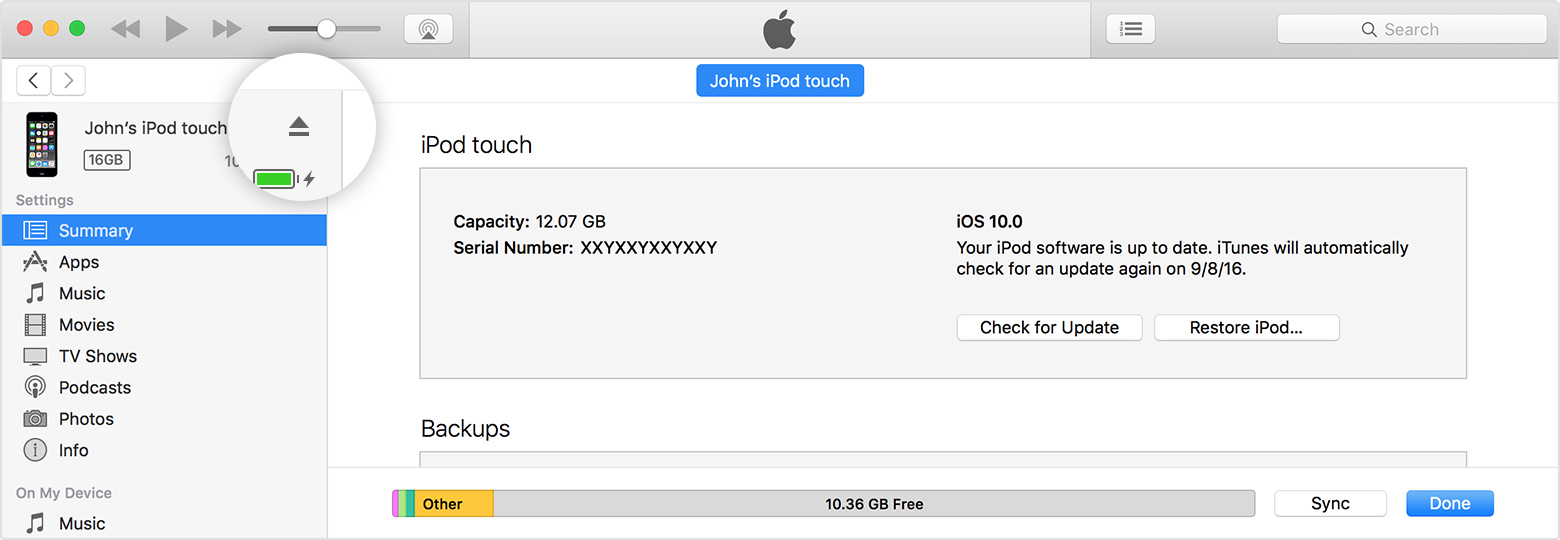
Your iPod ejects.
If you can't eject your iPod
If you can’t eject your iPod in iTunes, try these steps.
Mac
Open a Finder window.
From the left sidebar, under Devices, click the iPod icon.
From the menu bar at the top of your computer screen, choose File > Eject "[Your iPod's name]."
Windows 7
In the notification area, click the "Safely Remove Hardware and Eject Media" icon.
In the menu that appears, select your iPod.
Windows 10
In the Search box, type Settings, then click Settings in the results.
Click Devices.
Click Connected devices.
Under Other Devices, find your iPod.
Click Remove Device, then click Yes to confirm.
Get more help
Learn what to do if iTunes doesn’t recognize your iPod.
Information about products not manufactured by Apple, or independent websites not controlled or tested by Apple, is provided without recommendation or endorsement. Apple assumes no responsibility with regard to the selection, performance, or use of third-party websites or products. Apple makes no representations regarding third-party website accuracy or reliability. Contact the vendor for additional information.