Remove or switch the SIM card in your iPhone
Learn how to remove or transfer the SIM card in your iPhone.
Use only the SIM tray that came with your device. For example, a SIM tray from an iPhone 6s will not fit in an iPhone 7. Learn what type of SIM your iPhone uses
If your iPhone model doesn't have a SIM tray, it supports eSIM only. Learn how to set up an eSIM instead.
Find your model below to locate the SIM tray. To pop open the SIM tray, insert a paper clip or a SIM-eject tool into the hole beside the tray. Push in, towards your iPhone, but don’t force it. If you're having difficulty ejecting the SIM tray, take your device to your carrier or an Apple Store for help.
After you remove your SIM card from the tray, notice the notch in one corner of the new SIM card. Place the new SIM card into the tray — it will fit only one way, because of the notch. Then insert the tray into the device completely and in the same orientation that you removed it. The tray also fits only one way.
Find the SIM tray on the left side
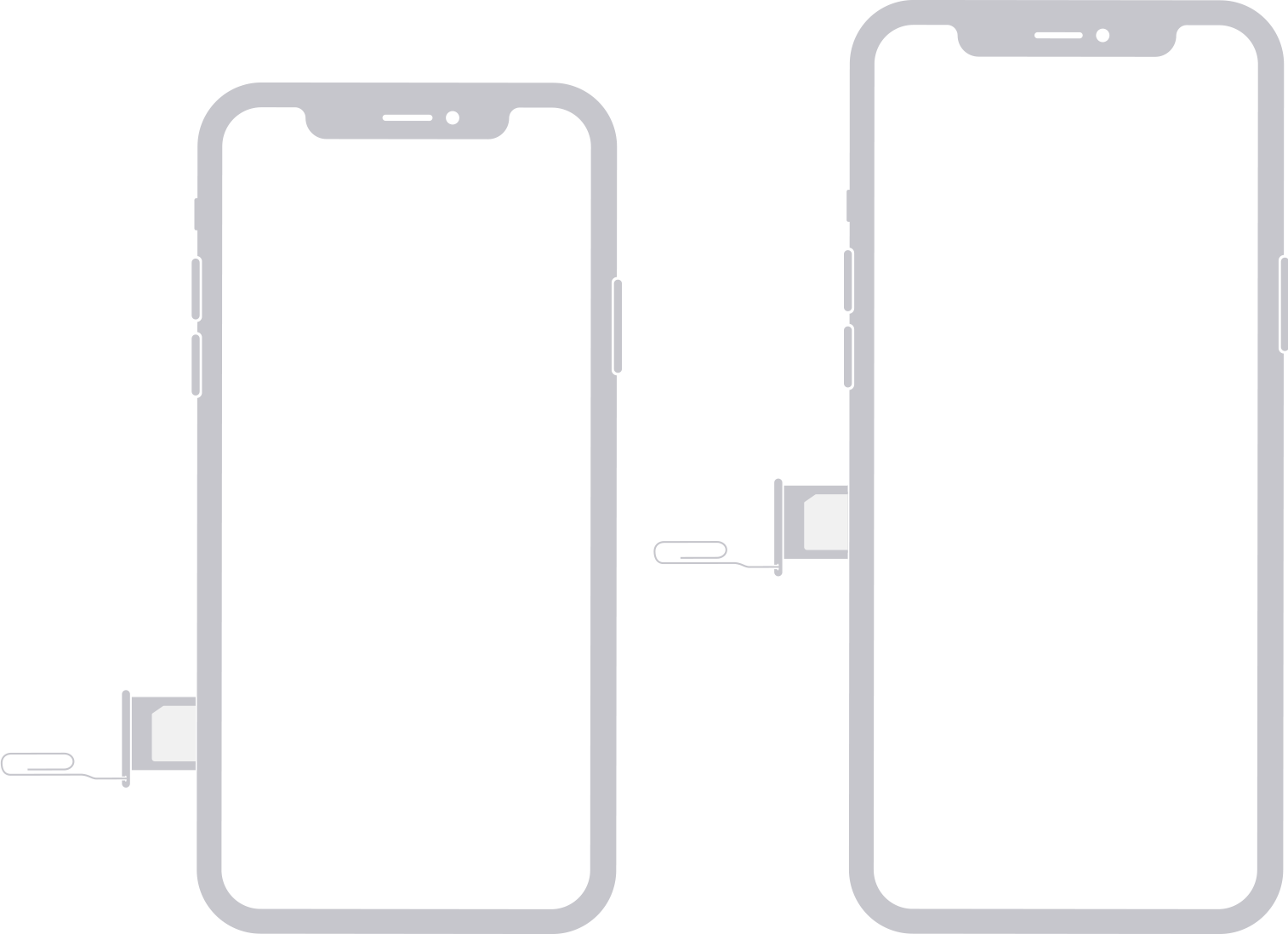
iPhone 17e*
iPhone 17*
iPhone 17 Pro*
iPhone 17 Pro Max*
iPhone 16e*
iPhone 16*
iPhone 16 Plus*
iPhone 16 Pro*
iPhone 16 Pro Max*
iPhone 15*
iPhone 15 Plus*
iPhone 15 Pro*
iPhone 15 Pro Max*
iPhone 14*
iPhone 14 Plus*
iPhone 14 Pro*
iPhone 14 Pro Max*
iPhone 13 mini
iPhone 13
iPhone 13 Pro
iPhone 13 Pro Max
iPhone 12 mini
iPhone 12
iPhone 12 Pro
iPhone 12 Pro Max
*iPhone 14 models or later purchased in the United States can only be activated with an eSIM. iPhone 17e, iPhone 17, iPhone 17 Pro, iPhone 17 Pro Max models that don't have a physical SIM tray can only be activated with an eSIM. In Hong Kong and Macao, certain iPhone models feature Dual SIM with two nano-SIM cards. In China mainland, iPhone 17e can be activated with either an eSIM or a physical nano-SIM.
Find the SIM tray on the right side
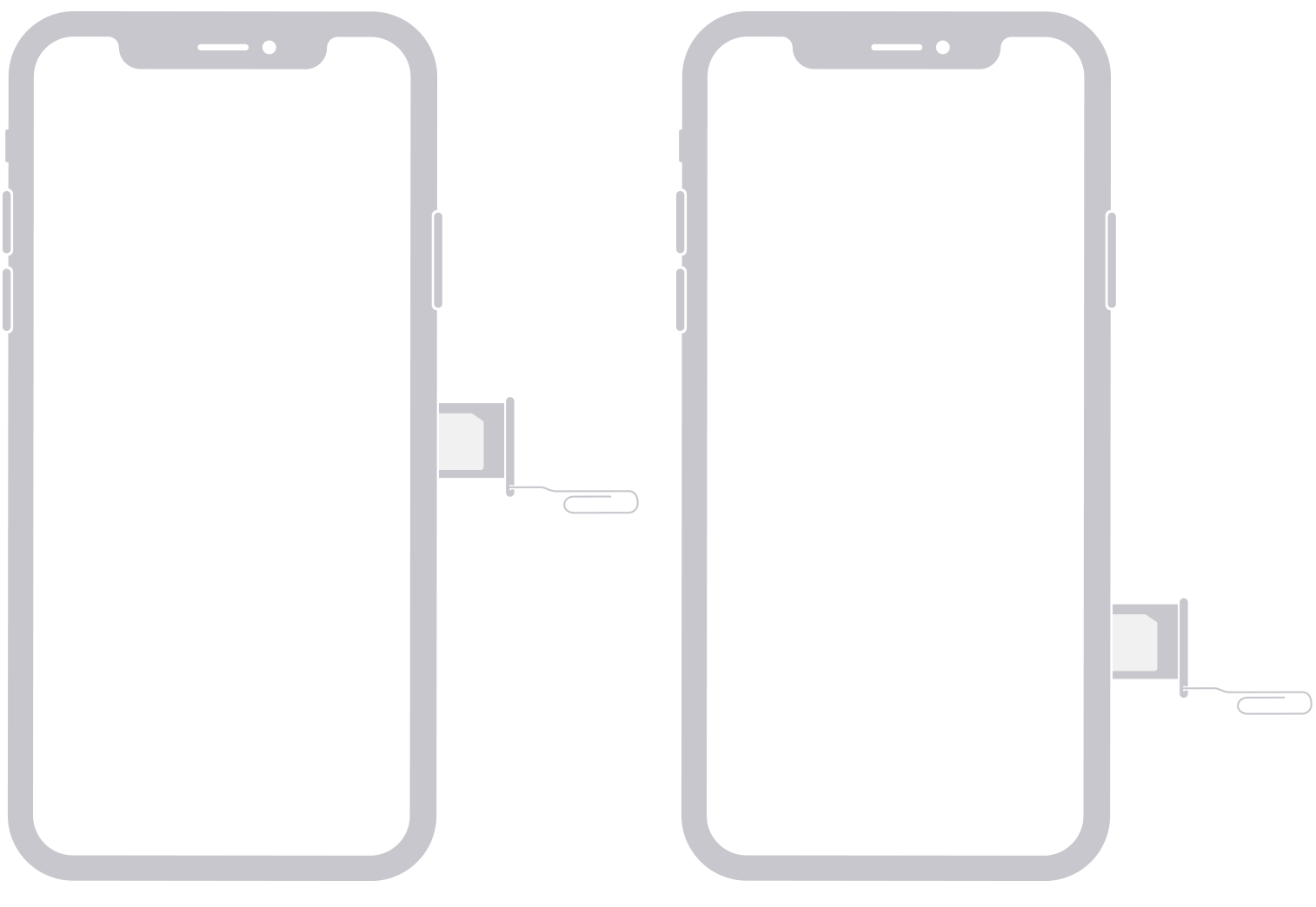
iPhone 11
iPhone 11 Pro
iPhone 11 Pro Max
iPhone XS
iPhone XS Max
iPhone XR
iPhone X
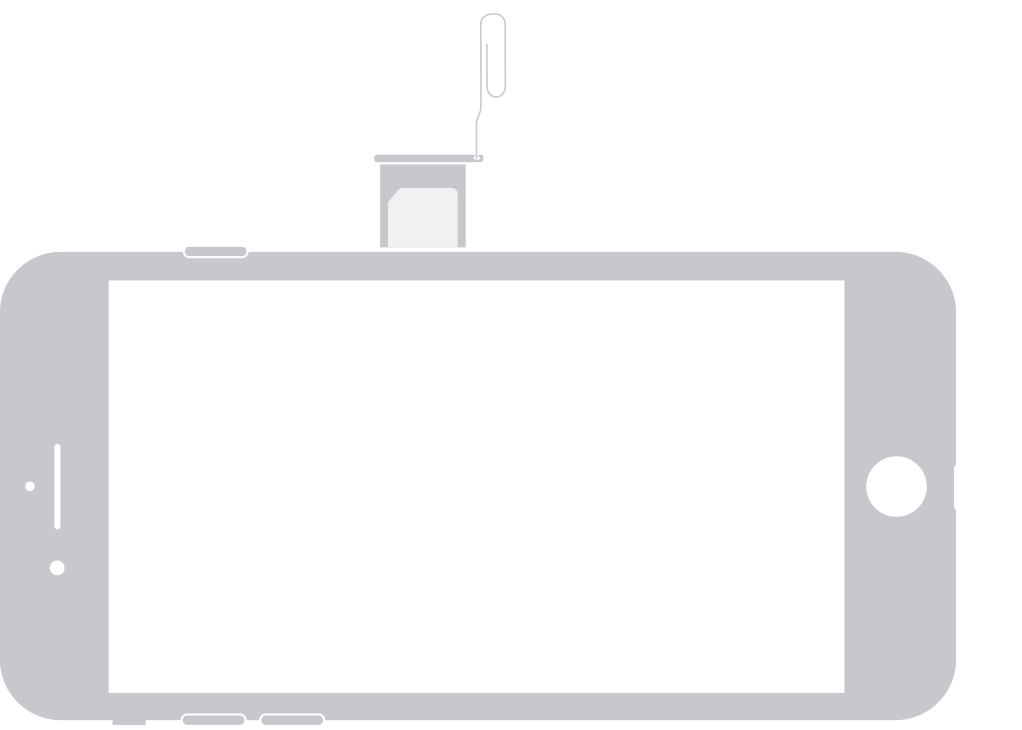
iPhone SE (1st, 2nd, and 3rd generation)
iPhone 8
iPhone 8 Plus
iPhone 7
iPhone 7 Plus
iPhone 6s
iPhone 6s Plus
iPhone 6
iPhone 6 Plus
iPhone 5s
iPhone 5c
iPhone 5
iPhone 4s
iPhone 4 (GSM model)
Find the SIM tray on the top
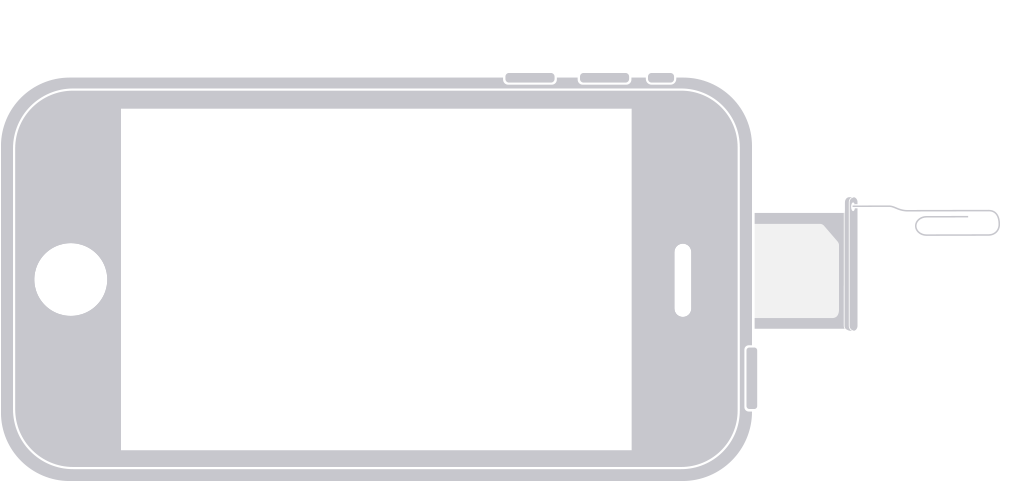
iPhone 3GS
iPhone 3G
Original iPhone
Learn more
Learn how to remove or switch the SIM card in your iPad
Learn how to import contacts from your SIM card to your iPhone
Because your Voicemail messages might not be available after you swap a SIM card, learn how to share your Voicemail messages to another device