How to use Locked Private Browsing in Safari
Lock your private windows, so that you can keep them open and private even when you step away from your device.
Browse privately in Safari on your Apple device
When you use Private Browsing, Safari doesn't remember the pages that you visit, your search history, or your AutoFill information. Private Browsing also protects you from tracking by blocking known trackers from loading and by removing tracking used to identify individual users from URLs as you browse.
For additional privacy, your private windows can lock when you're not using them.
When your device is locked or asleep, or if you aren't actively using Safari, your private windows in Safari will lock.
When you unlock or wake up your device, or start using Safari again, just unlock your private window with Touch ID, Face ID, or your device passcode or password.
Locked Private Browsing is available starting in iOS 17, iPadOS 17, and in Safari 17 on macOS Monterey, macOS Ventura, and macOS Sonoma. If you don't find the option to lock private windows, update your device to the latest software version.
Turn on Private Browsing on iPhone
Turn on Private Browsing on Mac
Locked Private Browsing is turned on by default in macOS. In iOS and iPadOS, you have the option to turn on Locked Private Browsing when you use Private Browsing for the first time after updating to supported software, or you can turn it on in Settings.
How to turn Locked Private Browsing on or off on iPhone or iPad
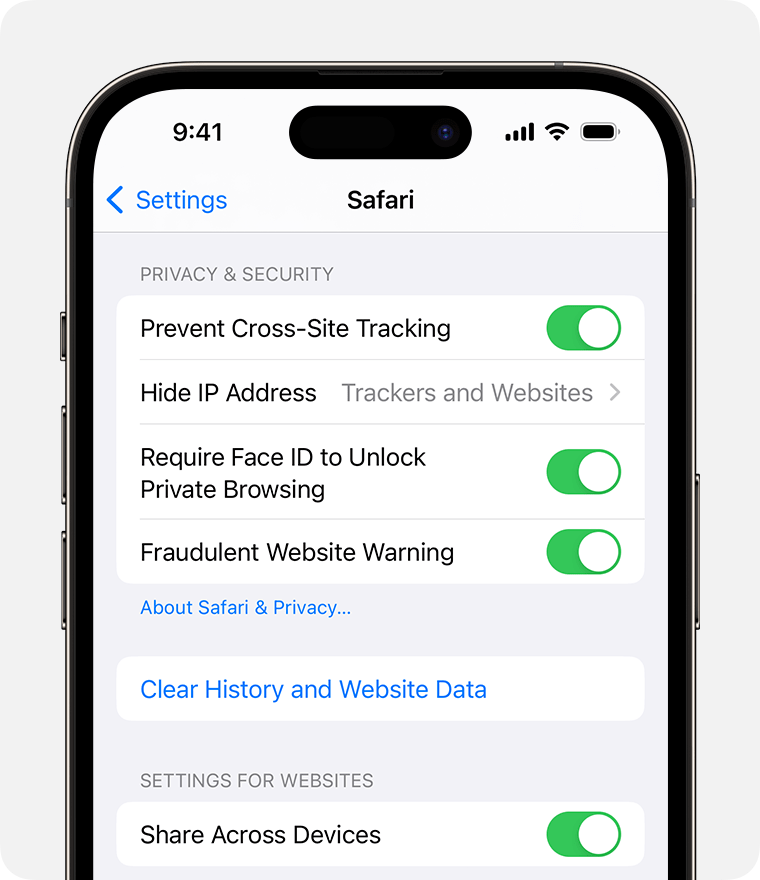
Open the Settings app.
Scroll down and tap Safari.
Scroll down to Privacy & Security, then turn on Require Face ID (or Touch ID) to Unlock Private Browsing. Or turn it off, if you don't want your private windows to lock.
How to turn Locked Private Browsing on or off on Mac
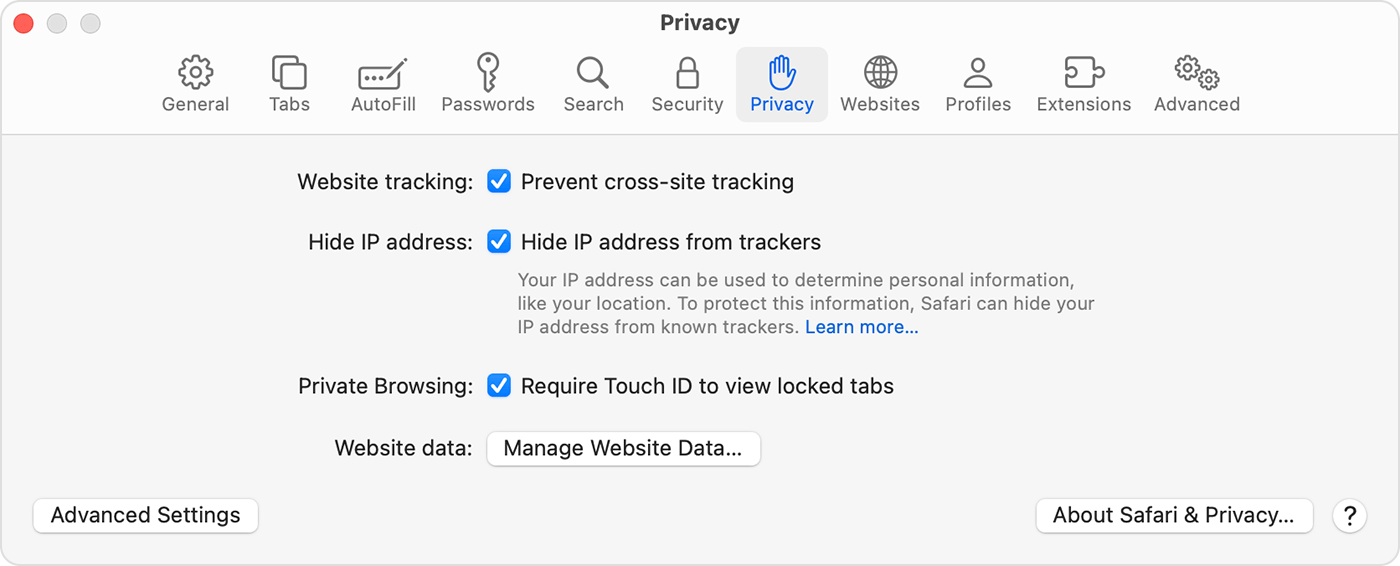
Open Safari.
From the Safari menu, choose Settings.
Click Privacy.
Next to Private Browsing, select "Require Touch ID to view locked tabs." Or unselect it, if you don't want your private windows to lock.
When private windows lock
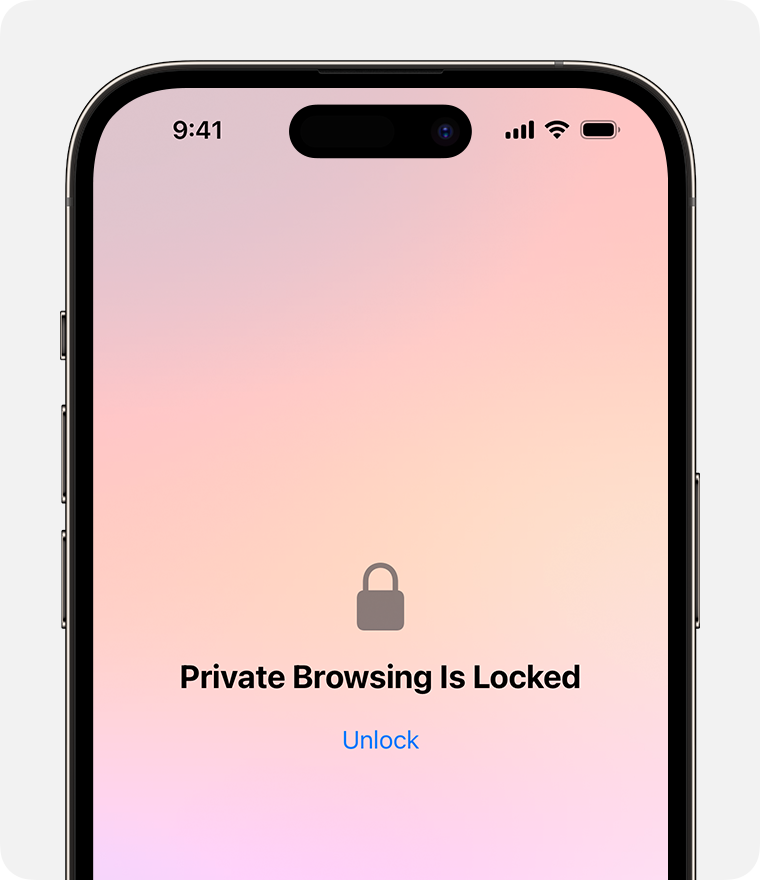
On iPhone or iPad, private windows lock when Safari isn't running in the foreground or when you switch from Private Browsing. They also lock when your device locks.
On Mac, private windows lock when Safari isn't the active window for a period of time. They also lock when you lock your Mac, when it goes to sleep, or when a screensaver starts.
On Mac, you can lock all private windows manually: From the Safari menu bar, choose Window > Lock All Private Windows.
Private windows don't lock if you haven't loaded a web page.
Private windows don't lock if you're playing audio or video.
Need more help?
Tell us more about what's happening, and we’ll suggest what you can do next.