Mac Pro (2019) status indicator light behaviour
Find out more about the different status indicator light patterns that you may see on your Mac Pro.
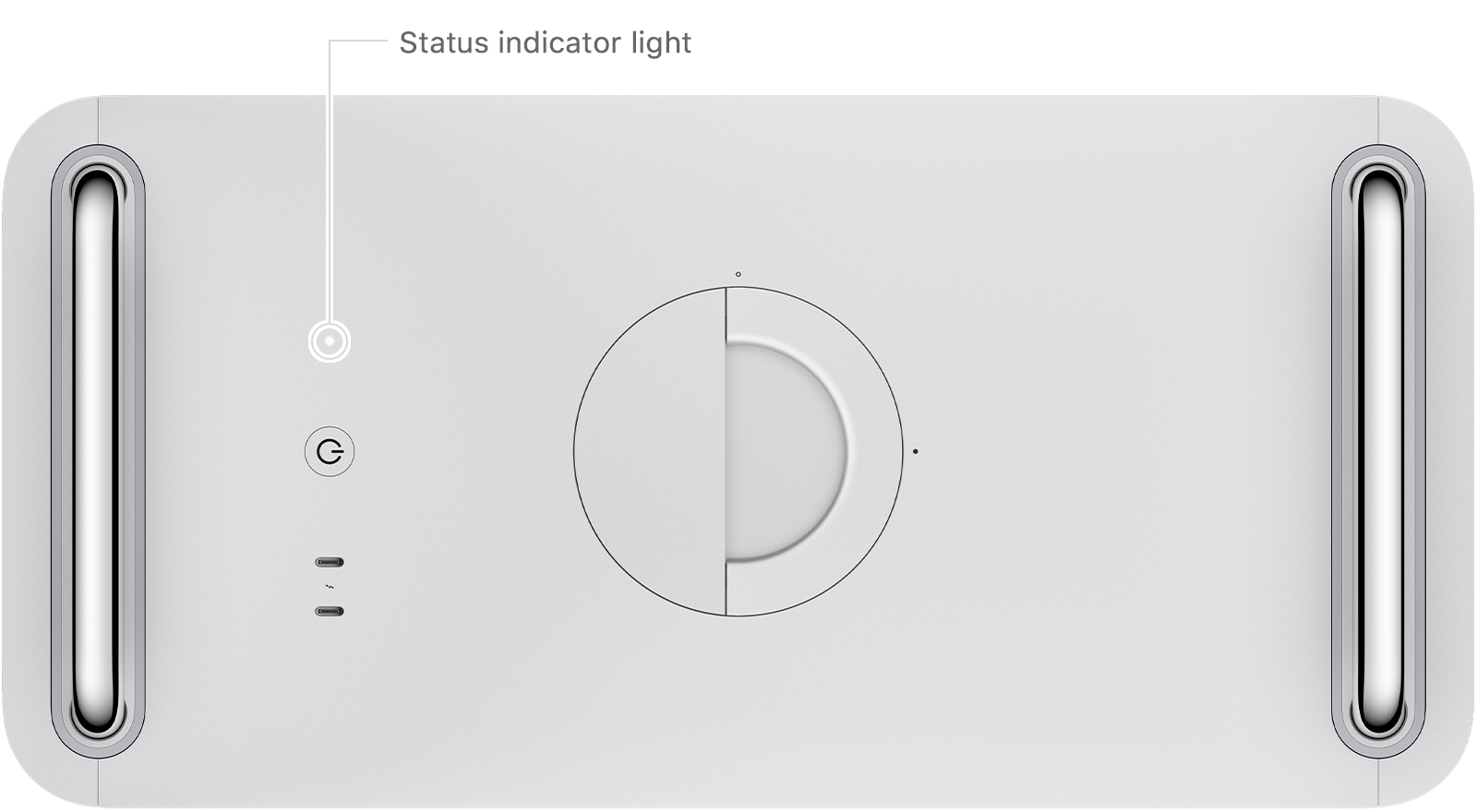
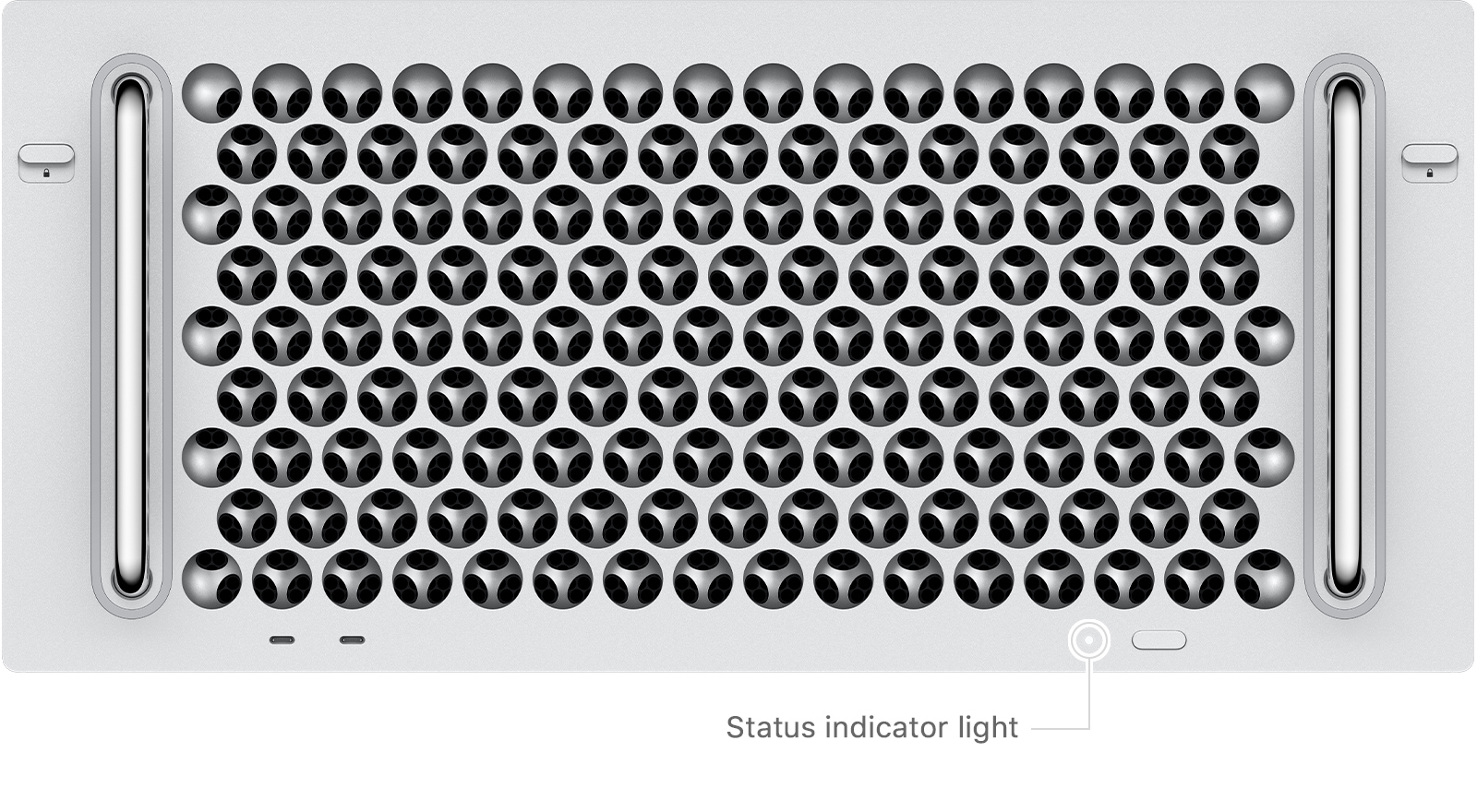
Mac Pro (2019) and Mac Pro (Rack, 2019) machines have a status indicator light on the top or front of the computer, next to the power button. There is also a second status indicator light on the back of Mac Pro near the power port.
Turned off

When a Mac Pro is turned off, the status indicator light is not illuminated.
Turned on or in sleep mode

After Mac Pro has turned on or gone to sleep, the status indicator light will be solid white and will remain on until the computer has turned off.
Memory error

If there is a memory detection error or data error, the status indicator light will be solid amber for 0.2 seconds and repeat every second. Verify your memory and install or replace memory if necessary.
Housing unlocked or top cover removed while computer is turned on

If the computer is on and you unlock the housing, or open the top cover or access door on rack-mounted models, the status indicator light will be solid amber for 0.3 seconds and repeat until the housing is locked or the top cover or access door is reinstalled.
Power button pressed while housing is unlocked or top cover has been removed

If the housing is unlocked or the top cover is removed on rack-mounted models, and the power button is pressed, the status indicator light will be solid amber for half a second. Make sure the housing is fully seated and locked, or that the top cover has been installed and the latches have been locked, then try starting up your Mac Pro again.
PCIe card error

If a Mac Pro encounters an error with a PCIe card, the status indicator light will flash amber twice, repeating until the computer is turned off. If you have recently installed a PCIe card, find out how to resolve PCIe card errors on your Mac Pro.
Firmware recovery mode

If Mac Pro is in firmware recovery mode, the status indicator light will flash amber rapidly three times, flash amber briefly three times, then flash amber rapidly three times. This sequence will repeat until the computer is turned off. You may need to revive the firmware on your Mac Pro. If you still need help, contact an Apple Authorised Service Provider.