
Create a spreadsheet in Numbers on iPad
To create a new spreadsheet, you first choose a template to use as a starting point. Templates use coordinated fonts and colors for a unified look and often include placeholders that you can replace with your own content.
Create a spreadsheet
Go to the Numbers app
 on your iPad.
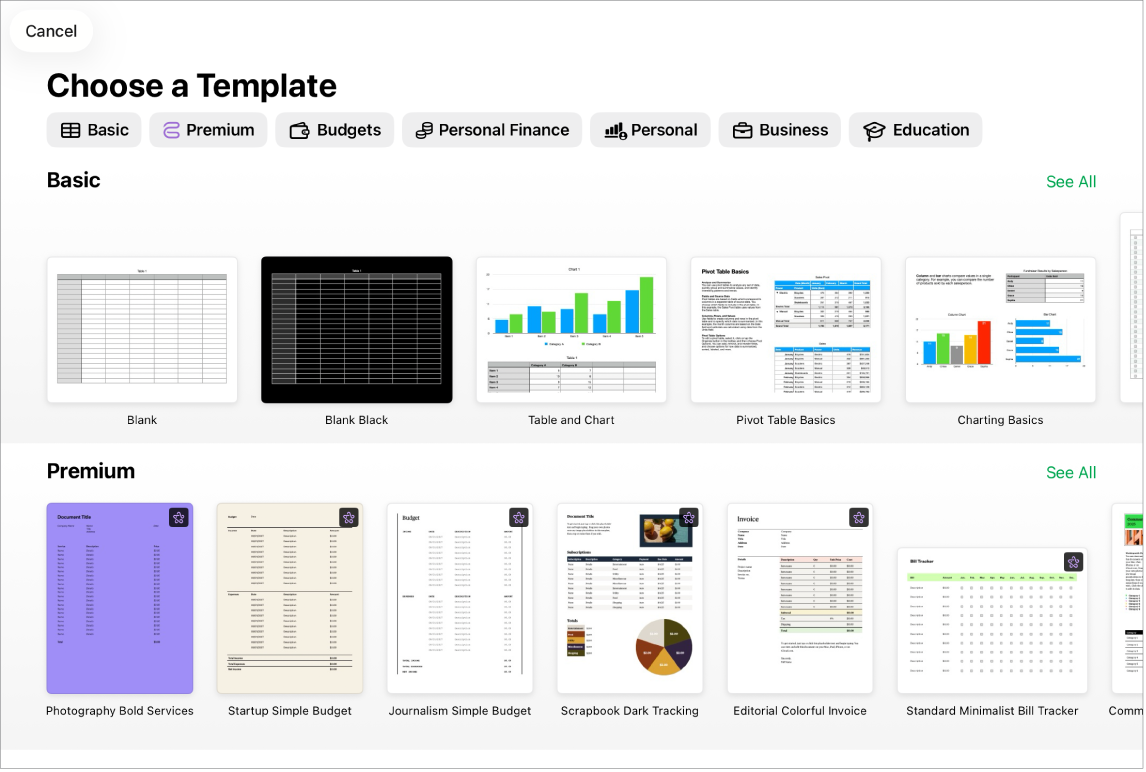
In the document manager, tap Choose a Template at the top of the screen to open the template chooser (shown below). If you don’t see Choose A Template, tap
 .
.
Note: If you’d like the ability to format table and chart data using the conventions of another language, choose the language before choosing a template. See Change a spreadsheet’s language and formatting.
In the template chooser, tap the category names at the top of the screen to view different templates, then tap a template to open it.
Some templates aren’t downloaded to your device until you choose them or open a spreadsheet that uses one. If your connection is slow or you’re offline when this happens, placeholder images and backgrounds in the presentation may appear at a lower resolution until you’re online again or the theme finishes downloading.
Do any of the following:
Tap a table cell to delete placeholder content and add your own.
Tap one of the object buttons in the middle of the toolbar to add other tables, text boxes, shapes, and images, or tap
 to add an object from the Content Hub.
Arrange the sheet by dragging tables and objects to where you want them.
To close the spreadsheet, tap
 in the top-left corner of the screen.
Numbers automatically saves your changes as you work, so you don’t need to worry about consistently saving your spreadsheet manually. However, it’s a good idea to rename your spreadsheet so you can easily find it the next time you want to work on it. You can change the name of the spreadsheet or change where it’s saved at any time.