Connect and use your AirPods Max
Listen to music, make phone calls, use Siri, and more with your AirPods Max.

Use your iPhone or iPad to set up your AirPods Max
Make sure your iPhone or iPad is updated to the latest version of iOS or iPadOS.1
Go to the Home Screen.
Take your AirPods Max out of the Smart Case. Within 60 seconds, hold your AirPods Max next to your iPhone or iPad until a setup animation appears. If the animation doesn't appear, you can pair your AirPods Max manually.
Tap Connect to pair your AirPods Max with your iPhone or iPad, or to set up features such as Siri.
Tap Done. If you're signed in to iCloud, your AirPods Max are set up automatically with any of your supported devices that are signed in to iCloud with the same Apple Account.2
Learn how to set up your AirPods Max with a Mac or a non-Apple device, such as an Android phone.
Listen and control audio with your AirPods Max
When you put your AirPods Max on your head while you're playing audio on your device, your AirPods Max play the audio from your device automatically. If you remove your AirPods Max from your head, audio pauses. If you put your AirPods Max back on your head within 15 seconds, play resumes automatically. AirPods Max also pause audio if you lift one earphone off of your head.
Your AirPods Max ear cushions are marked with L and R. Make sure to place the left earphone on your left ear and the right earphone on your right ear to enjoy the best sound quality and performance.
To adjust the volume, turn up the volume using the Digital Crown
 . If the volume doesn't seem to get louder, adjust the volume on your phone.3 To adjust the direction in which you turn the Digital Crown to increase and decrease the volume, go to Settings. Choose your AirPods Max, then tap Digital Crown.
If you have Hey Siri set up, you can say "Hey Siri" to ask questions, make phone calls, and control your music. You can also press and hold the Digital Crown
 to use Siri. If you have AirPods Max 2, you can also say just "Siri" and use head gestures to respond to Siri.
Store your AirPods Max in the Smart Case to help preserve battery charge. Storing AirPods Max loose in your bag can result in damage.
Switch between Active Noise Cancellation and Transparency mode
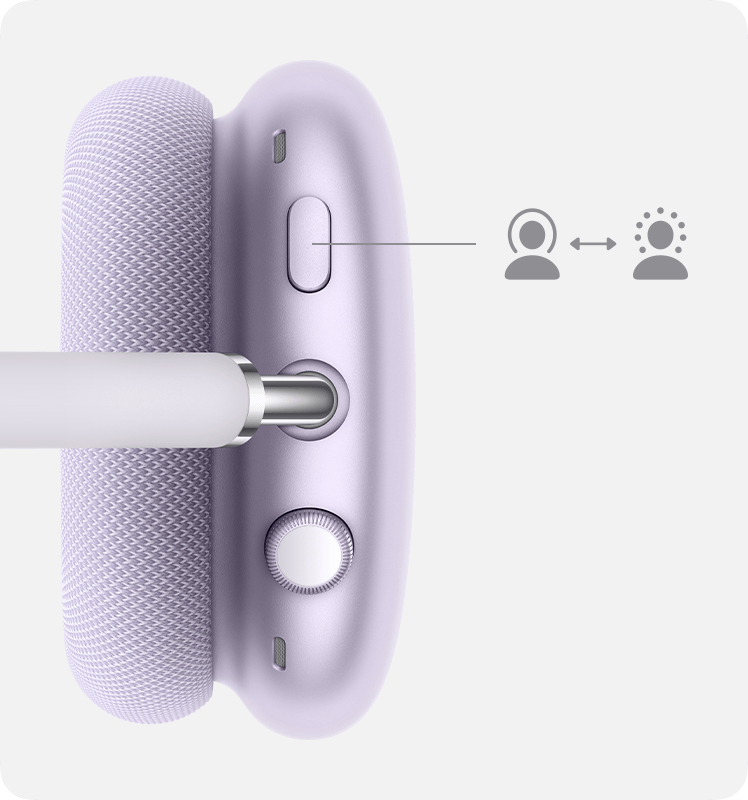
AirPods Max let you control whether you hear your surroundings. Press the listening mode button to toggle between Active Noise Cancellation and Transparency mode. You can select which modes that the press action switches between. Go to Settings. Choose your AirPods Max, then tap Button Cycles Between.
AirPods Max 2 also have Adaptive Audio, which blends Active Noise Cancellation and Transparency mode together to control the level of noise you hear in your headphones based on the changing noise conditions in your environment. Learn how to use Adaptive Audio with your AirPods Max 2 to allow more or less noise.
Control audio
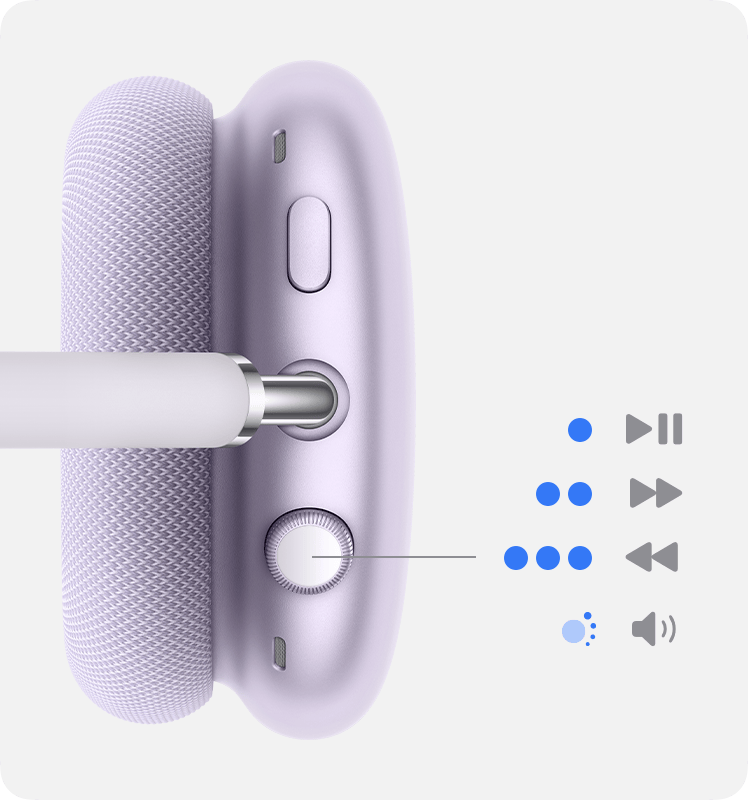
To play and pause audio or mute yourself during a phone call, press the Digital Crown once. To resume playback or unmute yourself, press it again.
To skip forward, press the Digital Crown twice.
To skip back, press the Digital Crown three times.
Use AirPods Max for audio with a 3.5mm audio source
You can use your AirPods Max 1 and your AirPods Max 2 in wired mode to connect to analog audio sources:
To use your AirPods Max in wired mode, plug a Lightning to 3.5 mm Audio Cable into your AirPods Max 1 (Lightning) or plug a USB-C to 3.5 mm Audio Cable into your AirPods Max 1 (USB-C) or your AirPods Max 2.
Use AirPods Max 1 (USB-C) and AirPods Max 2 for lossless audio and ultra-low latency audio
You can listen to lossless audio and ultra-low latency audio with AirPods Max 1 (USB-C) and AirPods Max 2:
Update your device to the most recent software version.
Update your AirPods Max to the most recent firmware version.
Use the included USB-C to USB-C cable to connect your AirPods Max to your iPhone, iPad, or Mac with a USB-C port.
Use a USB-C to USB-A cable to connect your AirPods Max to a Mac with a USB-A port.
When AirPods Max are connected to your iPhone, iPad, or Mac, make sure that Bluetooth is turned on to use features such as Siri and Spatial Audio or to make audio calls.
Use the phone and get messages with AirPods Max
To answer a call, press the Digital Crown once.
To end a call or reject an incoming call, press the Digital Crown twice.
To answer a second incoming call and put the first call on hold, press the Digital Crown once.
When two calls are active, press the Digital Crown twice to end the current call and switch to another call.
To reject a second incoming call, press and hold the Digital Crown.
To stop listening through your headphones and send the call to your phone, press the Digital Crown twice.
When a call comes in while you're wearing your AirPods Max, Siri can announce the call. Siri can also read your incoming messages through your AirPods Max.
Learn more
Switch your AirPods to another device
Charge your AirPods Max and learn about battery life
For full functionality, make sure that the iPhone or iPad paired with your AirPods has the latest version of iOS or iPadOS. To be able to pair and use your AirPods with your iPhone, your iPhone or iPad must be running one of these versions of iOS or iPadOS, depending on which AirPods you have:
AirPods Max 1 (Lightning): iOS or iPadOS 14.3 or later
AirPods Max 1 (USB-C): iOS or iPadOS 18 or later
AirPods Max 2: iOS or iPadOS 26.4 or later
AirPods Max can be associated with one Apple Account to take advantage of features like automatic device switching and Find My. If you want to use AirPods Max that someone else has used, they need to first remove the AirPods Max from their Apple Account.
If you don't see the volume control in the menu bar, learn how to add it.
