Add text to your iMovie project
Add text to video, photo, or background clips, create a title sequence, and add end credits to your movie.
Add text and titles in iMovie on iPhone or iPad
Add text to any video clip, photo, or background in your project, then edit the text. You can also create a title sequence or end credits for your movie.
Add text to a clip
With your iMovie project open, tap the clip that you want to add text to.
Tap the Titles button
 in the inspector at the bottom of the screen
Tap a title style.
Edit text
After you add text to a clip, you can edit, reposition, resize, and reformat the text:
To edit the text, tap the text in the viewer above the timeline, tap Edit, enter new text with the keyboard, then tap Done on the keyboard.
To reposition the text, drag it to a new location in the viewer.
To resize the text, pinch the text to increase or decrease its size.
To change font styles, tap the Font button
 or the Color button
 in the inspector. Tap the More button
 to access more font options.
To remove text from a clip, tap the clip, tap the Titles button, then tap None in the title styles that appear.
To choose a different Title style, tap the clip in the timeline, tap the Titles button, then tap a different style. Your text retains any edits that you've already made.
Create a title sequence or end credits
iMovie includes a variety of title styles, including animated styles, that you can use in your movie.
With your iMovie project open, scroll the timeline until you get to the beginning or end of the movie.
Tap the Add Media button
 , tap Backgrounds.
Tap a background, then tap the Add to Project button
 .
.In the timeline, tap the background clip you just added, then the Titles button
in the inspector at the bottom of the screen.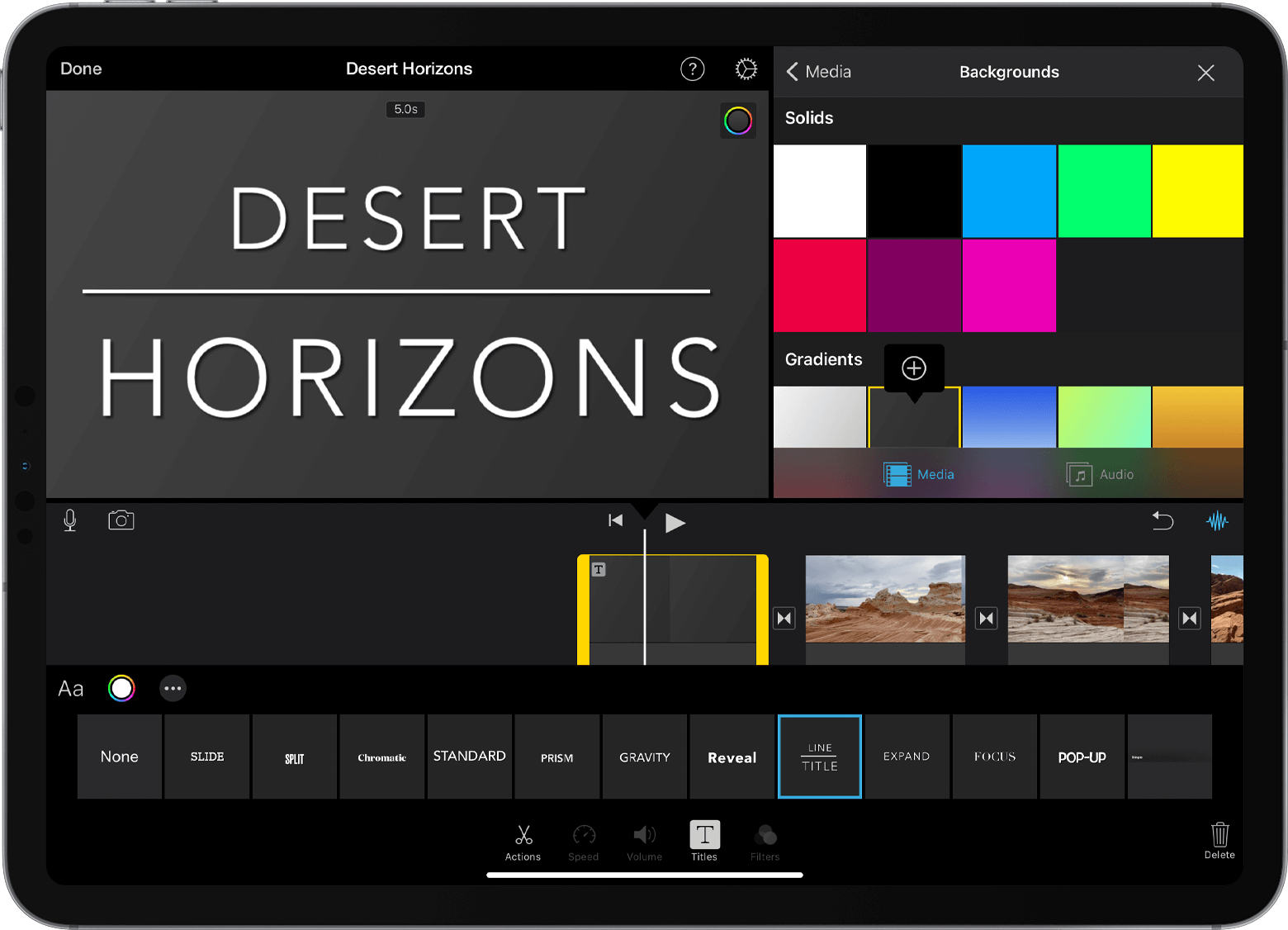
Tap a title style. The text appears in the viewer above the timeline. To choose a different style, just tap a different style in the inspector at the bottom of the screen.
Trim the background clip to the desired length.
You can then edit the text, change where the text appears on-screen, and more.
Add titles and text in iMovie on Mac
Add text to any video clip, photo, or background in your project, then edit the text. You can also create a title sequence or end credits for your movie.
Add text to a clip
To add text to a video, photo, or background clip in the timeline, do either of the following:
Position the playhead where you want the text, click Titles above the browser, then double-click a style.
Drag the style to the timeline, over the clip where you want it to appear.
The text is added as an attached clip, above the other clip in the timeline.
Edit text
After you add text to a clip, you can edit and reformat, as well as change the amount of time the text appears:
To edit the text, double-click the clip with the text in the timeline, enter the new text in the viewer, then click the Apply button
 .
.To change font type, size, and color, double-click the clip with the text in the timeline, adjust the font controls at the top of the viewer, then click the Apply button when you're finished.
To change the amount of time the text appears in your movie, move your pointer to either edge of the clip with the text in the timeline, then drag to the right to increase or to the left to decrease the amount of time.
To change the style and placement of the text, double-click the title in the timeline, click Titles above the browser, then double-click the new style that you want to use. The new style replaces the old one, retaining the duration you set and any adjustments you made to the text.
Create a title sequence or end credits
iMovie includes a variety of styles, including animated styles, that you can use to create a title sequence or end credits. If you’ve set a theme for your movie, titles related to the theme appear at the top of the browser. You can also add a background if you want your title sequence background in a color other than black.
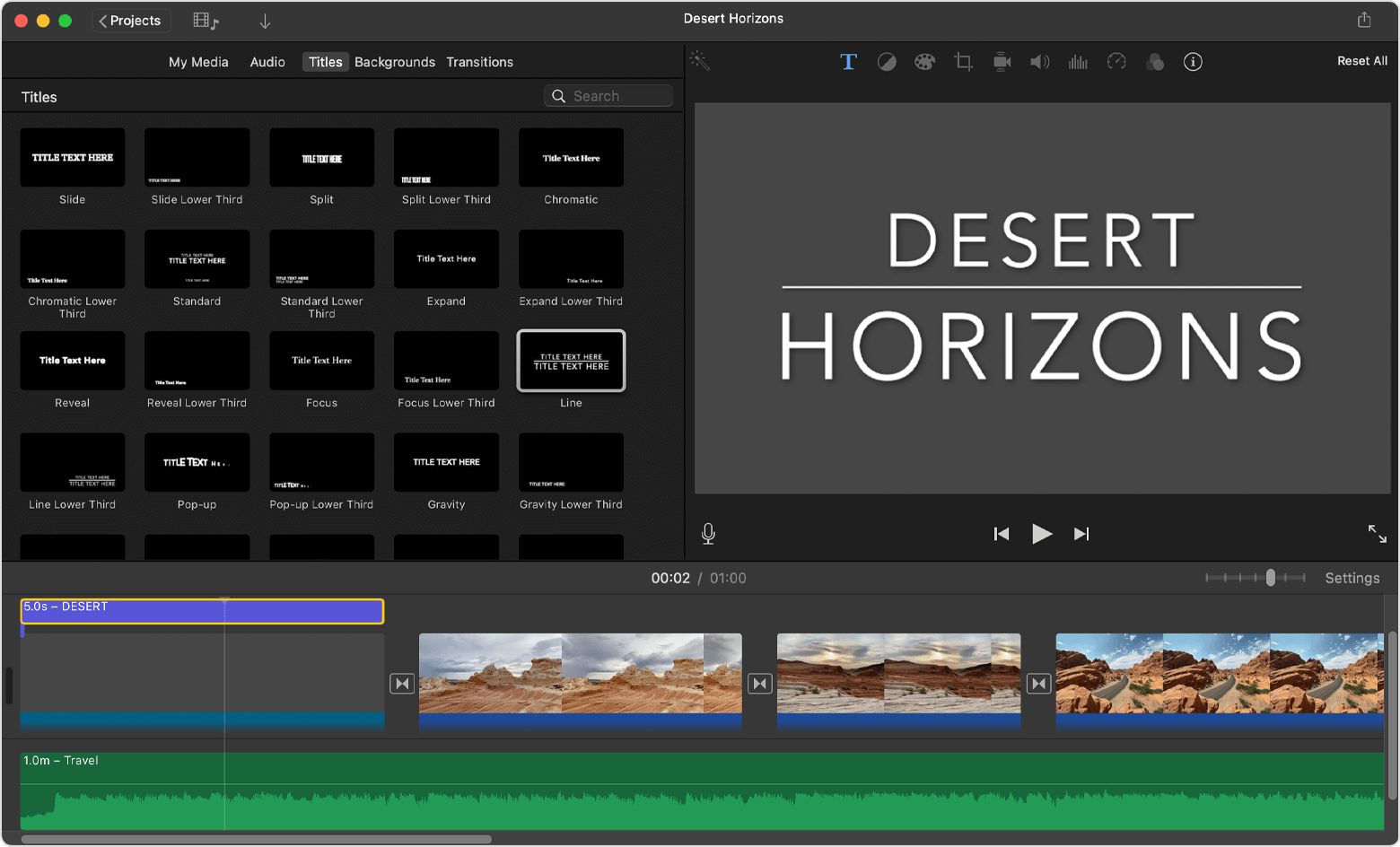
With your iMovie project open, click the Media Library button
 to show the browser if necessary.
Position the playhead at the beginning or end of the movie.
If you want a background for the title sequence or end credits other than black, do any of the following:
Click Backgrounds, then double-click the background that you want to use.
Drag a background to the beginning or end of the timeline. If you don't want a special background, go to the next step.
To use your own background for the sequence, add a video clip, photo, or image as the background.
Click Titles, then double-click the title in the browser that you want to use or drag the title to the timeline. If you used a background or other clip, the title is added as an attached clip above the other clip in the timeline. With an attached clip, when you move a video clip or photo, the attached clip moves with it.