Set up Exchange ActiveSync on your iPhone, iPad or Apple Vision Pro
Exchange ActiveSync lets you sync your Exchange account Mail, Contacts, Calendars, Reminders and Notes with your Apple device.
If you're not in a familiar location, you must first turn off Stolen Device Protection before you configure an Exchange account and then re-enable it after configuration is complete. Learn more about Stolen Device Protection
Add and configure your Exchange Account
You can add your Exchange account in the Mail app on your iPhone, iPad or Apple Vision Pro.
Enter your Exchange email address
Go to Settings, then tap Apps.
Tap Mail.
On iPhone or iPad, tap Mail Accounts.
On Apple Vision Pro, tap Accounts.
Tap Add Account, then tap Microsoft Exchange.
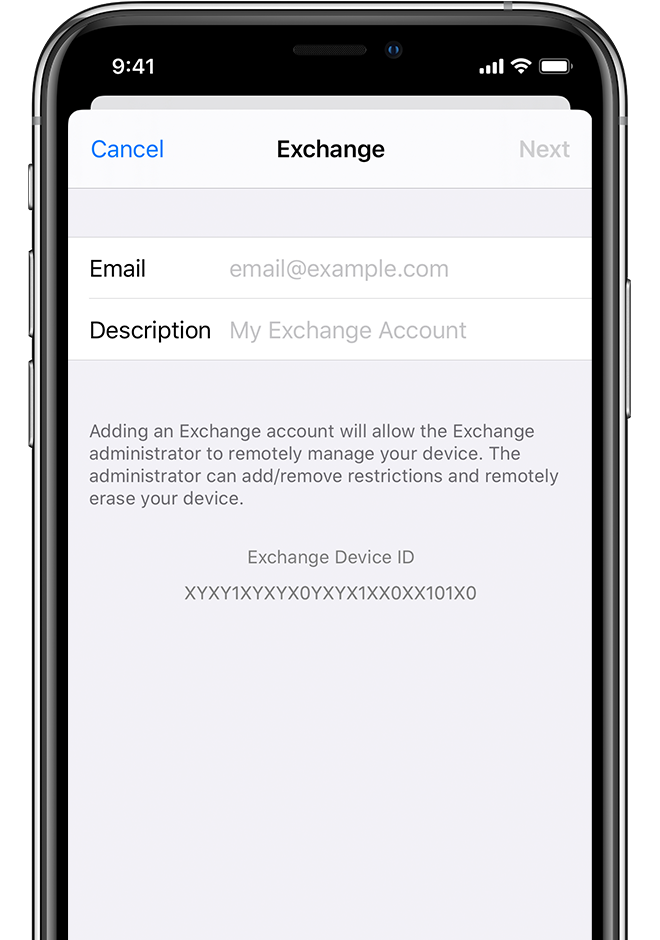
Enter your email address, then tap Next. You can also enter an account description.
Sign in to configure your Exchange account
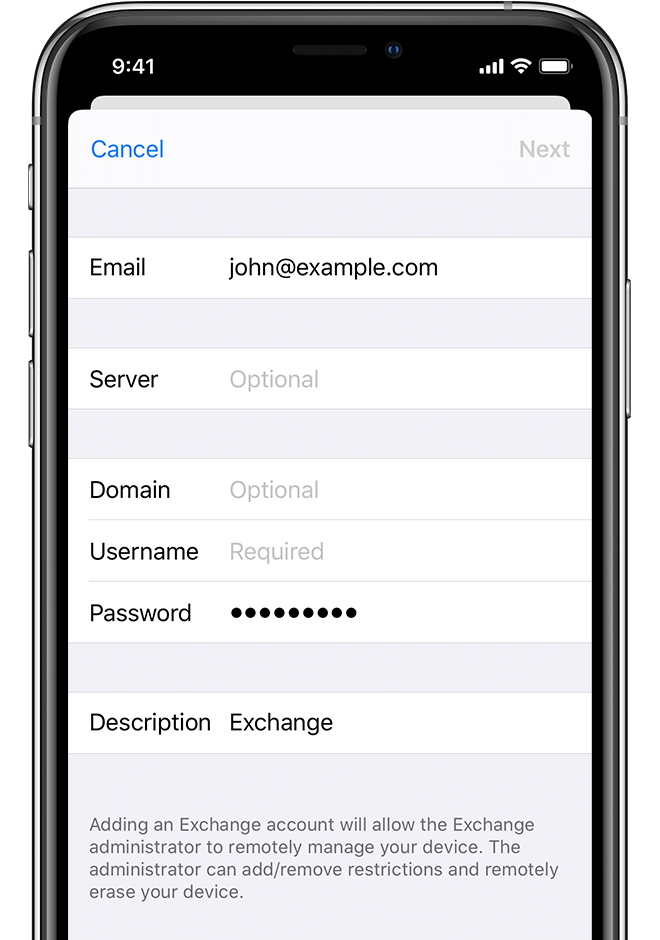
After you enter your email address, you'll be prompted to sign in to configure your Exchange account either automatically or through manual configuration.
Sign in automatically
Tap Sign In to automatically discover your Exchange account information.
Enter the password for your email address, then tap Next.
If your account uses modern authentication, you’ll be guided through a custom authentication workflow.
Configure your account manually
Tap Configure Manually to set up your account with Basic authentication.
Enter the password for your email address, then tap Next.
You may also be prompted to enter additional server information, which you can get from your Exchange Server administrator.
Sync your content
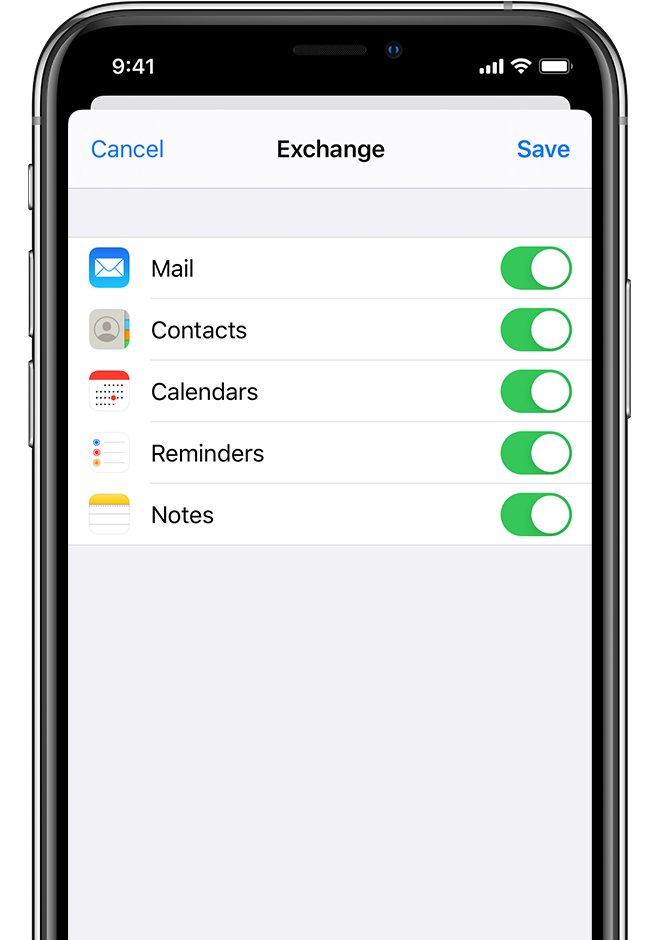
After you configure your Exchange account, you can sync Mail, Contacts, Calendars, Reminders and Notes. Turn on the data that you want to sync, then tap Save.
Edit your Exchange account settings
Go to Settings, then tap Apps.
Tap Mail.
On iPhone or iPad, tap Mail Accounts.
On Apple Vision Pro, tap Accounts.
Tap your Exchange account, then choose the settings that you want to change.
Turn on or off which apps you want to sync.
Tap Mail Days to Sync to change the number of days that Mail will sync with your Exchange mailbox.*
Tap Automatic Reply to set up automatic out-of-office replies.
To find and change advanced settings such as SSL and S/MIME, tap your account name, then tap Advanced Settings.
*Depending on your server capacity and network performance, syncing a large Exchange mailbox might result in a longer syncing time. For faster syncing, you can limit the number of days (for example, by selecting "1 Month" or less) that you want Mail to sync with your Exchange account.
Information about products not manufactured by Apple, or independent websites not controlled or tested by Apple, is provided without recommendation or endorsement. Apple assumes no responsibility with regard to the selection, performance or use of third-party websites or products. Apple makes no representations regarding third-party website accuracy or reliability. Contact the vendor for additional information.