Get started with Safari on iPad
The Safari app  brings the internet to your iPad. You can browse the web, bookmark websites to revisit later, keep your browsing activity private, and much more.
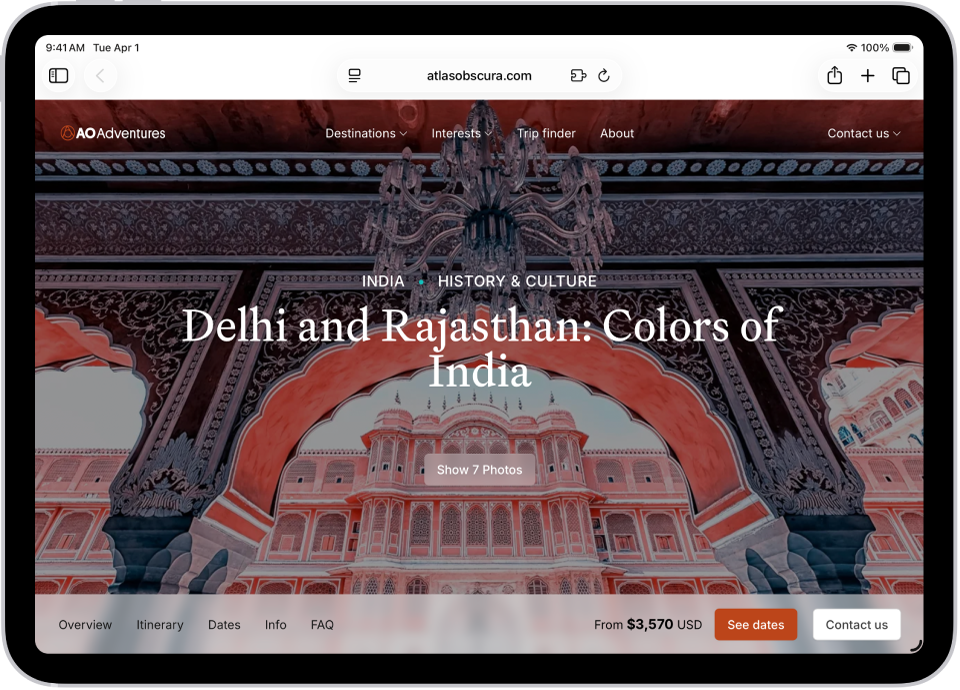
Browse the web
Surf the web or look for answers to specific questions. In the search field at the top of the window, enter the name or web address of a webpage, or type in a few words, a phrase, or a question.
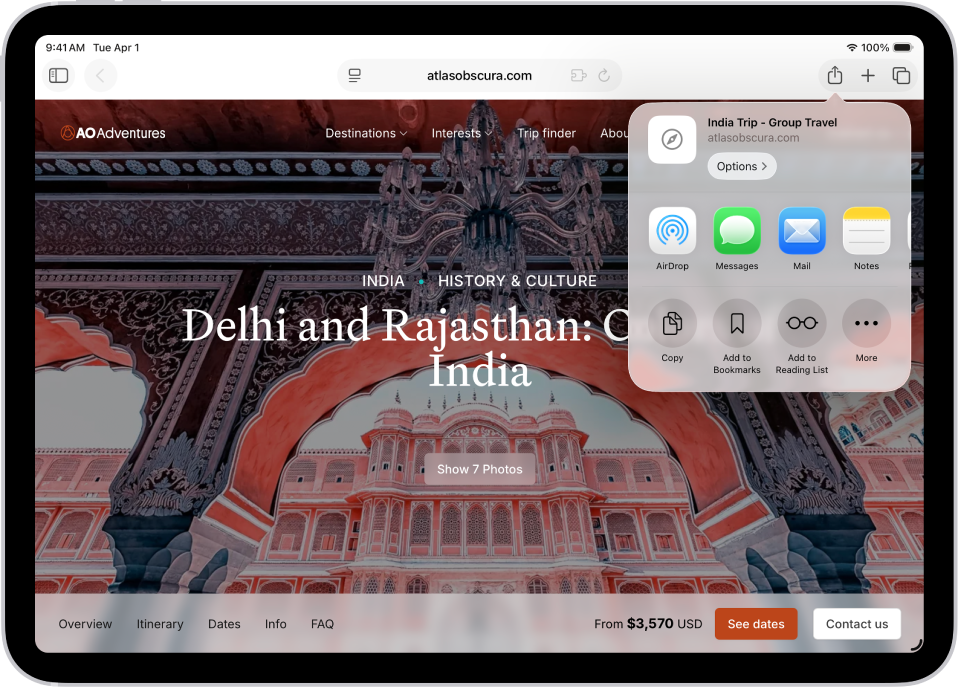
Bookmark a website
Save a website to revisit later. Tap  to the right of the search field, then tap Add to Bookmarks.
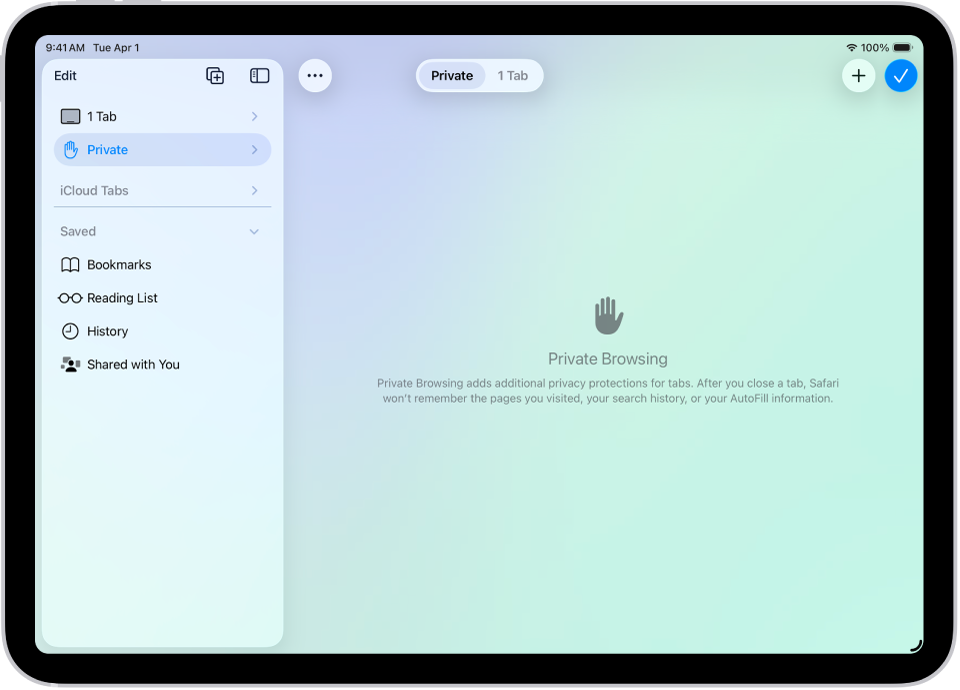
Browse privately
Keep your browsing activities to yourself. When you use Private Browsing, the tabs you open don’t appear in History on iPad or in the list of tabs on your other devices. Tap  , then tap Private.
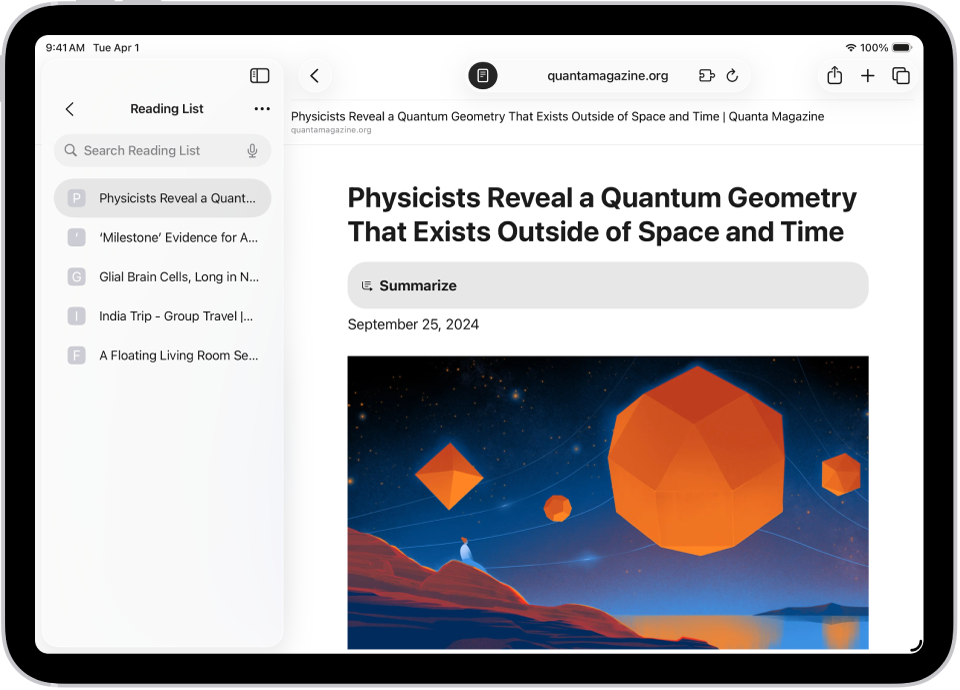
Remove cookies and clear your cache
Remove cookies and clear the cache on your iPad to undo permissions you granted to websites to use your location (or send you notifications) and to erase your browsing history. Tap , tap History, tap  , then tap Clear.
Note: Clearing your browsing history in Safari doesn’t clear any browsing histories kept independently by websites you visited, or your browsing history in other apps.
Want to learn more?