Connect an additional display and accessories to Studio Display
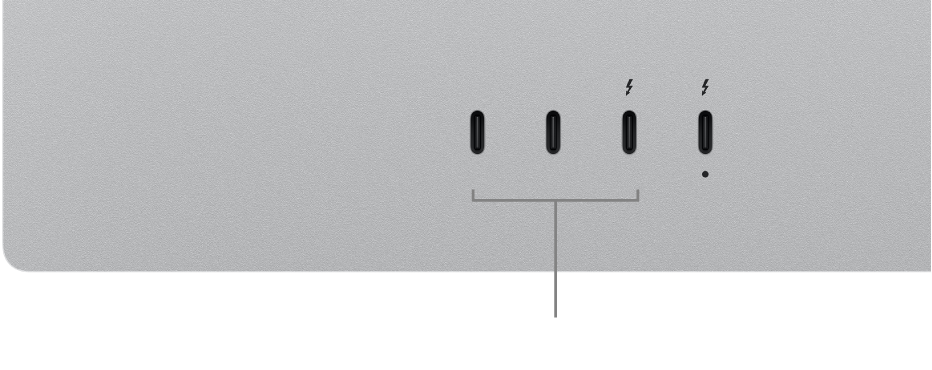
You can use the downstream Thunderbolt 5 (USB-C) and USB-C ports on the back of your Studio Display to connect an additional display, accessories, and more.
Connect an additional display
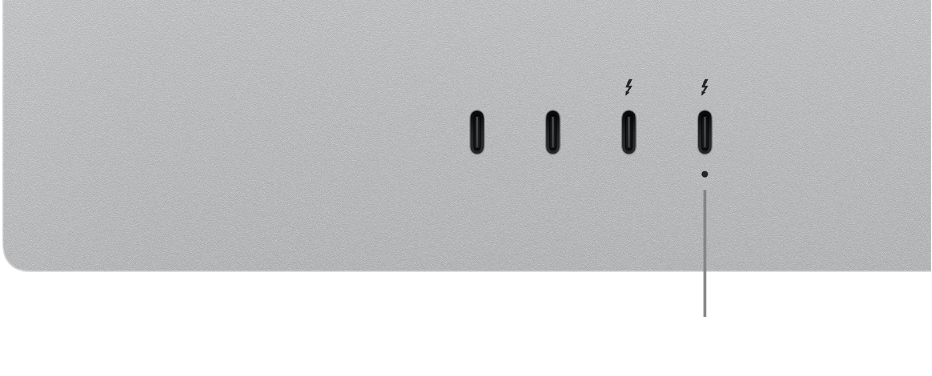
The downstream Thunderbolt 5 port 
Note: The number of displays you can connect depends on your Mac chip’s available resources and the bandwidth available on the Thunderbolt connection between your Mac and Studio Display.
Step 1: Connect your display to your Mac. Use the Thunderbolt 5 cable that came with the display to connect your Mac to the upstream Thunderbolt 5 (USB-C) port
Studio Display doesn’t have any buttons and automatically turns on when you plug it into power and connect it to your Mac.
Step 2: Check for the correct cables. You need to make sure you have the correct cables and adapters to connect an additional display.
If the display comes with a Thunderbolt (USB-C) cable that matches the port on Studio Display, use that cable to connect the display.
If your display doesn’t have a cable, obtain the required cable. If you have a third-party display, check the documentation that came with the display to get more information on the display’s video ports and cables.
If you have the display’s cable, but its connectors don’t match the Thunderbolt (USB-C) port on your Studio Display, you may be able to use an adapter (sold separately). Visit apple.com, your local Apple Store, or other resellers for more information and availability.
Step 3: Connect an additional display. Use the cable (and adapter, if needed) that came with your display to connect the display to the downstream Thunderbolt 5 (USB-C) port
Connect accessories
The downstream Thunderbolt 5 (USB-C) and USB-C ports on your Studio Display can be used to connect and charge accessories, or pair and charge wireless accessories such as a keyboard, mouse, or trackpad. You can also connect and charge other devices, including your iPhone, iPad, camera, or external storage device.
Note: Depending on the cables that came with your accessory, you may need to use an adapter. Visit apple.com, your local Apple Store, or other resellers for more information and availability.
Use the cable that came with your accessory to connect the accessory to one of the downstream ports on your Studio Display.