Use iTunes to sync your iPhone, iPad, or iPod with your computer
On macOS Mojave or earlier or a Windows PC, you can use iTunes to sync music, movies, and more.
Consider using cloud-based options instead of iTunes to sync content to your iPhone, iPad, or iPod.1 You can use iCloud, Apple Music, or similar services to keep your content in the cloud. This lets you access your music, photos, and more when you aren't near your computer.
Sync content types with iTunes
Albums, songs, playlists, movies, TV shows, podcasts, and audiobooks2
Photos and videos2
Contacts and calendars2
Sync or remove content using iTunes
Open iTunes and connect your device to your computer with a USB cable.
Click the device icon in the iTunes toolbar. If the icon doesn't appear, learn what to do.

In the Settings list, click the content type you want to sync.3
Select the checkbox next to Sync to turn syncing on.
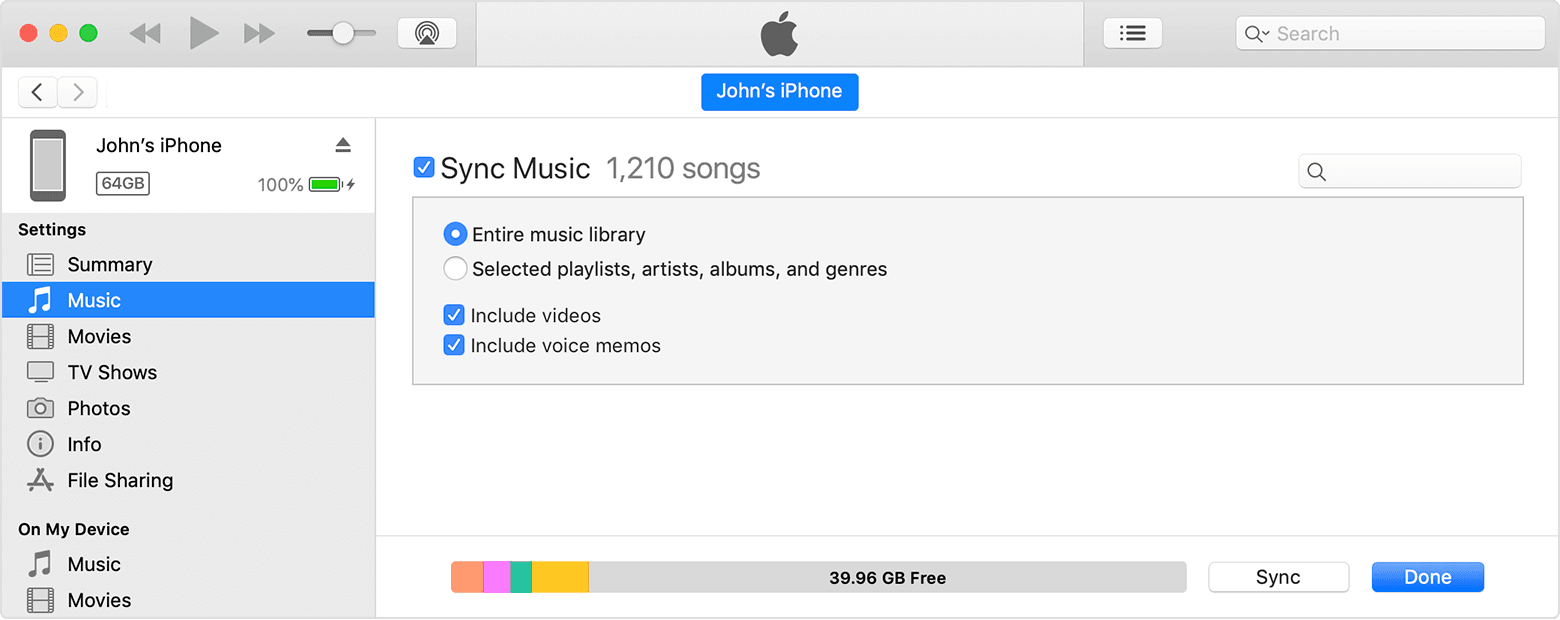
Select the checkbox next to each item that you want to sync.
Click Sync.
Click Done.
Sync your content using Wi-Fi
After you set up USB syncing, you can switch to Wi-Fi syncing:
Connect your device to your computer with a USB cable, then open iTunes and select your device. Learn what to do if your device isn't detected.
Click Summary in the Settings list.
Select Sync with this [device] over Wi-Fi.
Click Apply.
When the computer and the device are on the same Wi-Fi network, the device appears in iTunes. The device syncs automatically whenever it's plugged in to power and iTunes is open on the computer.
Fix common syncing issues
If you use iCloud or other services to keep your content up to date, some iTunes syncing features might be turned off.
iTunes features might vary by country or region.
You can sync your device with only one iTunes library at a time. If you see a message that your device is synced with another iTunes library, you previously connected your device to another computer. If you click "Remove and Sync", iTunes erases the selected content on your device and replaces it with content from this computer.