About Power Modes on your Mac
Power Modes allow you to tailor your Mac's performance to your workload.
Low Power Mode
Low Power Mode reduces energy use to increase battery life. In macOS Sequoia 15.1 or later, Low Power Mode also helps reduce fan noise for tasks done in quieter environments on models with an active cooling system, and allows reduced power consumption if your Mac is always left on.
You can use Low Power Mode with reduced power consumption and reduced fan noise (on models with an active cooling system) on the following models:
Mac Studio (2023) (macOS Sequoia 15.3 or later)
Mac mini (2023) (macOS Sequoia 15.1 or later)
iMac (24-inch, 2023) (macOS Sequoia 15.1 or later)
High Power Mode
High Power Mode allows the fans to run at higher speeds. The additional cooling capacity may allow the system to deliver higher performance in very intensive workloads. When High Power Mode is enabled, you may hear additional fan noise.
High Power Mode can improve performance in graphics-intensive workflows such as color grading 8K ProRes 4444 and 8K DNxHR video. In video editing and 3D applications, you may experience smoother playback and faster exports in High Power Mode.
You can use High-Power Mode on the following models:
For 14-inch MacBook Pro with M4 Pro and M5 Pro chip, the 96W USB‑C Power Adapter is recommended for using high power mode while charging.
Select a Power Mode
By default, your Mac is set to Automatic Mode to balance energy use and performance.
You can set different energy modes for when your Mac is on battery or connected to the power adapter. Power Modes can be used whether your Mac is connected to power or not.
On macOS Ventura or later:
From the Apple menu , choose System Settings (or System Preferences), then click Battery (or Energy on desktops).
Choose Low Power Mode, Automatic, or High Power Mode from the “On battery” or the “On power adapter” pop-up menu under Energy Mode. In macOS Sequoia 15.1 or later, you can also select Energy Modes from Control Center.

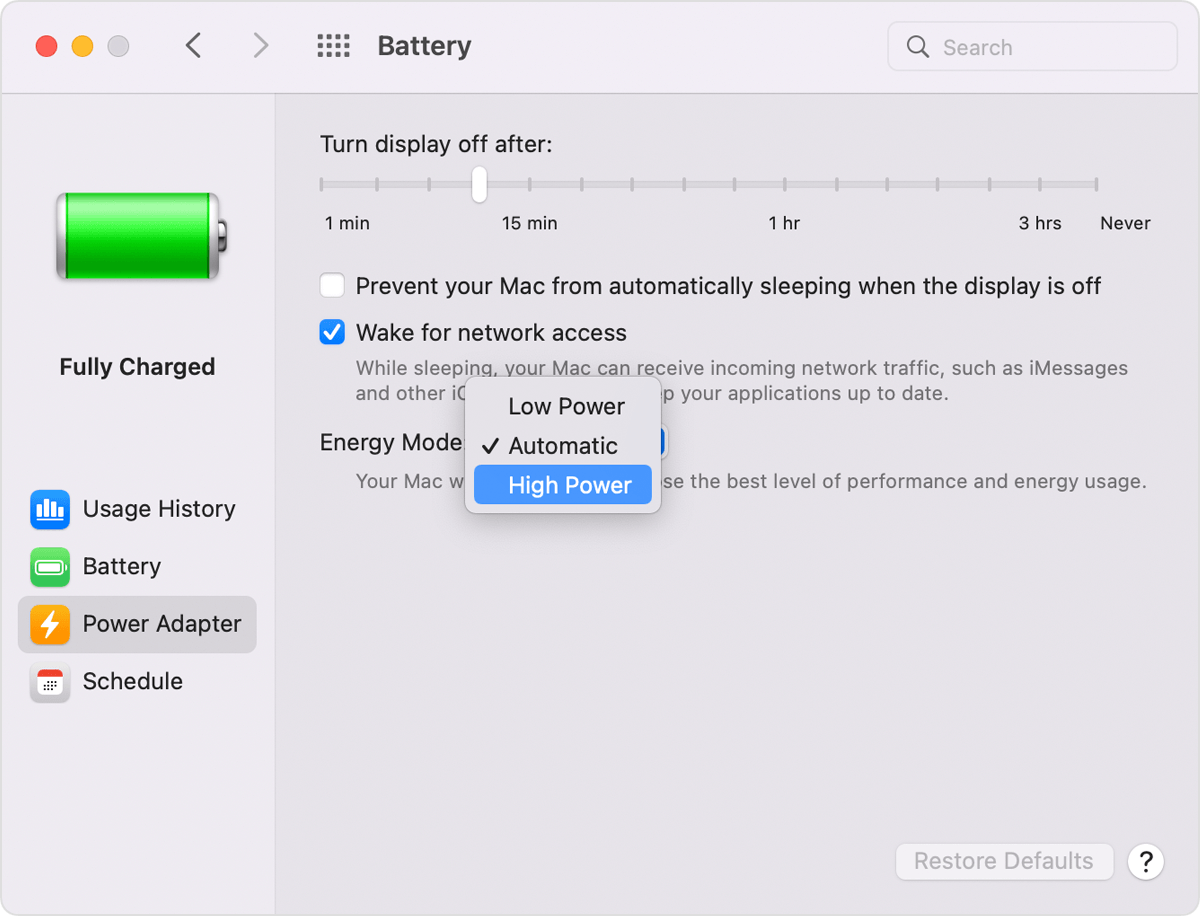
On macOS Monterey or earlier:
From the Apple menu , choose System Preferences, then click Battery.
Click Battery or Power Adapter in the sidebar, then choose Low Power, Automatic, or High Power Mode from the Energy Mode pop-up menu.
See if a Power Mode is on
To see if Low Power or High Power Mode is on, click the Battery or lightning bolt icon in the menu bar to view the battery status menu.

Information about products not manufactured by Apple, or independent websites not controlled or tested by Apple, is provided without recommendation or endorsement. Apple assumes no responsibility with regard to the selection, performance, or use of third-party websites or products. Apple makes no representations regarding third-party website accuracy or reliability. Contact the vendor for additional information.
