How to unsend messages on your iPhone
In Messages on iOS 16, iPadOS 16.1, macOS Ventura, or later, you can unsend a message for up to two minutes after you send it.
Unsend messages on your iPhone or iPad with iOS 16 or later
In Messages, tap a conversation.
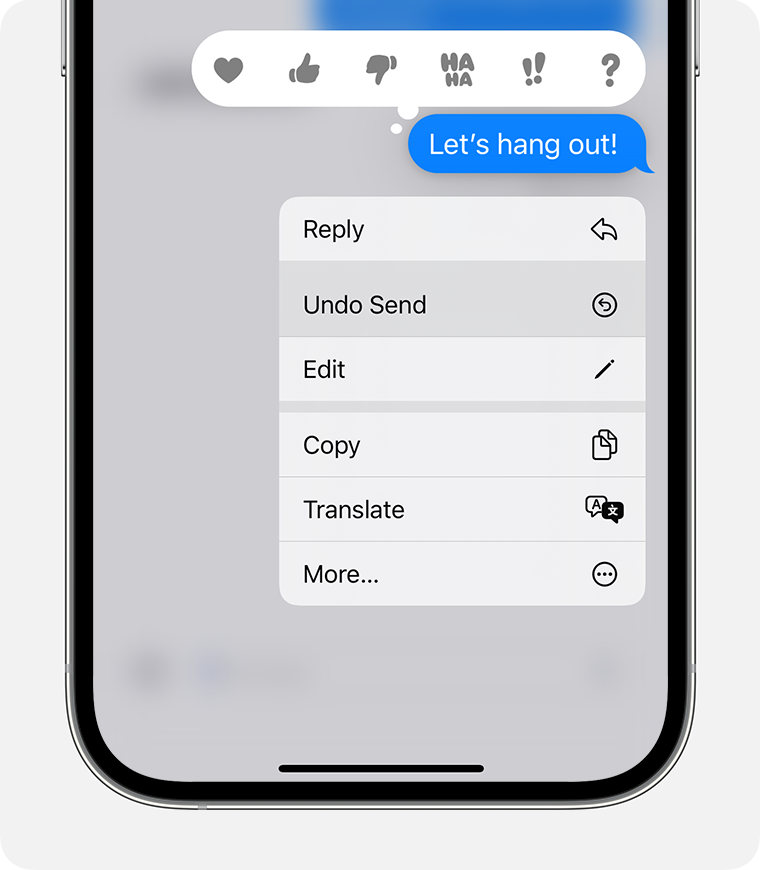
Touch and hold the message you want to unsend.
Tap Undo Send.
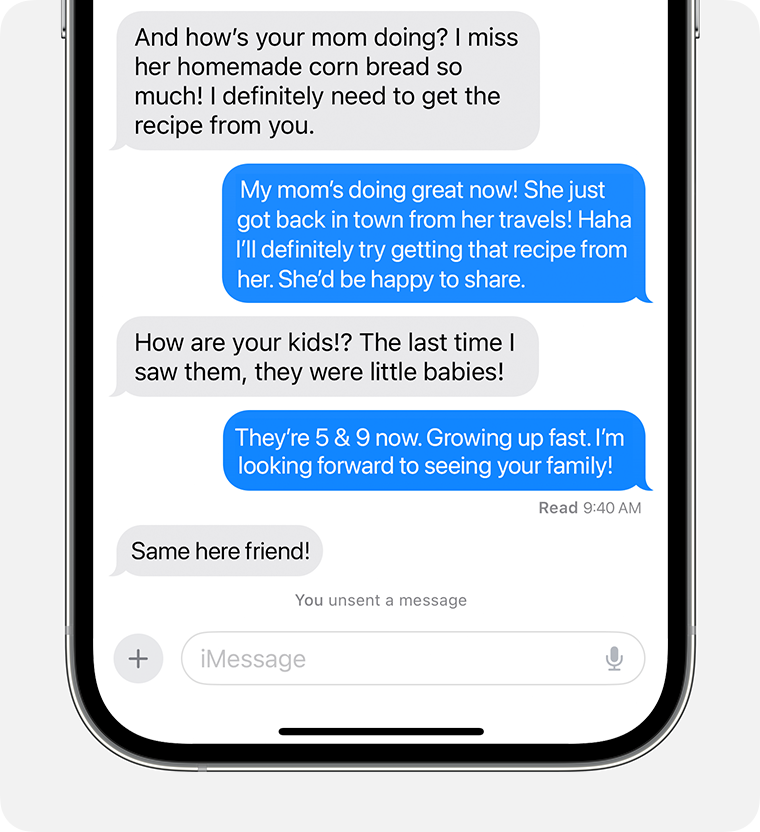
The message disappears and a notification that says "You unsent a message" appears. You can unsend an iMessage for up to two minutes after you send it.
To unsend messages, everyone must use iMessage with iOS 16, iPadOS 16.1, macOS Ventura, or later. If you unsend a message to someone on an older version of iOS, iPad OS, or macOS, your contact might still see the message.
Need more help?
Tell us more about what's happening, and we’ll suggest what you can do next.
Published Date: