Add a Shazam widget to your Home Screen on iPhone or iPad
On your iPhone or iPad, go to the Home Screen page where you want to add the widget, then touch and hold the Home Screen background until the apps begin to jiggle.
Tap Edit at the top of the screen, then tap Add Widget to open the widget gallery.
Scroll or search to find Shazam in the list of apps, tap it, then swipe through the size options.
When you see the size you want, tap Add Widget.
While the apps are still jiggling, move the widget where you want it on the screen, then tap Done.
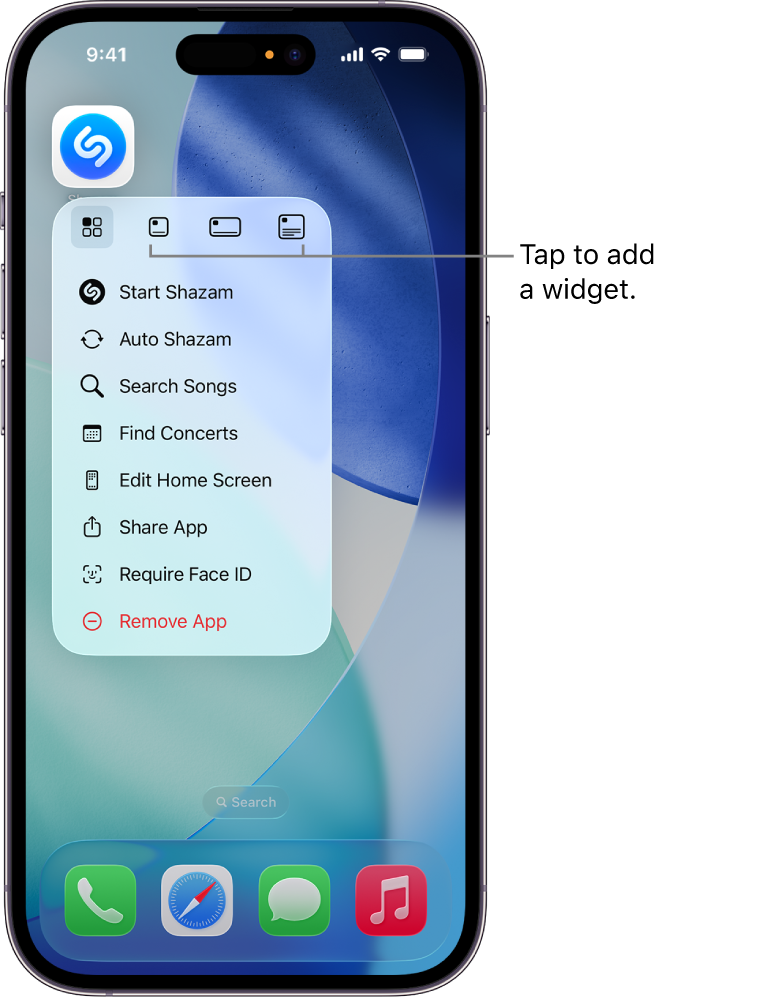
Tip: To quickly create a widget from the Shazam app icon, touch and hold the icon on your Home Screen, then tap one of the icons in the pop-up menu to choose the widget size. (Depending on the location of the Shazam app icon on your Home Screen, the widget buttons may appear at the top or the bottom of the pop-up menu.)
To open the Shazam app and identify a song from the widget, tap
 in the widget.

See Add, edit, and remove widgets in the iPhone User Guide or iPad User Guide.