Make FaceTime calls on iPad
With an internet connection and an Apple Account, you can make and receive calls in the FaceTime app.
On iPad Wi-Fi + Cellular models, you can also make FaceTime calls over a cellular data connection. (Calling and data rates may apply.) To turn this feature off, go to the Settings app  , tap Cellular, then turn off FaceTime. See View or change cellular data settings.
Note: FaceTime audio calls aren’t available in all countries or regions.
Make a FaceTime call
Go to the FaceTime app
 on your iPad.
Tap New near the top of the screen.
Enter the name, number, or email of the person you want to call, then tap FaceTime to make a video call or
 to make a FaceTime audio call.
Alternatively, you can tap
 to open Contacts and start your call from there, or tap a suggested contact to quickly make a call.
To call multiple people, see Make a Group FaceTime call on iPad.
Siri: Ask Siri something like, “Call Eliza’s mobile.” Learn how to use Siri.
Tip: To see more during a FaceTime video call, rotate iPad to use landscape orientation. See Change or lock the screen orientation.
Record a video message
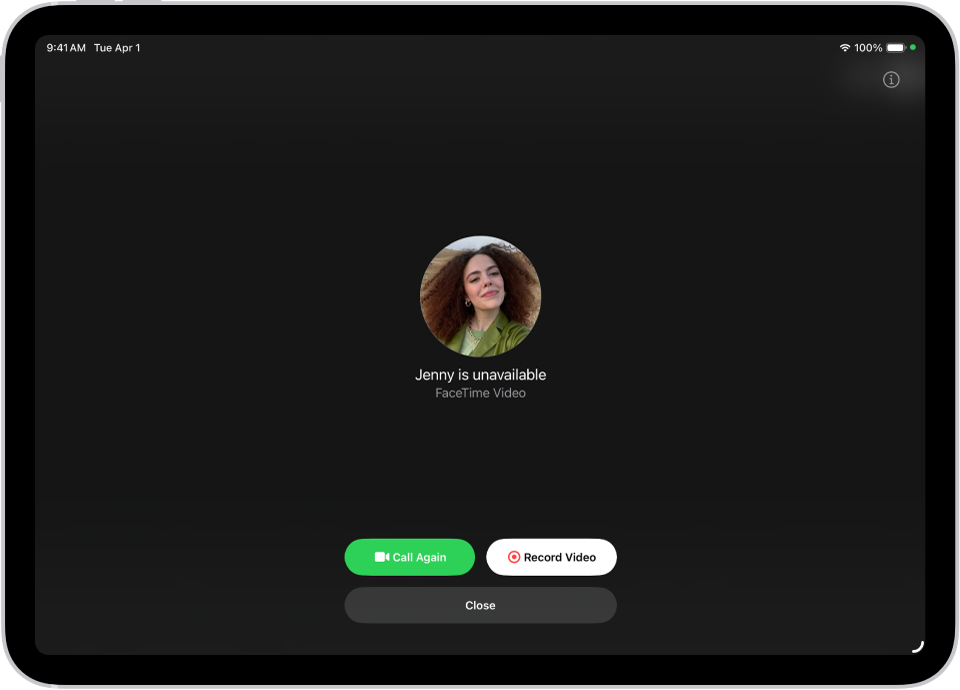
If someone doesn’t answer your FaceTime video call, you can record a video message to convey exactly what you want to say.
Tap Record Video, wait for the countdown (from 5 to 1), then record your message.
Tap
 to send your recorded message, or tap Retake to rerecord the message. You can also tap Save to save the video message to Photos.
After you send your video message, the recipient is notified.
Note: You can receive video messages only from saved contacts, people you’ve called, and people suggested by Siri.
Leave a voicemail
If someone doesn’t answer your FaceTime audio call, you’re prompted to leave a voicemail if the person you’re calling has Live Voicemail turned on in Settings > Apps > Phone on an iPhone signed in to the same Apple Account as their iPad.
Note: Live Voicemail isn’t available in all languages or regions. See the iOS and iPadOS Feature Availability website.
Call again
To call someone again in FaceTime, do any of the following:
Tap Call Again on the Record Video screen.
In your call history, tap the tile with the contact information of the person (or group) you want to call again, then tap
 (for a FaceTime video call) or
  .
.
Start a FaceTime call from a Messages conversation
In an iMessage conversation, you can start a FaceTime call to the person you’re chatting with.
Tap
 at the top right of the Messages conversation.
Tap FaceTime Audio or FaceTime Video.
Use Live Translation
If Apple Intelligence* is turned on, you can use it to see live translated captions in FaceTime. See Translate messages and calls.
Important: If you remove the FaceTime app from your iPad, or if you removed FaceTime in an earlier version of iPadOS, you won’t be able to make or receive FaceTime calls or use SharePlay on your iPad unless you redownload the app. Settings and contact cards won’t show FaceTime options.