Numbers User Guide for Mac
- Welcome
- What’s new
-
- Get started with Numbers
- Intro to images, charts, and other objects
- Create a spreadsheet
- Open or close spreadsheets
- Personalize templates
- Use sheets
- Undo or redo changes
- Save your spreadsheet
- Find a spreadsheet
- Delete a spreadsheet
- Print a spreadsheet
- Change the sheet background
- Touch Bar for Numbers
- Change Numbers privacy and analytics settings
-
- Use iCloud with Numbers
- Import an Excel or text file
- Export to Excel or another file format
- Reduce the spreadsheet file size
- Save a large spreadsheet as a package file
- Restore an earlier version of a spreadsheet
- Move a spreadsheet
- Lock a spreadsheet
- Password-protect a spreadsheet
- Create and manage custom templates
- Copyright

Use Magic Fill in Numbers on Mac
If you are subscribed to Apple Creator Studio, you can use Magic Fill to recognize patterns and fill entire columns instantly. For example, if you have full names in a column but you also want first and last names in their own columns, you can start adding names to those columns until Number recognizes a pattern and then use Magic Fill to complete them.
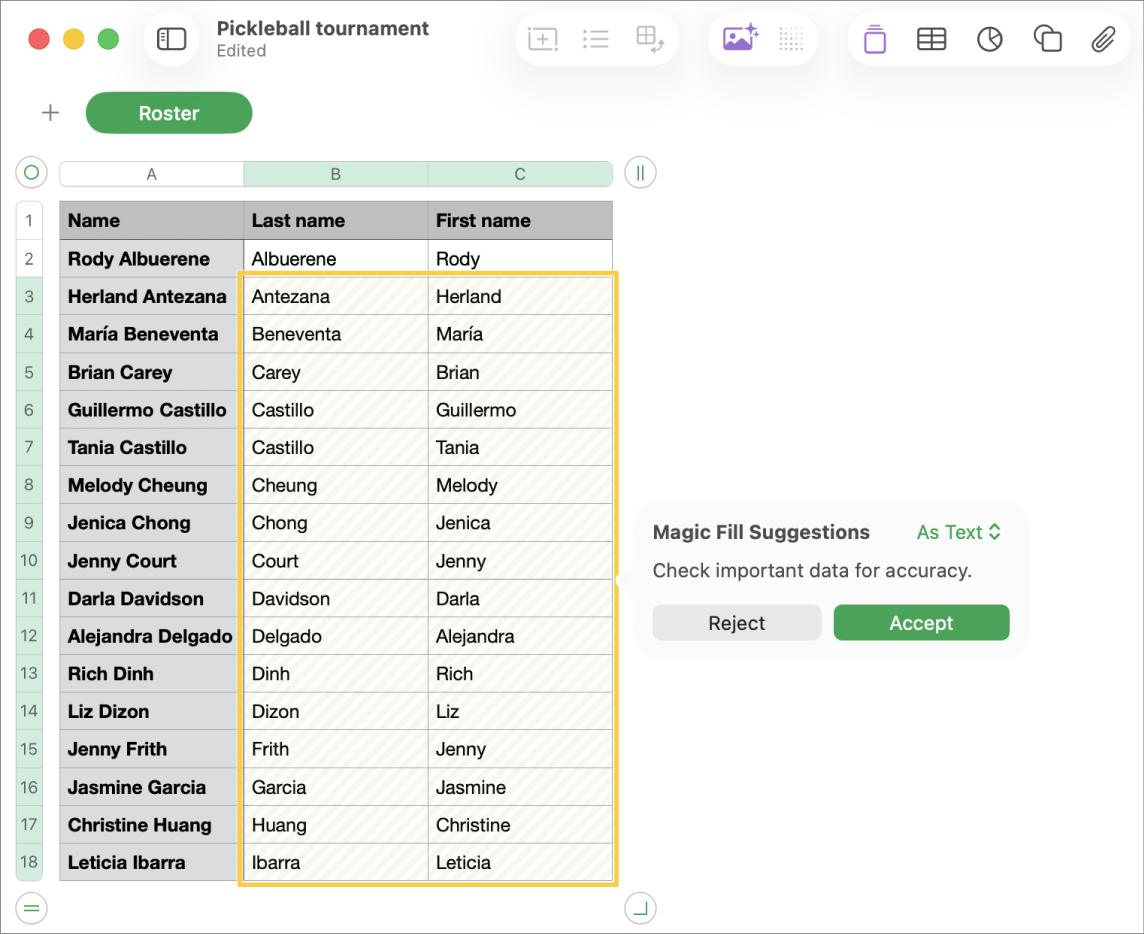
Populate cells using Magic Fill
Go to the Numbers app
on your Mac.Open a spreadsheet with a table, add content to at least two cells in the column you want to fill (enough to establish a recognizable pattern), then do one of the following to view Magic Fill Suggestions and populate additional cells in the column.
Cell selection: Select cells with an established pattern and the cells you want to fill, click Table in the menu bar, then choose Magic Fill Cells.
Magic Fill Suggestions menu: If Numbers recognizes a pattern while you’re entering data, a Magic Fill Suggestions menu appears below the active cell. Click Magic Fill Column to fill the column with the suggested results
Review the populated results. To save and continue with the suggestions, in the pop-up menu choose either As Text or As Formulas for the cell content format, then click Accept. To remove the suggestions, click Reject.
Important: If you don’t see Magic Fill options, you may need to turn on suggestions. Go to Numbers > Settings > General, then turn on “Show suggestions when editing table cells.”