Use Live Listen with Made for iPhone hearing devices
With Live Listen, your iPhone, iPad or iPod touch becomes a remote microphone that sends sound to your Made for iPhone (MFi) hearing device. Live Listen can help you hear a conversation in a noisy room or hear someone speaking across the room.
Turn on Live Listen
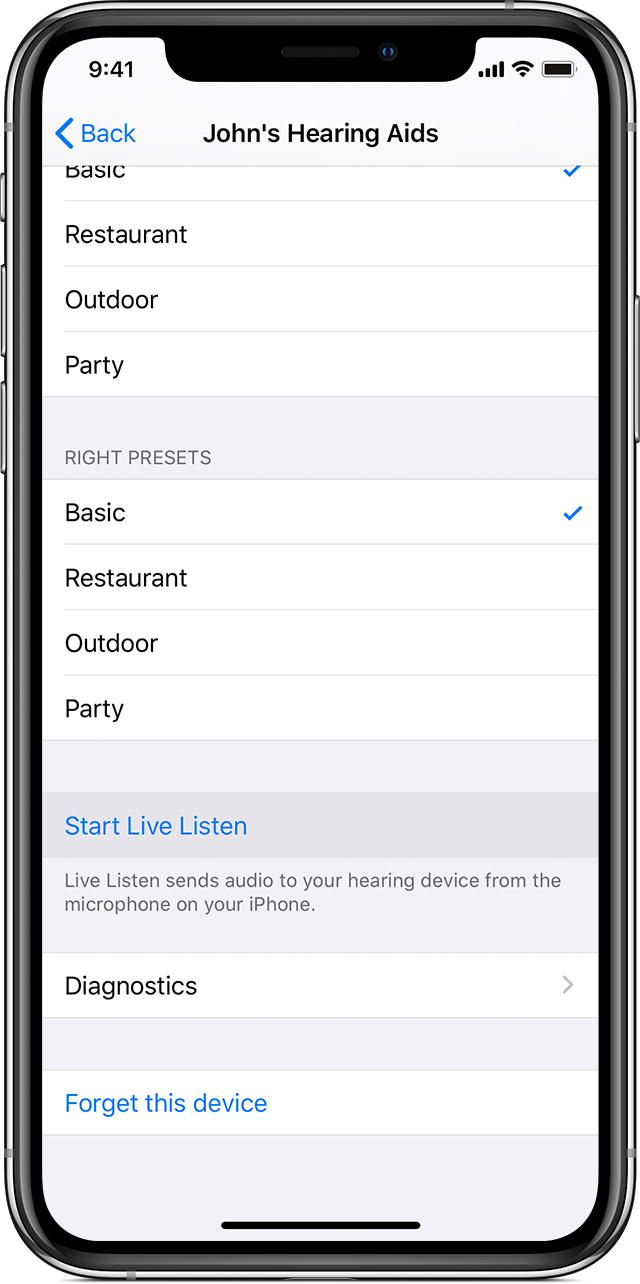
Make sure your hearing device is connected to your iPhone, iPad or iPod touch.
Go to Settings > Accessibility > Hearing Devices.
Tap the name of your hearing device under MFi Hearing Devices.
Tap Start Live Listen.
Place the device in front of the person you want to hear.
Turn off Live Listen
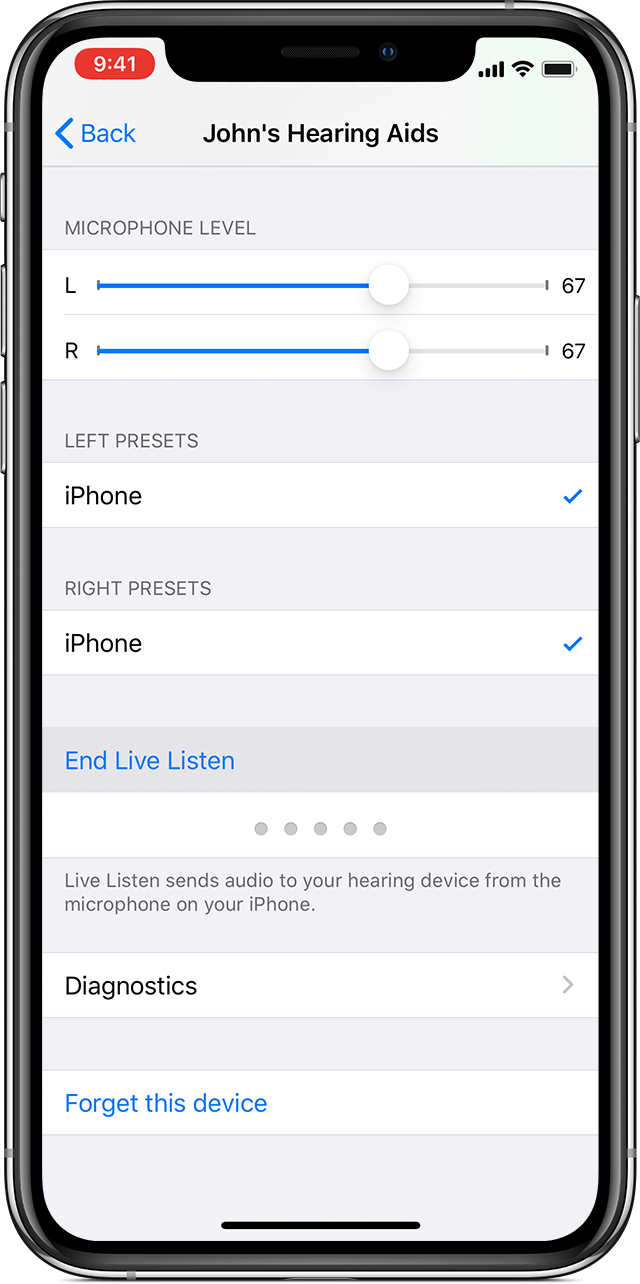
Go to Settings > Accessibility > Hearing Devices.
Tap the name of your hearing device under MFi Hearing Devices.
Tap End Live Listen.
Use the Accessibility Shortcut
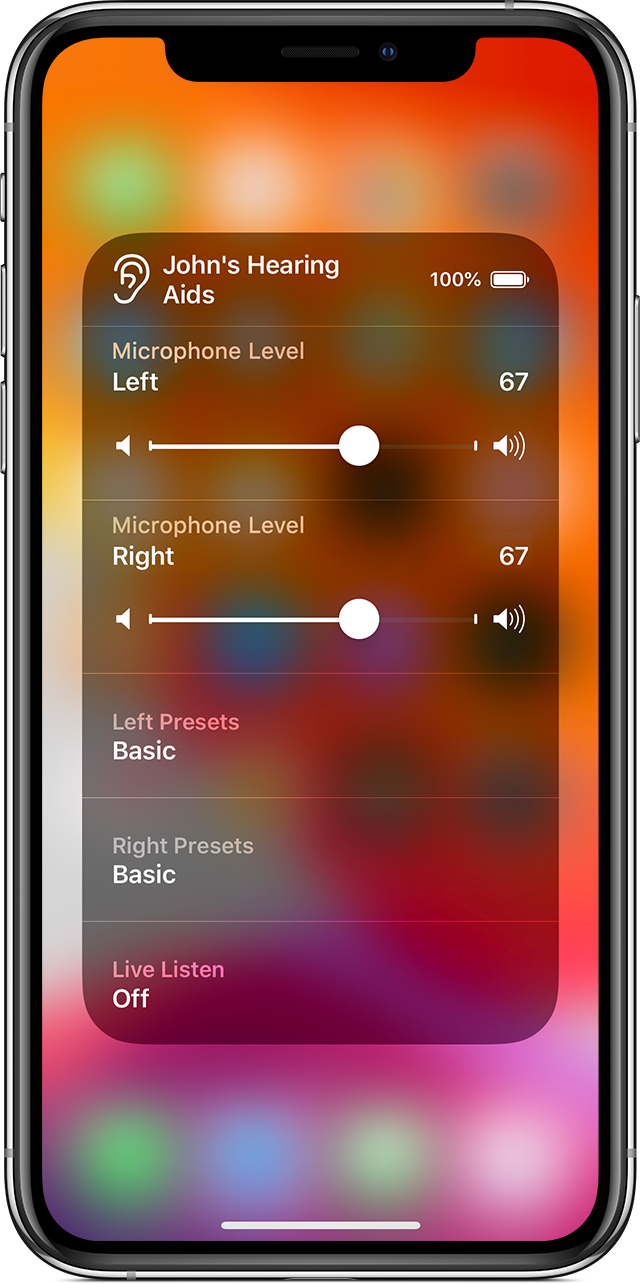
If you add Live Listen to Accessibility Shortcut, you can use triple-click to quickly start or end Live Listen, view the battery life of your hearing device and control other features, such as volume and audio presets.
Find out how to set up Accessibility Shortcut
If you can’t see Live Listen
Make sure your hearing device is connected to your iPhone, iPad or iPod touch.
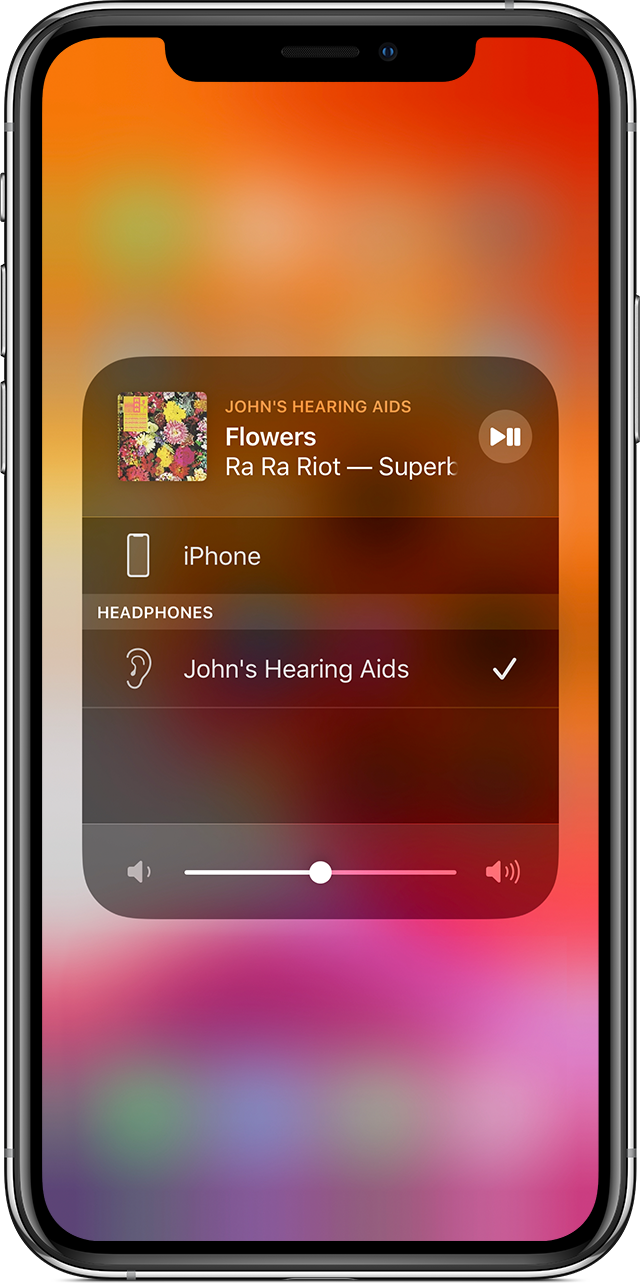
Open Control Centre and make sure your hearing device appears in the device selection area of the playback controls. If you can see a different accessory there, tap it, then tap your hearing device in the list that appears.
Learn more
Information about products not manufactured by Apple, or independent websites not controlled or tested by Apple, is provided without recommendation or endorsement. Apple assumes no responsibility with regard to the selection, performance or use of third-party websites or products. Apple makes no representations regarding third-party website accuracy or reliability. Contact the vendor for additional information.