If you subscribe to Apple One and use a different Apple Account for iCloud
If you sign up for Apple One and use different Apple Accounts for iCloud and media subscriptions and purchases, you can apply the iCloud+ storage and features to the Apple Account of your choice.
Apple One bundles up to six Apple services into one subscription. If you have one Apple Account, all Apple One services will be applied to that account automatically.
If you have more than one Apple Account, the iCloud storage and features included with your Apple One subscription will be applied automatically to the Apple Account that you use for media purchases and subscriptions. To change this, go to Settings and choose a different account.
Choose an Apple Account when you set up Apple One
In the message, select Change in Settings.
Select the email address you'd like to use, then tap Use This Account. You may need to sign in to iCloud on your device.
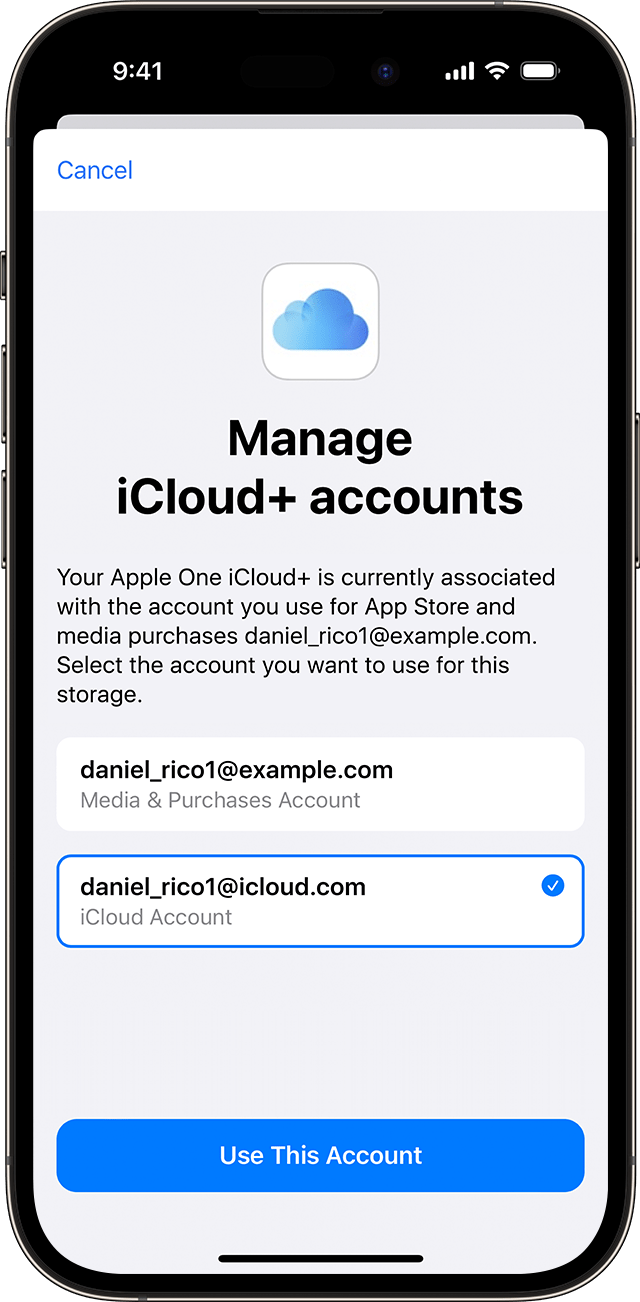
Tap Confirm.
Apply iCloud+ storage and features to a different Apple Account
Go to Settings.
Tap your name and then tap Subscriptions.
Tap Apple One, then tap Manage iCloud+.
Select the email address you'd like to use, then tap Use This Account.
Tap Confirm.
What happens when you apply your Apple One storage to the Apple Account you use with iCloud
If you’ve already subscribed to iCloud+
The storage included with Apple One will replace your current storage plan. Your existing iCloud+ plan will be cancelled.
If you upgrade your iCloud+ plan after subscribing to Apple One
The storage that’s included with Apple One is moved back to the Apple Account that you use for media purchases and subscriptions.
Need more help?
Tell us more about what’s happening and we’ll suggest what you can do next.