Prevent apps and windows from reopening on Mac
Apps and their windows may automatically reopen when you log in to your Mac or open each app. Here's how to control this behaviour.
Prevent apps from reopening when logging in
When you shut down, restart or log out of your Mac, you should see a confirmation dialogue asking if you’re sure. Untick the “Reopen windows when logging back in” box in that dialogue.
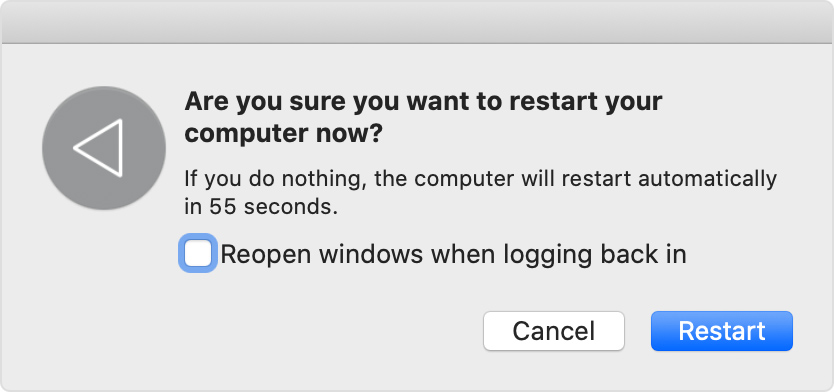
If your Mac didn’t show the confirmation dialogue because it was forced to turn off or restart immediately, it will use the most recent “Reopen windows when logging back in” setting when it starts up again. It will also do this when you bypass the confirmation dialogue by pressing and holding the Option key while choosing Log Out, Shut Down or Restart from the Apple menu .
Prevent windows from reopening when opening an app
You can prevent apps from restoring the windows they had open when you last quit the app.
macOS Ventura or later
From the Apple menu , choose System Settings.
Click Desktop & Dock in the sidebar.
Scroll down on the right and turn on “Close windows when quitting an application”.
Earlier versions of macOS
From the Apple menu , choose System Preferences.
Click General.
Select “Close windows when quitting an app”.
Other solutions
Press and hold the Shift key while opening the app. This doesn't change any settings, but the app forgets any windows that were open the last time you quit the app.
Start up in safe mode, then restart normally. This doesn't change any settings, but your Mac forgets any apps and windows that were open the last time you logged out or restarted.
Check the app's settings. Some apps offer a setting to make them reopen each time you log in to your Mac, or a setting to make them reopen their windows each time you open the app. For example, Safari has a setting to control which windows it opens with.
Make sure the app isn't a login item. Login items will open every time you log in to your Mac. You can add or remove login items. If the app isn’t a login item but still keeps opening when you log in, it may have installed other software to cause this behaviour. Check the app’s documentation or contact the app developer.