Identify status lights on HomePod and HomePod mini
Lights appear on the top of your HomePod (2nd generation) and HomePod mini, and change colours depending on what you’re doing on your HomePod speaker. Here’s what you may see.
Static white light

If a continuous white light appears on the top of your HomePod or HomePod mini, then your HomePod speaker is playing audio.
If you don’t hear audio, turn up the volume.
White flashing light
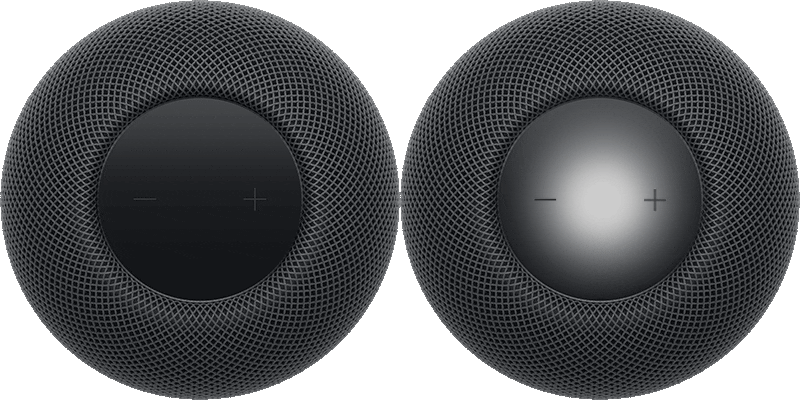
If a white light is flashing on and off repeatedly on the top of your HomePod or HomePod mini, unplug your HomePod speaker from power, wait 15 seconds, then plug it back in.
If the white flashing light continues, reset your HomePod speaker.
If the white flashing light continues after resetting your HomePod speaker, you might need service. Get a service.
White pulsing light

If a continuous white light is pulsing on the top of your HomePod or HomePod mini, then your HomePod speaker is ready for setup.
Unlock your iPhone or iPad and hold it next to your HomePod speaker to continue setup.
White spinning light

If a white light moves in a circle around the top of your HomePod or HomePod mini, then your HomePod speaker is turning on or updating software.
Keep your HomePod speaker plugged in while it’s updating.
Multicoloured light

If a multicoloured light appears on the top of your HomePod or HomePod mini, Siri is listening, thinking or responding.
Orange flashing light
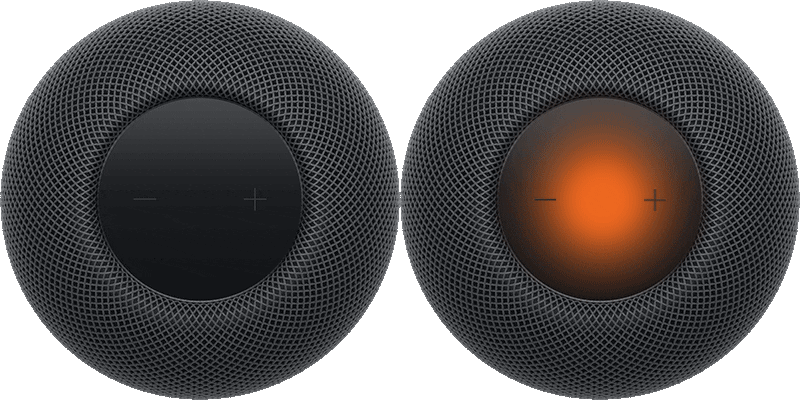
If an orange light is flashing on and off repeatedly on the top of HomePod mini, then HomePod mini is connected to a computer, or is plugged into a power adapter that isn’t rated 20W (9V ⎓ 2.22A).
Plug your HomePod mini into power using a 20W (9V ⎓ 2.22A) adapter.
Green pulsing light

If a continuous green light pulses on the top of your HomePod speaker, you transferred a phone call to HomePod.
Red spinning light

If a red light is moving in a circle around the top of your HomePod or HomePod mini, then you’re resetting your HomePod speaker.
Wait for the reset to finish, then set up your HomePod speaker again.