Replace the Apple Thunderbolt I/O card in your Mac Pro (2023)
Learn how to remove and replace the Thunderbolt I/O card in your Mac Pro.
Check required tools
Phillips #1 screwdriver
If you need to order a replacement Thunderbolt I/O card, you can purchase it through the Self Service Repair process.
Remove the housing or top cover
Follow the steps to remove the housing on Mac Pro (2023) or the top cover on Mac Pro (Rack, 2023).
Mac Pro (2023)
Wait approximately 5-10 minutes for the computer to cool down.
Unplug all cables except the power cord from your Mac Pro.
Touch the metal housing on the outside of the Mac Pro to discharge any static electricity, then unplug the power cord.
Always discharge static before you touch parts or install components inside your Mac Pro. To avoid generating static, don’t move around the room until you finish installing the Apple Thunderbolt I/O card and slide the housing back onto the computer.
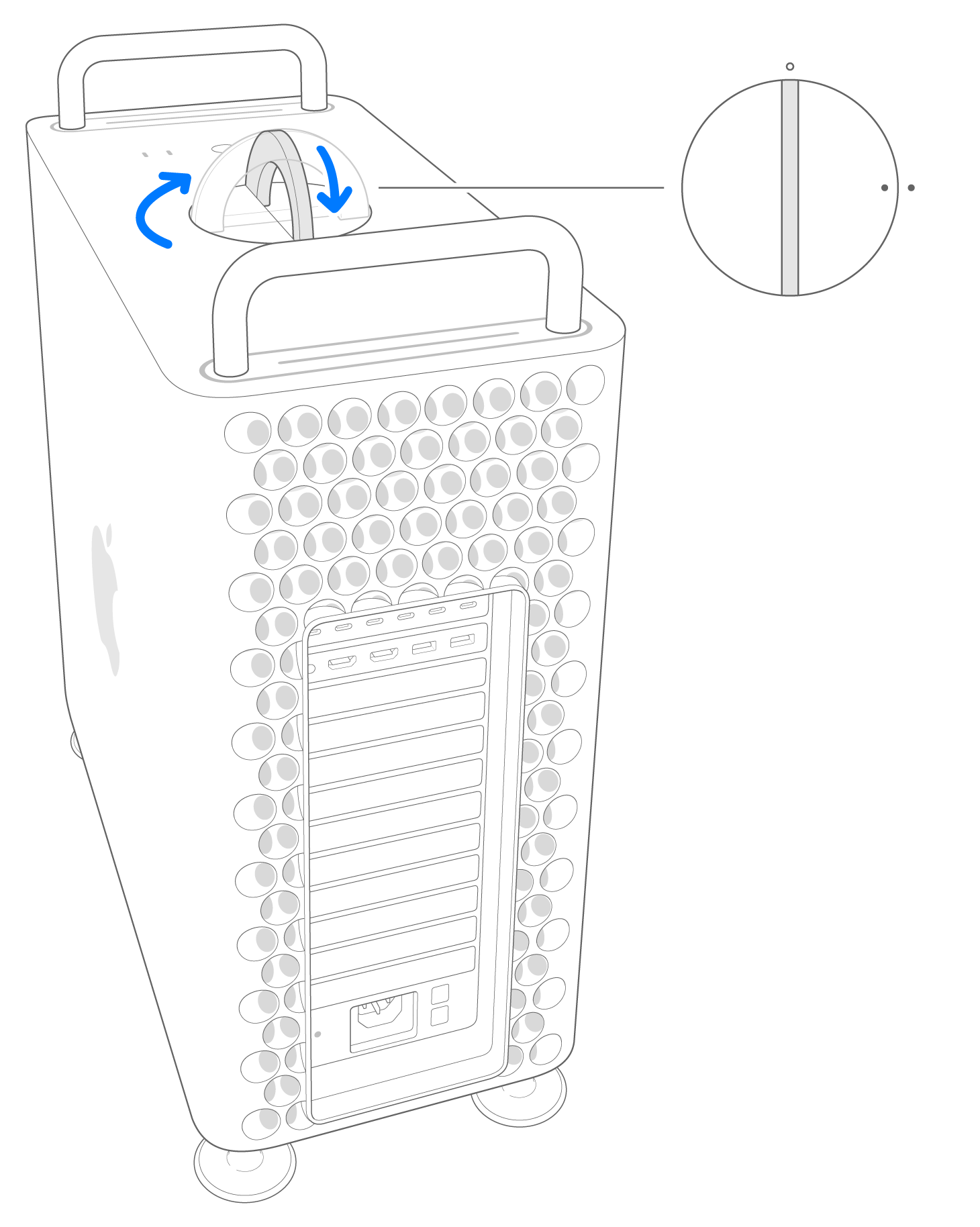
Flip the top latch up, then twist left to unlock the housing.

Lift the housing straight up and off of the computer. Carefully set it aside.
Your Mac Pro won't turn on when its cover is removed.

Mac Pro (Rack, 2023)
Wait approximately 5-10 minutes for the computer to cool down.
Unplug all cables except the power cord from your Mac Pro.
Touch the metal housing on the outside of the Mac Pro to discharge any static electricity, then unplug the power cord.
Always discharge static before you touch parts or install components inside your Mac Pro. To avoid generating static, don’t move around the room until you finish installing the Apple Thunderbolt I/O card and slide the top cover back onto the computer.
Slide the top cover release latches to the unlocked position, lift the top cover and pull it away from the front plate, then set it aside.

Remove and install the Thunderbolt I/O card
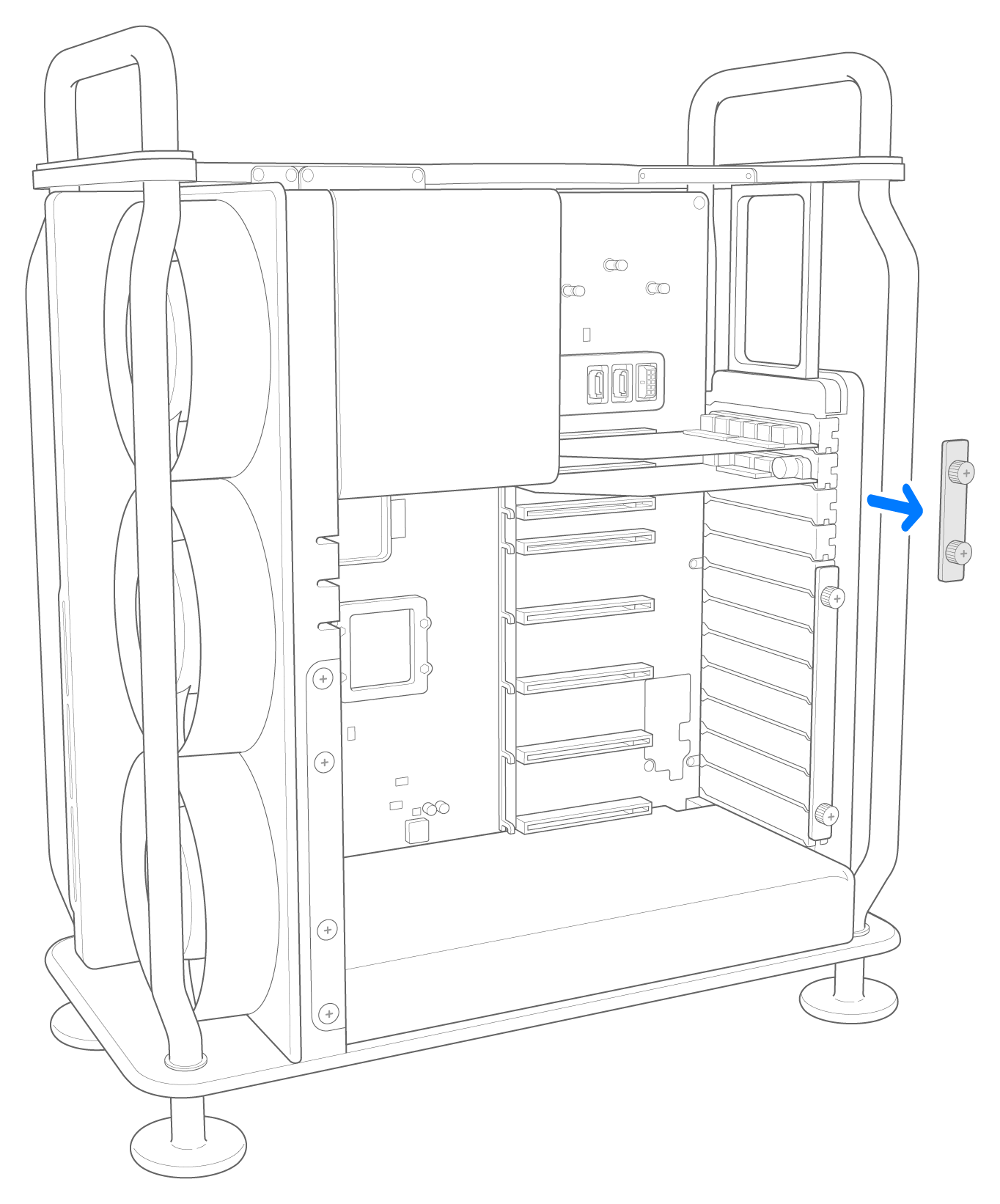
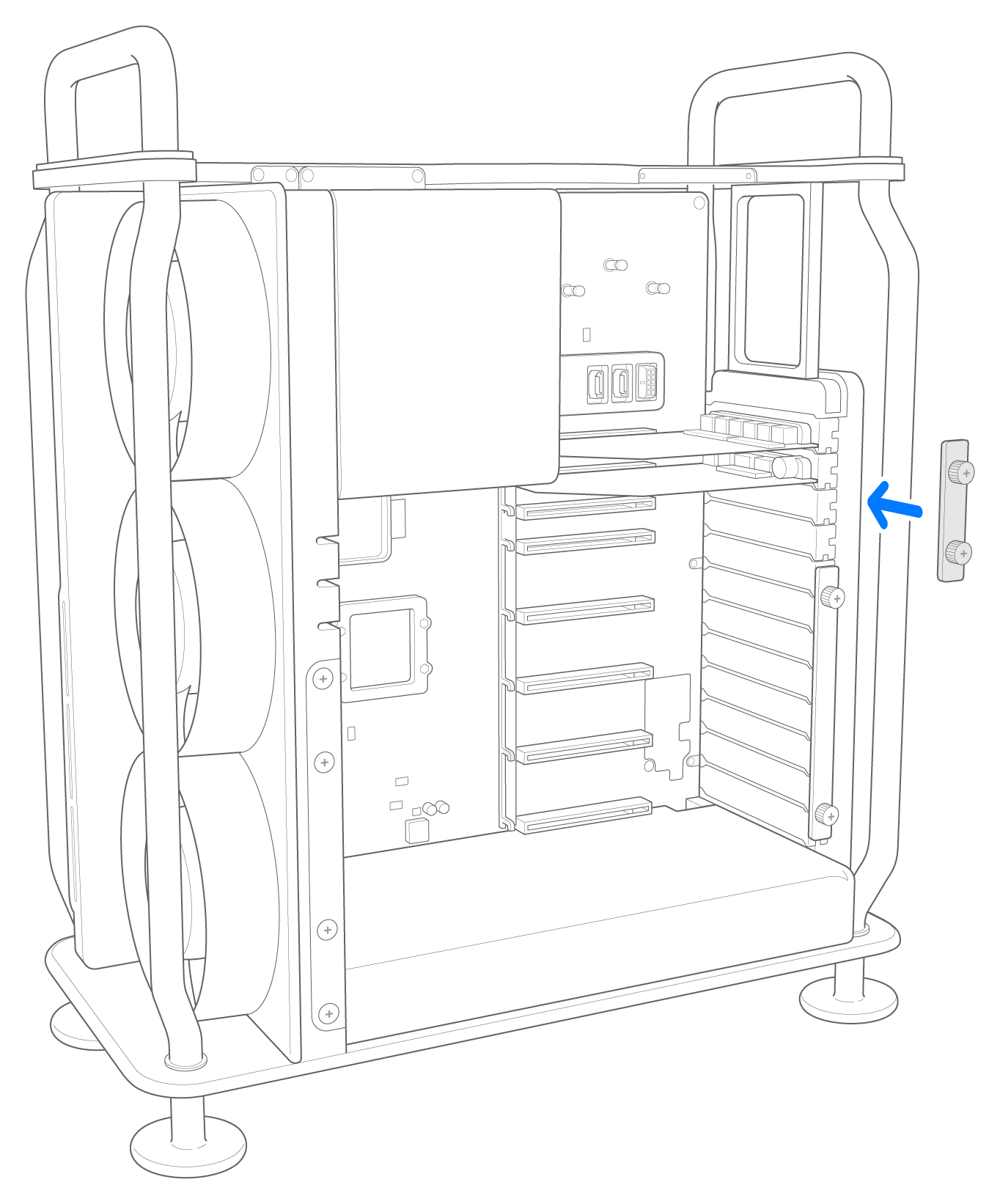
Unscrew the two Phillips #1 screws on the clamp plate that covers slots 5-7, then remove the plate.
The screws are captive and stay attached to the clamp plate.
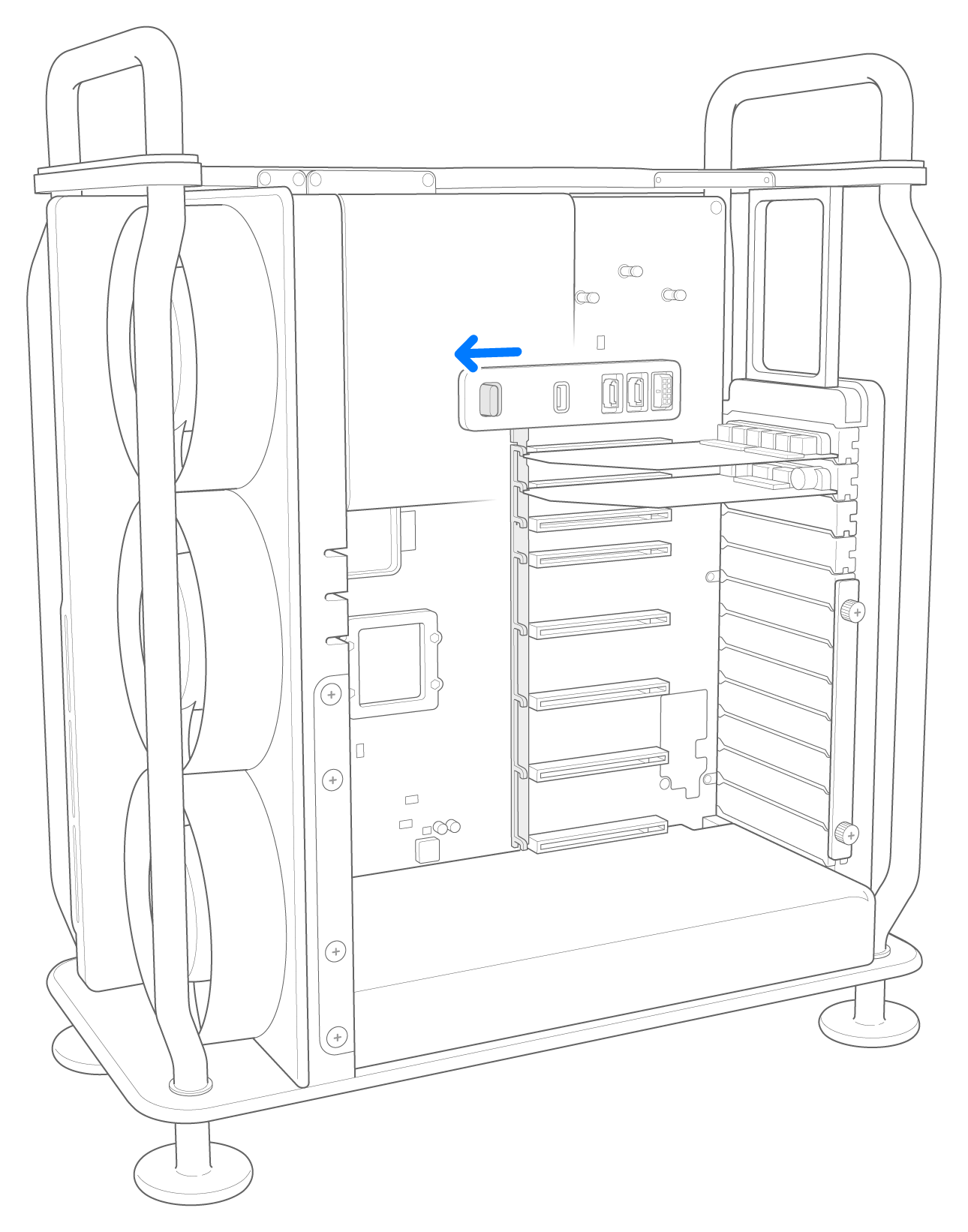
Slide the PCI retention latch to the unlocked position.

Hold the edges of the Thunderbolt I/O card and pull it straight out of the slot.
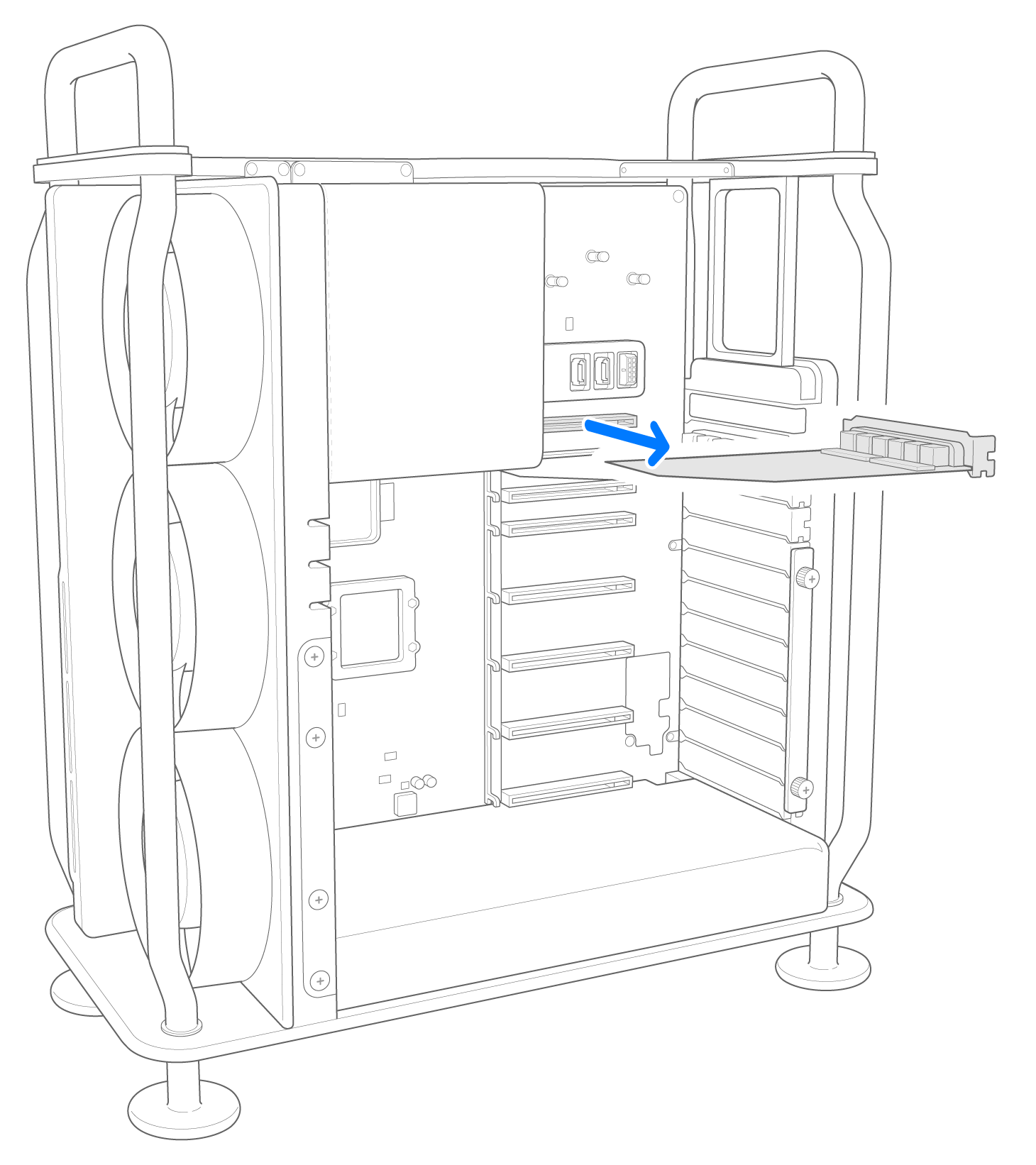
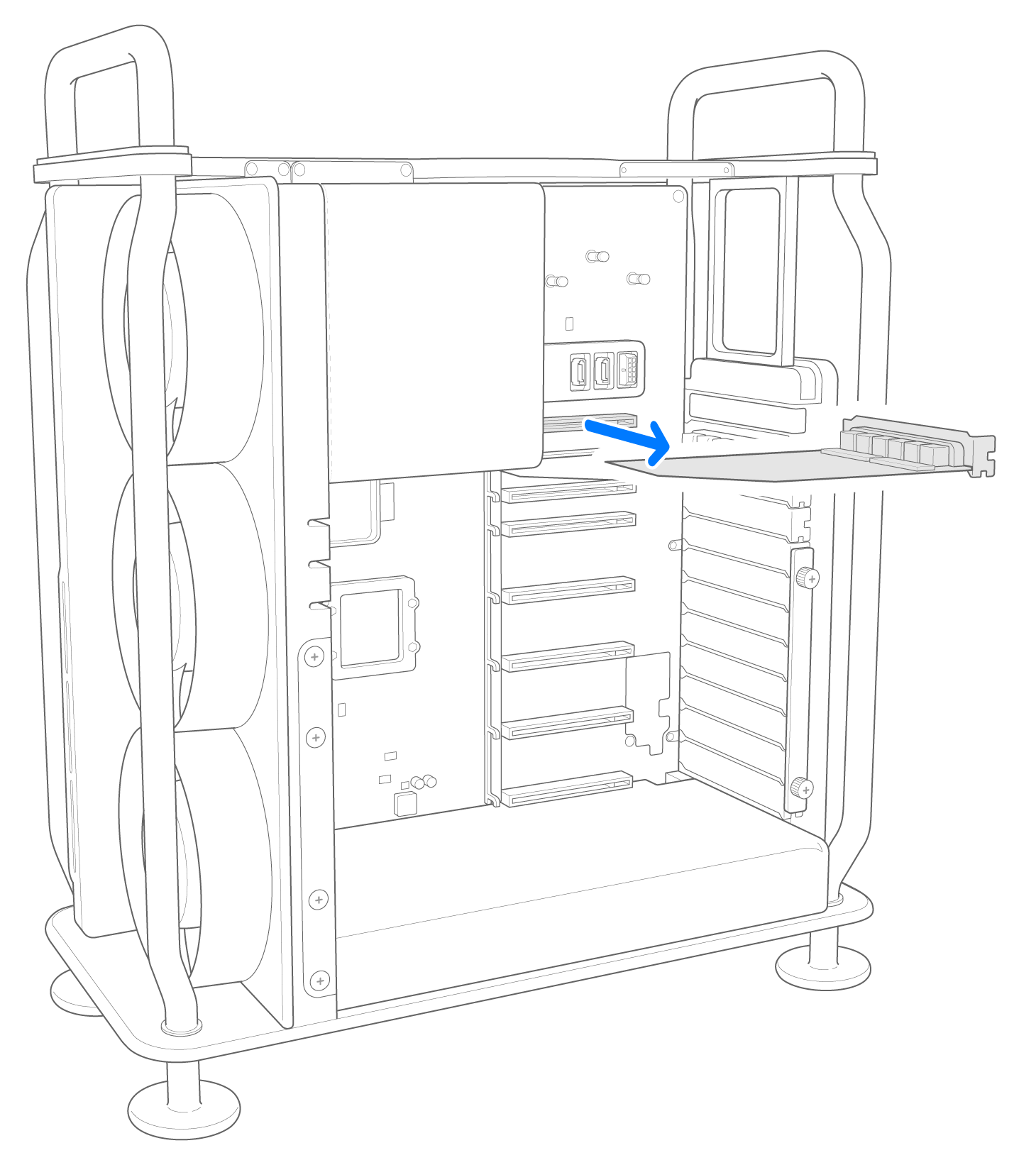
Insert the new Thunderbolt I/O card into the slot. Push firmly and evenly until the card is fully seated.
Slide the PCI retention latch to the locked position.
Place the clamp plate back over slots 5-7 and fully tighten two Phillips #1 screws.
Reinstall the housing or top cover
Follow the steps to reinstall the housing on Mac Pro (2023) or the top cover on Mac Pro (Rack, 2023).
Mac Pro (2023)
Carefully lower the housing over the Mac Pro, being careful not to touch any of the circuit boards.

After the housing is fully seated, twist the top latch right and flip it down to lock it.
Connect the power cord, display, and any other peripherals.
Mac Pro (Rack, 2023)
Align the edge of the top cover with the slot in the front plate, then firmly press near the release latches and listen for them to click into place.

Connect the power cord, display, and any other peripherals.
Send your original I/O card back
If you received a replacement part from Apple, follow the steps to send your original part back to Apple.