Turn iPad on or off
There are multiple ways to turn your iPad on and off—you can use the buttons on the top and side of your iPad, or you can use the controls in Settings and Control Center.
Turn on iPad
Press and hold the top button until the Apple logo appears.

If iPad doesn’t turn on, you might need to charge the battery. For more help, see the Apple Support article If your iPad won’t turn on or is frozen.
Turn off iPad (models with Face ID or with Touch ID in the top button)
If your iPad doesn’t have the Home button, do the following:
Simultaneously press and hold the top button and either volume button until the Power Off slider appears.
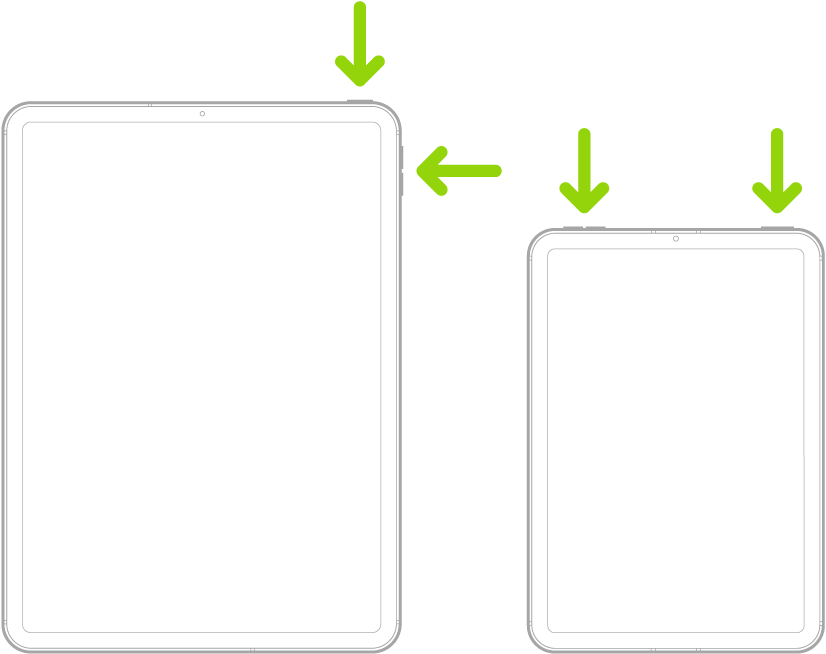
Drag the slider to turn off iPad.
Turn iPad off (models with the Home button)
If your iPad has the Home button, do the following:
Press and hold the top button.

Drag the slider to turn off iPad.
Turn off iPad in Control Center
Touch and hold
 in the top-right corner of your screen.
Drag the slider to turn off iPad.
Turn off iPad in Settings
Go to the Settings
 app on your iPad.
Tap General, scroll down, then tap Shut Down.
Drag the slider to turn off iPad.
If your iPad isn’t working as expected, you can try restarting it by turning it off, then turning it back on. If turning it off and on doesn’t fix the issue, try forcing it to restart.