Set up your Apple TV 4K or Apple TV HD
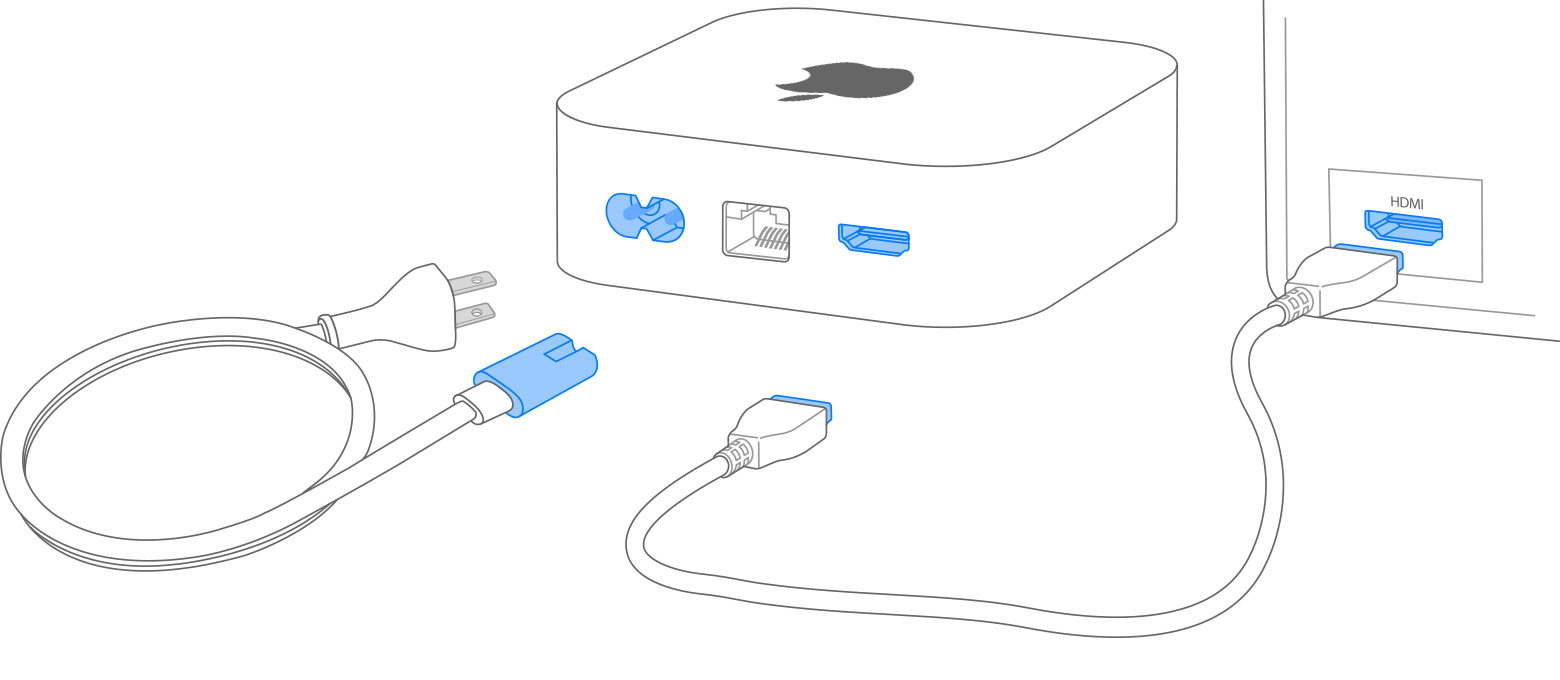
Plug your Apple TV into power, connect it to your TV with an HDMI cable, then follow the onscreen steps.
To go back to a previous screen during setup, press the Back button on your remote. To start over, unplug your Apple TV from power, then plug it back in.
Plug your Apple TV in and turn on your TV
To set up your Apple TV, you need personal internet, a TV or other display with an HDMI port, and an HDMI cable.
Plug your Apple TV into power and connect it to your TV with an HDMI cable. To watch movies in 4K HDR on Apple TV 4K,1 make sure that you’re using an HDMI 2.0 or later cable, and have a TV that supports 4K, HDR, or both. Then turn on your TV and select the HDMI input that your Apple TV is connected to.
Learn more about 4K, HDR, HDR10+, and Dolby Vision on your Apple TV 4K
Connect your Apple TV to the internet
If you have an Apple TV with an Ethernet port, and you don't want to connect to Wi-Fi during setup, you can connect your Apple TV to your router with an Ethernet cable.
Choose your language and turn on Siri
Press up or down, or swipe up or down on the clickpad of your Apple TV Remote to find your language and country or region. To choose an option, highlight it, then press the center of the clickpad. If asked, choose whether to use Siri.2
Learn more about how to use your Apple TV Remote. Or find out what to do if your Apple TV remote isn't working.

Sign in with your Apple Account
To automatically add your Apple Account and Wi-Fi settings to your Apple TV, choose Set Up with iPhone. Then unlock your iPhone, hold it next to your Apple TV, and follow the onscreen steps on your iPhone and Apple TV.
If you don't want to set up your Apple TV with your iPhone, choose Set Up Manually. Then follow the onscreen steps on your Apple TV to connect to your home Wi-Fi network and sign in with your Apple Account.
If you don't have an Apple Account, you can create one. If you forgot your Apple Account password, learn how to reset it.
Sign in with your TV provider
In some countries and regions, you might be able to sign in with your TV or cable provider on your Apple TV to watch TV shows and movies included in your cable or TV subscription.
Choose settings
Turn on One Home Screen to keep the Home screen and apps the same across every Apple TV. To automatically add Apple TV to the Home app, choose a room for your Apple TV. You can also add users to your Apple TV.
Start streaming
When setup is complete, you'll see the Home screen. From here, you can watch your favorite shows, movies, and discover more of what you love to watch in the Apple TV app. You can also subscribe to Apple TV to watch Apple Originals.
Get more help
Learn what to do if you can't set up your Apple TV.
Find out what to do if you have an issue when you try to redeem your promotion or free trial for Apple TV.
1. On Apple TV 4K, you need an HDMI 2.0 or later compatible cable. To access all of the features that your Apple TV has to offer, use an HDMI 2.1 cable.
2. Siri availability, features, and commands varies by language, and country and region.
