Change the refresh rate on your MacBook Pro or Apple display
You can switch between refresh rates on your 16-inch MacBook Pro, 14-inch MacBook Pro, Studio Display XDR, or Pro Display XDR.
For professional workflows such as video editing, you can set the refresh rate of your display to align with the frame rate of the video you're editing or viewing.
Available refresh rates
You can switch between these refresh rates on your Retina display, depending on your device:
120 Hertz
60 Hertz
59.94 Hertz
50 Hertz
48 Hertz
47.95 Hertz
You can use an adaptive refresh rate up to 120Hz on certain devices. On 14-inch and 16-inch MacBook Pro models with Apple silicon, select ProMotion. On Studio Display XDR, select Adaptive (47-120 Hertz).
Change the refresh rate
Choose a refresh rate that divides evenly into the frame rate of your content. For example, if the content you’re viewing is 24 frames per second, select the 48 Hertz refresh rate.
From the Apple menu , choose System Settings (Or System Preferences), then click Displays.
Click the Refresh Rate pop-up menu and choose a refresh rate.
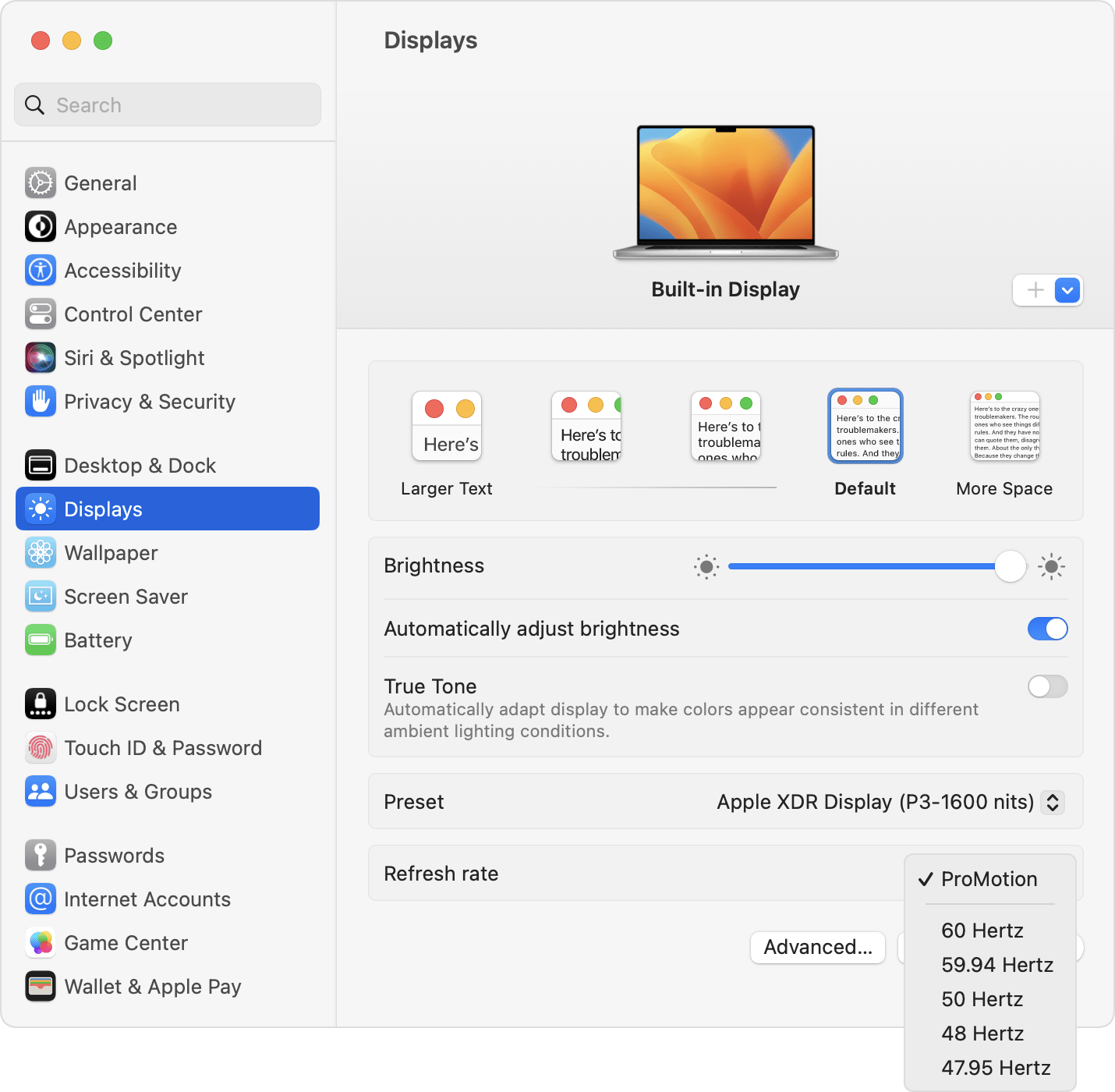
When you're done viewing or editing the video content, you might want to change your refresh rate back to the default for your display.
In macOS Catalina and macOS Big Sur, press and hold the Option key and select the Scaled button to display the refresh rate menu.