Charge your Mac laptop computer
Charge your MacBook, MacBook Neo, MacBook Air, or MacBook Pro by connecting a power adapter to its USB-C or MagSafe port, depending on the Mac model.
Recommended charging solutions
Learn which power adapters and charge cables are recommended for your Mac, including recommended wattage and how to check the wattage being delivered to your Mac.
If the wattage delivered by your charging solution is too low for your Mac model, "Slow Charger" appears in the battery status menu
 and Battery settings.
If a connected USB-C or Thunderbolt display (such as Apple Studio Display) is providing power to charge your Mac, you can use that instead of a separate charging solution.
Some Mac models can fast charge when using the appropriate combination of power adapter and charge cable.
Charge with MagSafe
If your Mac has a MagSafe 3 port, it might also have USB-C ports. Your Mac charges over only one port at a time, using the source that provides the most power. Connecting a charging solution to more than one port, whether MagSafe or USB-C, doesn't charge your Mac faster.
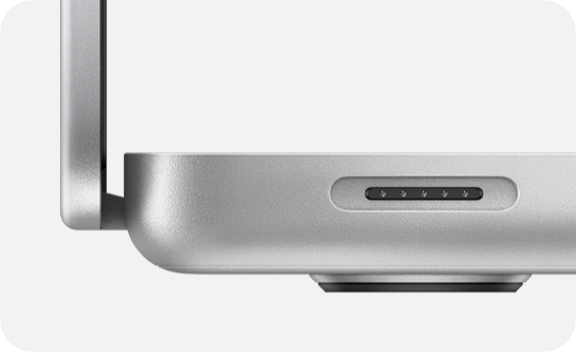
Locate the MagSafe port
The MagSafe port is on the left side of the Mac, near the Esc (Escape) key. These Mac models can charge with MagSafe 3:
MacBook Pro introduced in 2021 or later, excluding MacBook Pro (13-inch, M2, 2022)
MacBook Air introduced in 2022 or later
Some earlier Mac models have a MagSafe 2 or original MagSafe port instead. MagSafe 3 isn't compatible with the power adapters and charge cables used by earlier versions of MagSafe.
Begin charging with MagSafe
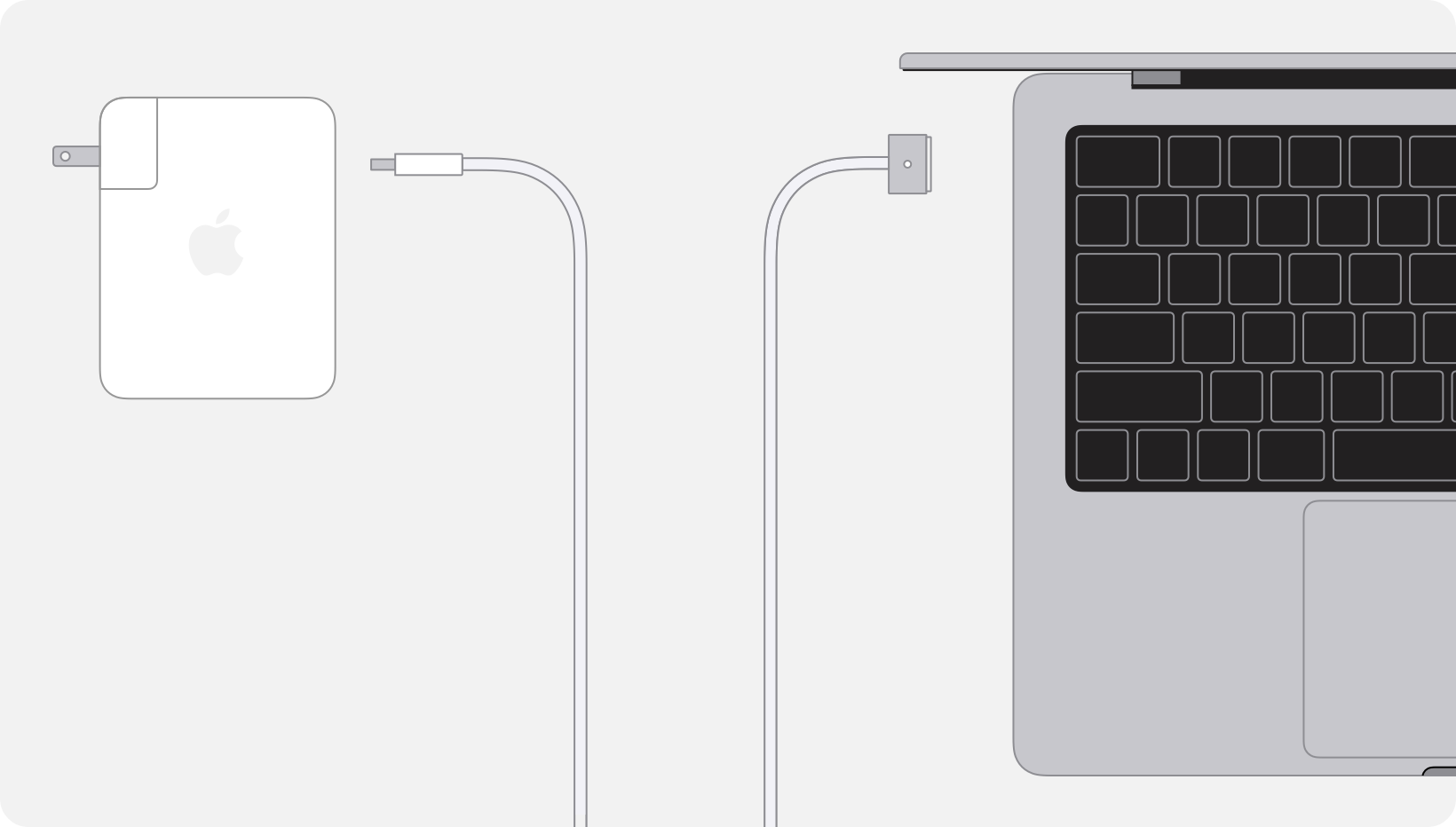
Plug the power adapter into a power outlet.
Plug the USB end of the MagSafe cable into the power adapter.
Connect the other end of the cable to the MagSafe port on your Mac. The indicator light on the MagSafe connector then glows amber or green:
Amber when charging is underway o is on hold.
Green when your battery is fully charged.
Your Mac should now begin charging, unless charging is on hold or the charge limit has been reached.
Charge with USB-C
If your Mac has USB-C ports, it might also have a MagSafe port. Your Mac charges over only one port at a time, using the source that provides the most power. Connecting a charging solution to more than one port, whether MagSafe or USB-C, doesn't charge your Mac faster.
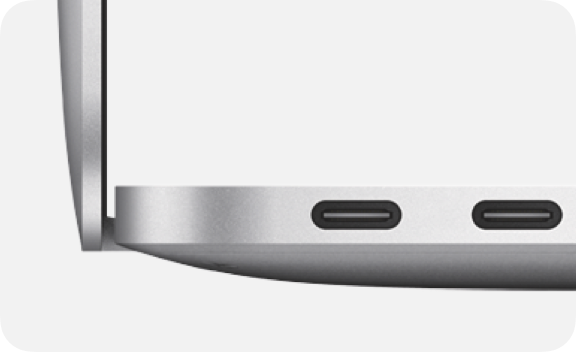
Locate a USB-C port
USB-C ports are on the left side or both sides of the Mac, and any of them can be used for charging. These Mac models can charge with USB-C:
MacBook Pro introduced in 2016 or later
MacBook Air introduced in 2018 or later
MacBook Neo
MacBook introduced in 2015 or later
Begin charging with USB-C
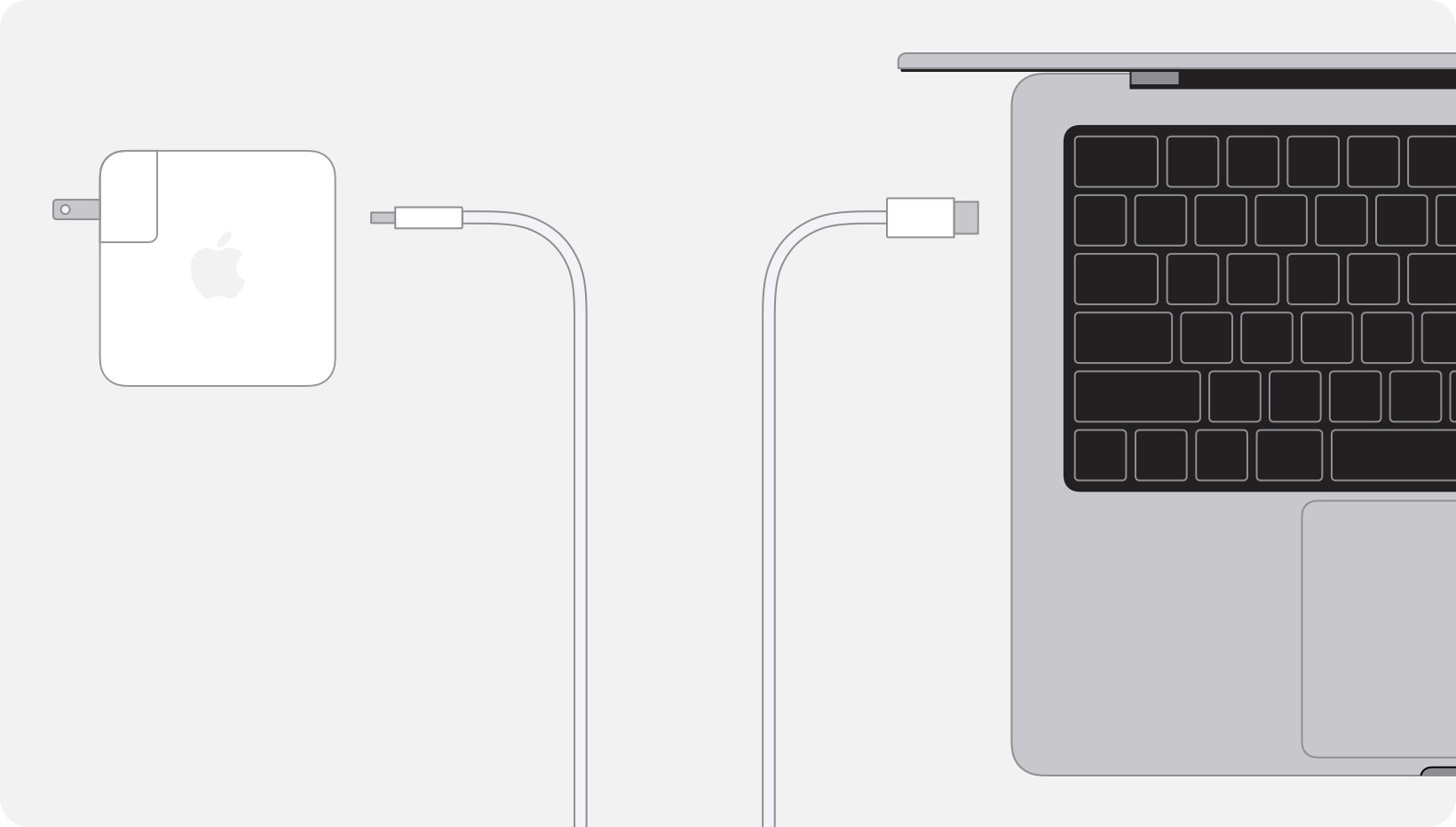
Plug the power adapter into a power outlet.
Plug one end of the USB-C cable into the power adapter.
Plug the other end of the cable into any USB-C port on your Mac.
Your Mac should now begin charging, unless charging is on hold or the charge limit has been reached.
Resolve charging issues
If your Mac isn’t charging as you expect, you might see one of these messages, or there could be an issue with the power adapter or charge cable that you’re using.
"Slow Charger"

When using macOS Tahoe 26.4 or later, your Mac can report that it's charging slowly: "Slow Charger" appears in the battery status menu and above the Battery Level graph in Battery settings.
To charge more quickly, use a charging solution that provides more power, measured in watts (W). For the best charging experience, the power adapter and charge cable should deliver at least the minimum wattage recommended for your Mac model.
"Charging On Hold"
When Optimized Battery Charging is in use, the battery status menu might show "Charging On Hold." If you need your Mac to be charged to 100% sooner, choose "Charge to Full Now" from the menu.
"Charged to [%] Limit"
When Charge Limit is in use, the battery status menu might show "Charged to [%] Limit" or "Charging to [%] Limit." If you need your Mac to be charged to 100%, choose "Charge to Full Now" from the menu when the charge limit has been reached.
"Battery Is Not Charging"
Learn what to do if you see "Battery Is Not Charging" in the battery status menu.
"Service Recommended"
Learn what to do if you see "Service Recommended" in Battery settings.
Mac isn’t receiving power
Learn what to do if your MagSafe power adapter isn't charging your Mac, including if the indicator light on the MagSafe connector flashes.
Learn what to do if your USB-C power adapter isn't charging your Mac.