Soundtrack your day with Ambient Music on iPhone or iPad
Whether you’re focusing on a task, creating a calm moment in the middle of the day, or winding down at night, Ambient Music can help set the right tone. With just a single tap on a widget on your Home Screen (or in Today View), you can play music from one of four moods: Sleep, Chill, Productivity, or Wellbeing. You can choose different curated playlists within each mood.
Ambient Music is available without an Apple Music subscription. If you subscribe to Apple Music, you can add your own Apple Music playlists to any of the four moods in Ambient Music.
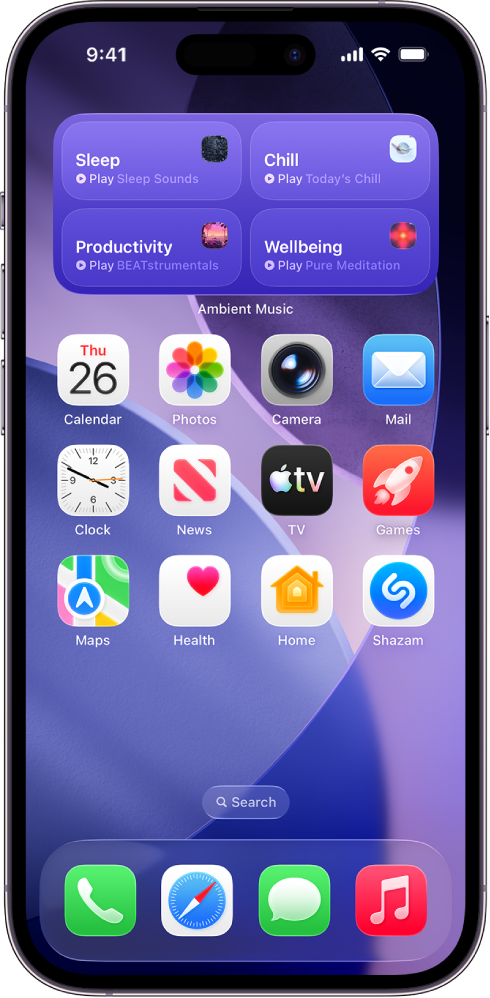
You can also play Ambient Music from Control Center, or in StandBy.
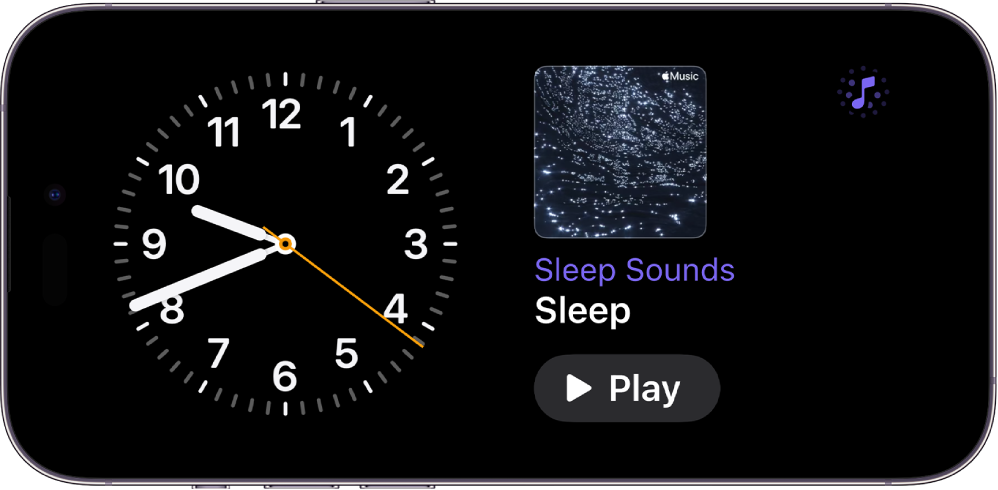
Add an Ambient Music widget on iPhone or iPad
Ambient Music widgets are supported on iPhone with iOS 26.4 or later, and on iPad with iPadOS 26.4 or later. Before you begin, make sure your device is up to date.
On your iPhone or iPad, go to Today View or the Home Screen page where you want to add the widget, then touch and hold the screen background until the apps begin to jiggle.
Tap Edit at the top of the screen, then tap Add Widget to open the widget gallery.
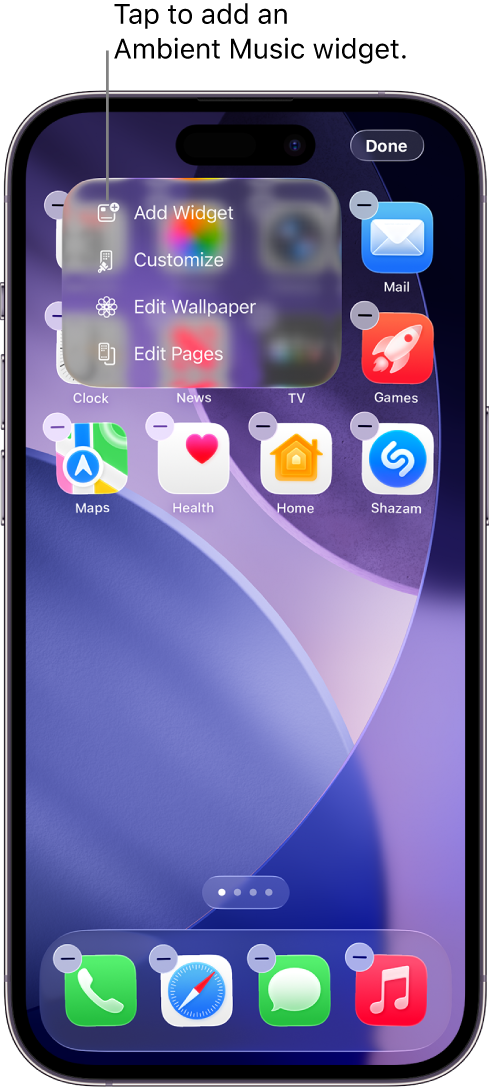
Scroll or search to find Ambient Music in the list of apps, tap it, then swipe through the size options.
When you see the size you want, tap Add Widget at the bottom of the screen.
While the apps are still jiggling, move the widget where you want it on the screen, then tap Done.
If you selected the small widget, Mood and Playlist options appear. See Select a different Ambient Music mood or playlist using a widget on iPhone or iPad.

Tip: You can use an Ambient Music widget on your vehicle’s display with CarPlay, or on your Mac with iPhone Mirroring. See Customize widgets in CarPlay or Control your iPhone from your Mac in the iPhone User Guide.
Play music using an Ambient Music widget on iPhone or iPad
If you haven’t already done so, add an Ambient Music widget to the Home Screen on your iPhone or iPad.
On your Home Screen, do either of the following:
Play Ambient Music using the small widget: Tap
 in the Ambient Music widget. To stop playback, tap
  .
.Play Ambient Music using the medium widget: Tap the Sleep, Chill, Productivity, or Wellbeing mood in the Ambient Music widget. To stop playback, tap the mood again.
With Ambient Music playing, you can tap the Dynamic Island to display the playback controls. You can also tap the small widget to display the playback controls.
Select a different Ambient Music mood or playlist using a widget on iPhone or iPad
If you haven’t already done so, add an Ambient Music widget to your iPhone or iPad.
On your Home Screen, touch and hold the Ambient Music widget, then tap Edit Widget.
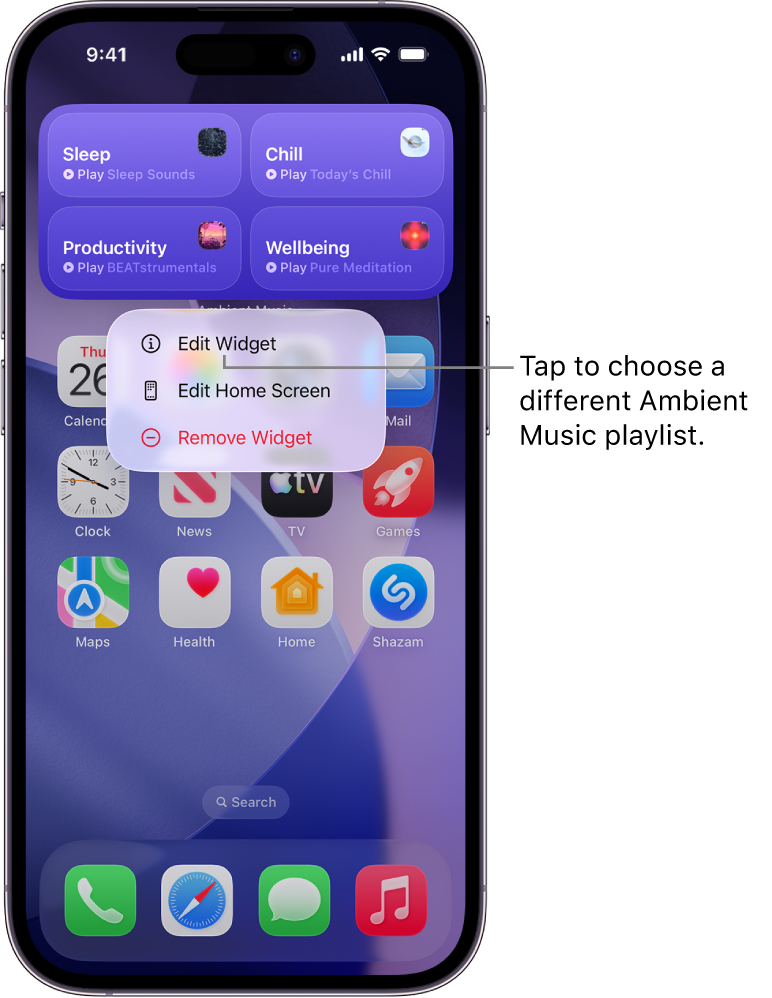
Do either of the following:
In the small widget: Tap the current selection (in the Mood row), then tap Sleep, Chill, Productivity, or Wellbeing. Next, tap the current selection (in the Playlist row), then tap a suggested playlist or a playlist from your Apple Music library.
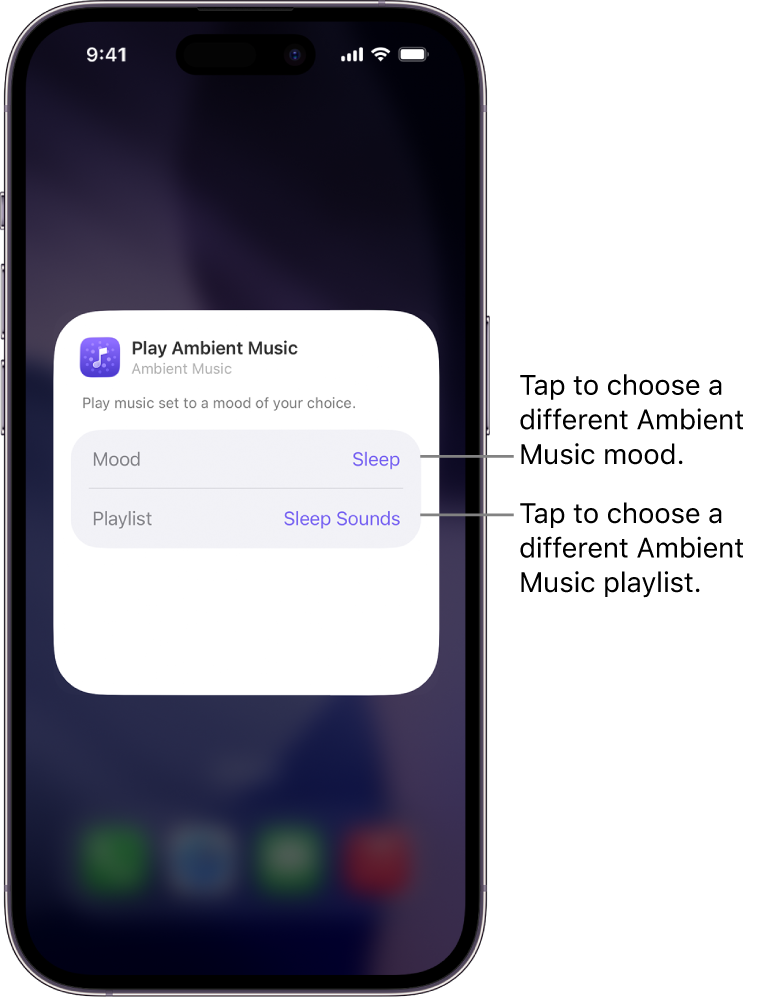
In the medium widget: Tap the current selection (in the Sleep, Chill, Productivity, or Wellbeing row), then tap a suggested playlist or a playlist from your Apple Music library.
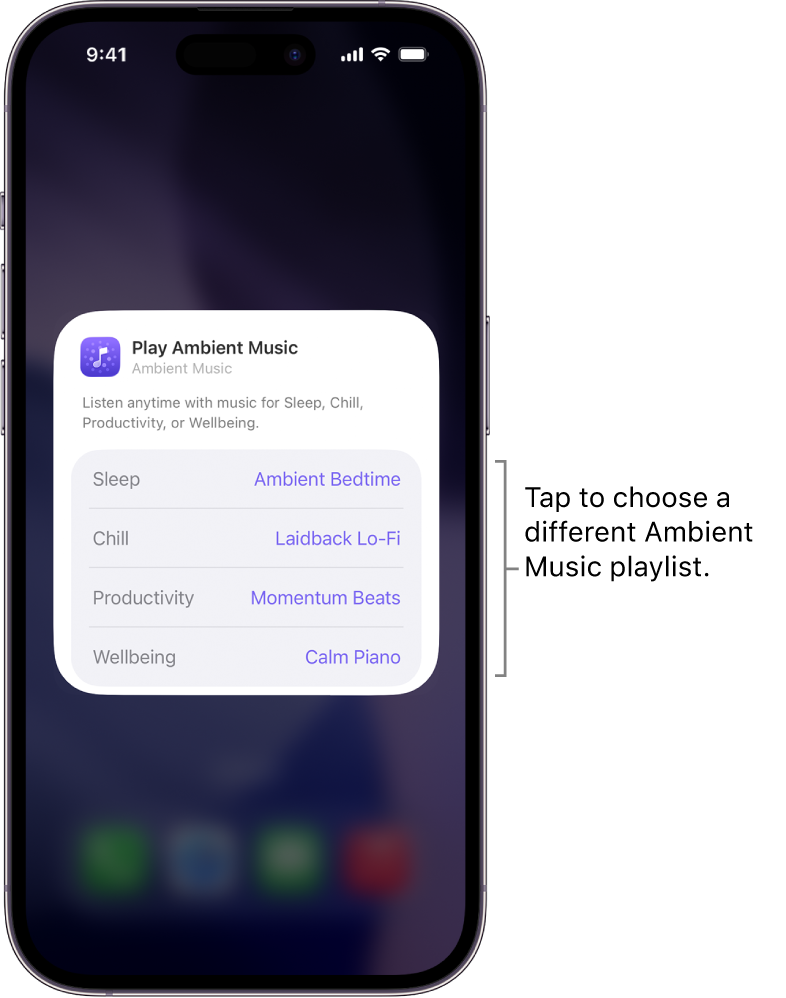
Note: Apple Music playlists are only available if you’re a subscriber. See the Apple Support article Subscribe to Apple Music.


Add Ambient Music to Control Center on iPhone or iPad
On your iPhone or iPad, open Control Center:
On an iPhone with Face ID: Swipe down from the top-right edge.
On an iPhone with a Home button: Swipe up from the bottom.
Tap
 in the top-left corner of Control Center to begin editing the controls.
Tap Add a Control at the bottom of the screen.
Scroll or search to find Ambient Music in the list of apps, then tap a mood (Sleep, Chill, Productivity, or Wellbeing).
Move the widget where you want it on the screen, then close Control Center:
On an iPhone with Face ID: Swipe up from the bottom.
On an iPhone with a Home button: Swipe down or press the Home button.
To add additional Ambient Music moods, repeat steps 1–5.
Play Ambient Music using Control Center on iPhone or iPad
If you haven’t already done so, add Ambient Music to Control Center on your iPhone or iPad.
Open Control Center:
On an iPhone with Face ID: Swipe down from the top-right edge.
On an iPhone with a Home button: Swipe up from the bottom.
Tap the Ambient Music control.
To stop playback, tap the control again.
With music playing, you can tap the Dynamic Island to display the playback controls.
Select a different Ambient Music playlist using Control Center on iPhone or iPad
If you haven’t already done so, add Ambient Music to Control Center on your iPhone or iPad.
Open Control Center:
On an iPhone with Face ID: Swipe down from the top-right edge.
On an iPhone with a Home button: Swipe up from the bottom.
In Control Center, tap the center of the Ambient Music control. (Tapping
 removes the control.)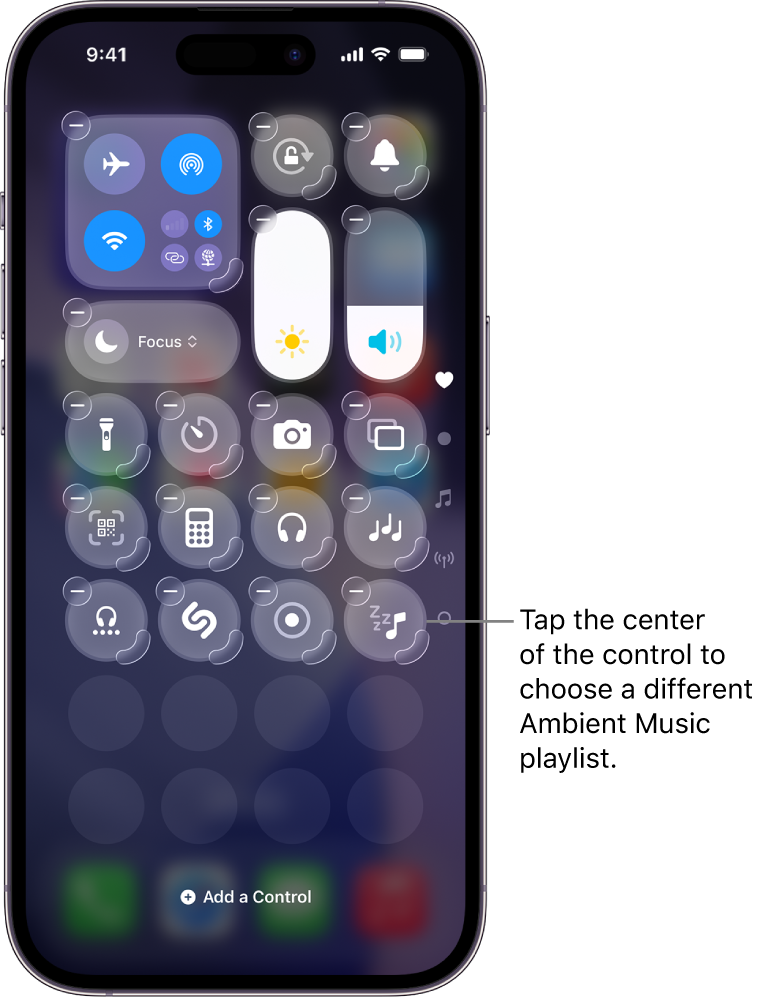
Tap the current selection (in the Playlist row), then tap a suggested playlist or a playlist from your Apple Music library.
Note: Apple Music playlists are only available if you’re a subscriber. See the Apple Support article Subscribe to Apple Music.

Add an Ambient Music widget to StandBy on iPhone
If you use StandBy on your iPhone, you can add a widget to quickly play or pause Ambient Music without having to search for the right playlist.
On your iPhone, start StandBy.
Touch and hold the widget you want to replace with the Ambient Music widget.
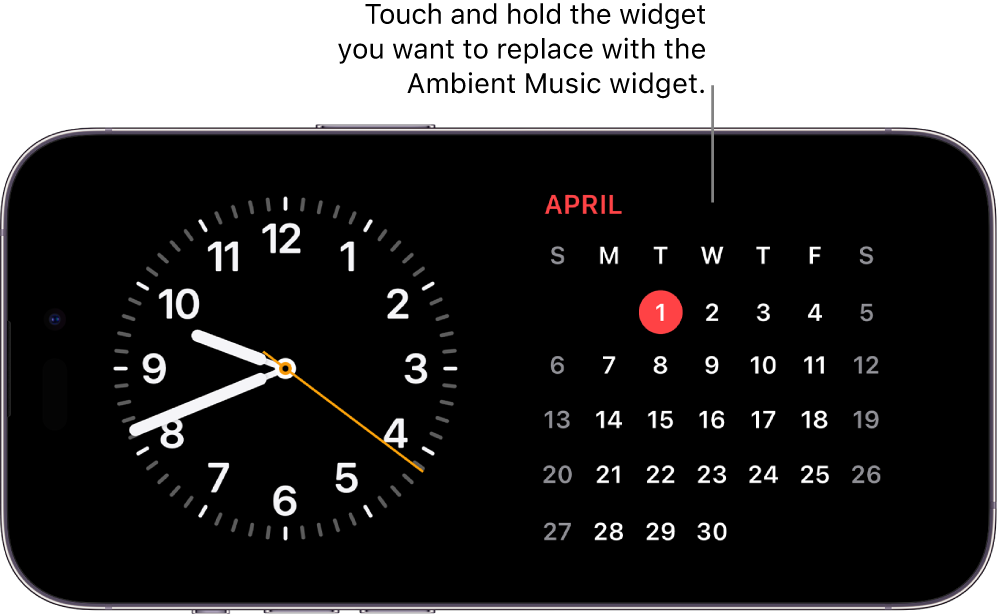
Tap
in the top-left corner, tap Ambient Music in the list of apps, then tap Add Widget.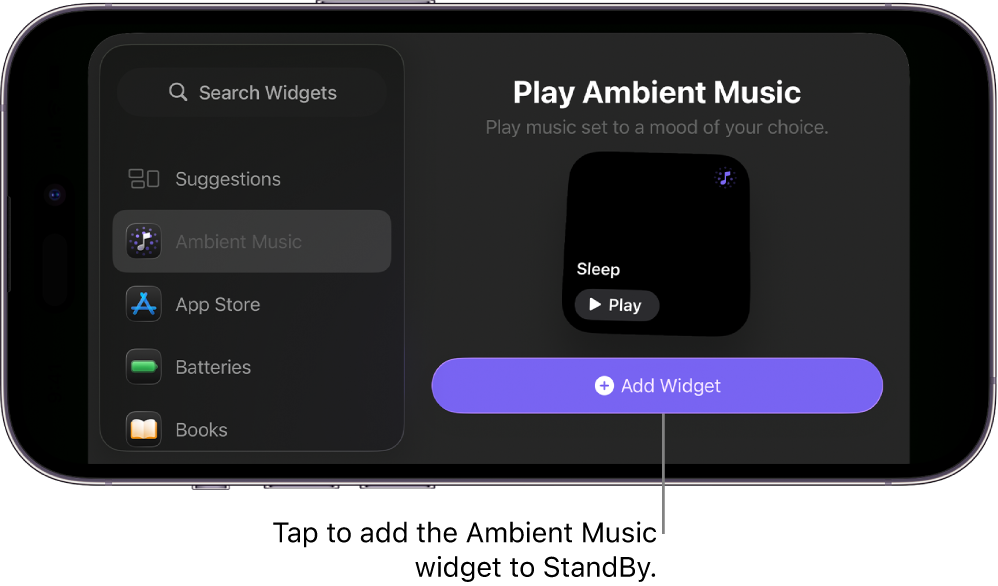
The Ambient Music widget is added to StandBy.
In the widget, tap Play to start playback, or tap Pause to stop playback.
With music playing, tap the animated meter at the top of the screen
 to show the music player. Swipe up from the bottom of the screen to hide the player.


Pause Ambient Music at a certain time on iPhone or iPad
If you use Ambient Music to fall asleep, you can specify a time to pause audio playback.
On your iPhone or iPad, do either of the following:
Ask Siri to stop playback: Say something like, “Stop the music in one hour.”
Set a timer to stop playback: Go to the Clock app
 , tap Timers, then set a duration of time. Next, tap When Timer Ends, tap Stop Playing at the bottom of the list of sounds, tap Set, then tap Start to start the timer.
Note: After you set When Timer Ends to Stop Playing, the same setting will apply to subsequent timers. Be sure to change the When Timer Ends setting to play a sound, if needed.
See Set timers in Clock on iPhone in the iPhone User Guide or Set timers in Clock on iPad in the iPad User Guide.
Tip: If you have AirPods 4, AirPods Pro 2, or AirPods Pro 3, you can choose to automatically pause audio when you fall asleep while listening to Ambient Music or other audio using your iPhone or iPad. See Change settings for AirPods or AirPods Pro in the AirPods User Guide.