StandBy
A feature that turns your iPhone into a bedside clock, a photo frame, a display for viewing widgets or Live Activities in full screen, and more.
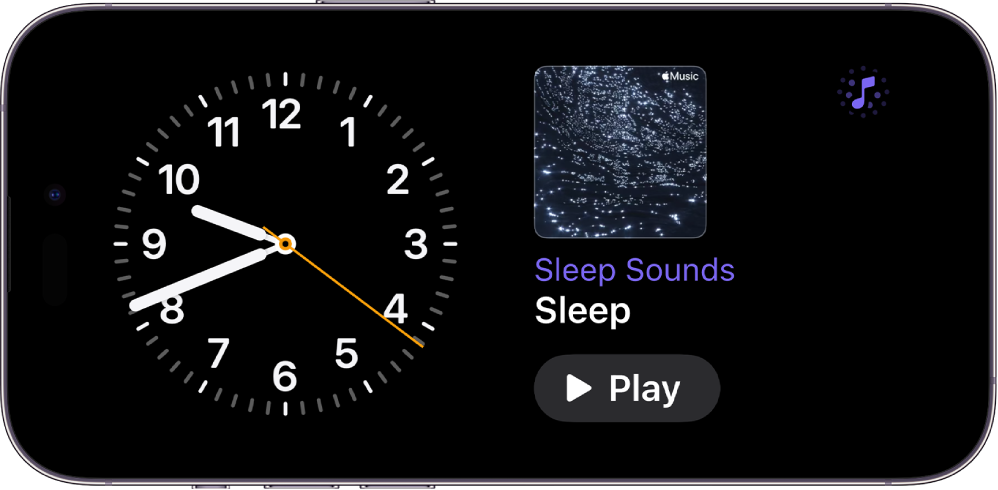
To start StandBy:
Go to the Settings app
 on your iPhone.
Tap StandBy and make sure StandBy is turned on.
Connect iPhone to a charger and set it down on its side, keeping it stationary.
Press the side button.
Swipe left or right to switch between widgets, photos, and clocks. Swipe up or down to scroll between options for each of these views.
To activate StandBy at any time, tap the screen, gently nudge the table your iPhone is on, or ask Siri to “Start StandBy.”
For details, see Use StandBy in the iPhone User Guide.