
Mac backups
Regular backups are critical to preventing data loss and ensuring business continuity. Many organizations use enterprise solutions to meet compliance and security requirements.
Organization backup solutions
You should be familiar with how your organization’s managed cloud backup solutions work—especially when integrated with device management on Mac. These backup tools typically run quietly in the background with little to no user input, but you should understand the following as they pertain to your organization:
Verify backup status when assisting users, especially before major changes like a macOS reinstall or device replacement.
Identify and escalate failed backups to the appropriate team if you can’t resolve the issue directly.
Know how to check that backups are configured properly and actually completing as expected on a user’s device.
Educate users on when and how backups happen, so they understand what’s protected and to avoid confusion during troubleshooting.
Restoring to factory settings
You might find yourself assisting a user who gets a new Mac and wants to trade in their current Mac. Or they just got a new Mac, and they want to give their current Mac to someone else.
You also might want to redeploy an organization-owned Mac, and you need to wipe its data. These are all reasons why you’d want to restore a Mac to its factory settings. Restoring a Mac can mean either recovering data or returning the system to a clean state. Depending on the issue, different tools and approaches may be required.
Erase Assistant
Erase Assistant securely wipes the device while preserving firmware and macOS. It’s a fast and secure option for off-boarding or repurposing devices. When supporting a Mac that’s managed with a device management service, you should understand how Erase Assistant behaves under management and what additional steps or restrictions may apply.
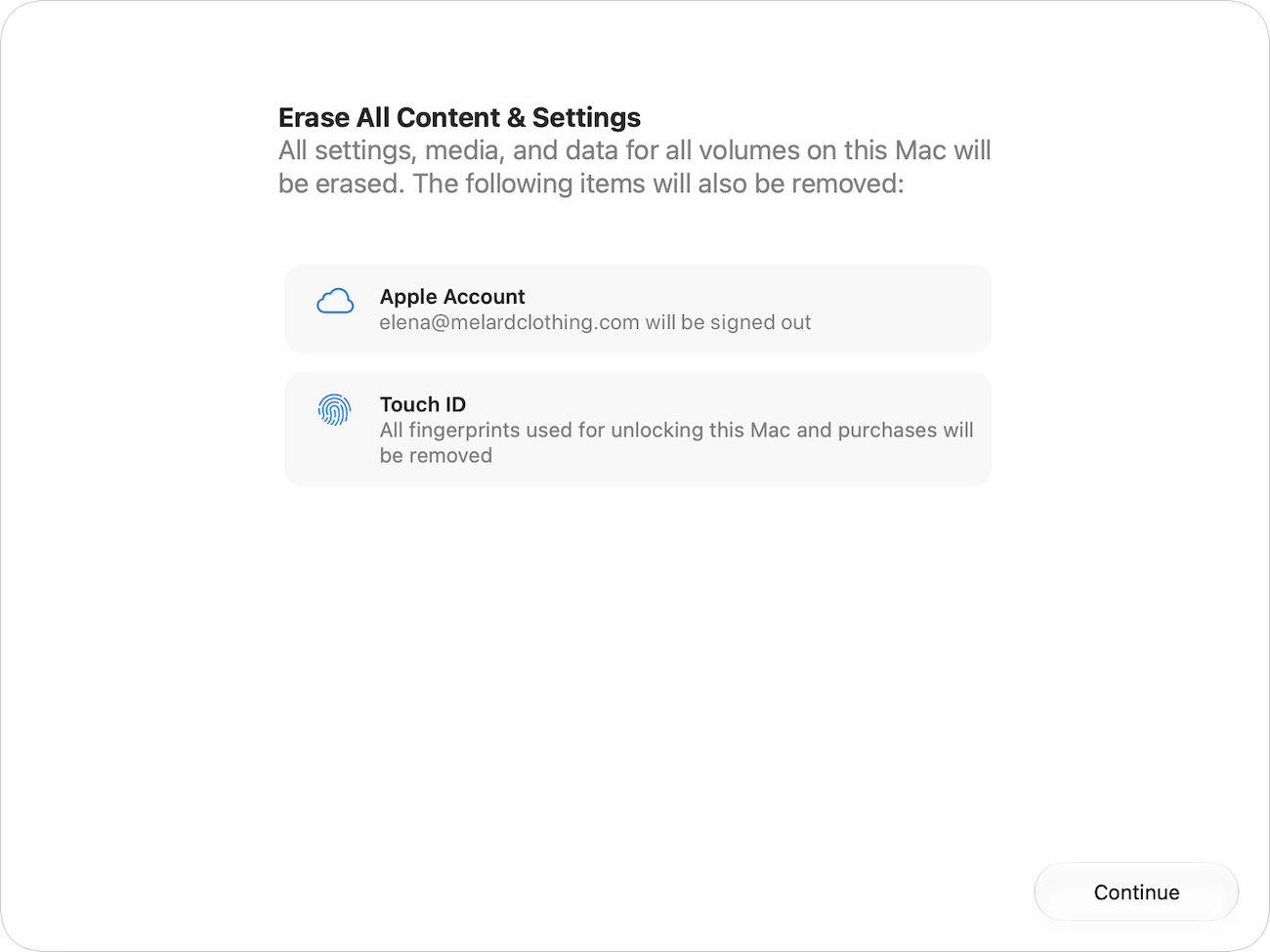
Behavior under device management includes the following:
Erase Assistant can be used on Mac computers enrolled in a device management service.
Activation Lock may still be turned on, even after erasing, unless device management is configured to automatically turn off Activation Lock upon wipe.
Device management restrictions include the following:
Some device management services can restrict Erase All Content and Settings, which prevents users from erasing the Mac with Erase Assistant.
If a device appears in Apple School Manager or Apple Business, is assigned to a device management service, and the service has configured Automated Device Enrollment for that device, then after the Mac is erased with Erase Assistant or restored to factory settings, it automatically reenrolls in the assigned service during the setup process.
Here are a few important steps:
Confirm device management behavior before advising users to use Erase All Content and Settings. A wiped device may still reenroll into device management or become Activation Locked if not properly released.
Verify backups and unmanaged (personal) Apple Account iCloud sign-out before erasing.
Escalate to the device management administrator or security teams if Activation Lock remains active after a wipe.
Use device management to issue a remote wipe when possible or escalate to the device management team—this ensures proper removal from inventory and avoids errors.
Apple Configurator
Organizations use Apple Configurator to deploy or recover Mac computers. It can restore firmware and install macOS. You should understand the basics of connecting devices through USB-C and using Apple Configurator profiles, but most Apple Configurator issues should be referred to the device management administrator.
In rare circumstances, such as a power failure during a macOS update or upgrade, a Mac may become unresponsive, and you’ll need to revive or restore the firmware. You can use Apple Configurator to revive or restore a Mac.
Revive updates the firmware and recoveryOS to the latest version. A revive is designed to not make changes to the startup volume, the user’s data volume, or other volumes. User data may be retained if recoverable.
Restore updates the firmware, updates recoveryOS to the latest version, and erases and installs the latest version of macOS on the internal storage. When this process is complete, data on internal volumes is unrecoverable.
How to revive or restore Mac firmware using the Finder
In macOS Sonoma 14 or later, you can also help users revive or restore a Mac from the Finder.
What to look for:
Starts up to an exclamation point in a circle.
Shows the status indicator light pattern for firmware recovery mode.
Turns on but starts up to a blank screen.
Prepare for a revive or restore
Reviving or restoring firmware might also help if a Mac experiences a persistent macOS installation error not resolved by other solutions for macOS installation errors.
What you need:
The affected Mac that you’re reviving or restoring.
A secondary Mac of any model using macOS Sonoma 14 or later to revive or restore the affected Mac.
A USB-C to USB-C cable that supports data and charging.
Note: Thunderbolt cables aren’t supported.
When you have the appropriate hardware, follow these instructions to revive or restore a Mac.