Set up home theater audio with HomePod or HomePod mini and Apple TV 4K
Use a HomePod or HomePod mini with your Apple TV 4K to create home theater surround sound or home theater stereo experience right in your home.
Here's what you need
For home theater surround sound:
Apple TV 4K (4th generation) with the latest software.
Four HomePod (2nd generation) or HomePod mini 2 with the latest software. You can also use two HomePod (2nd generation) with two HomePod mini 2 with the latest software.
For home theater stereo:
Apple TV 4K with the latest software.
One HomePod or HomePod mini with the latest software. You can also use a stereo pair of two HomePod or two HomePod mini speakers. Other AirPlay-compatible speakers are not supported with home theater audio.
HomePod mini doesn't support Dolby Atmos 5.1 or 7.1 surround sound.
Set up home theater surround sound
From the Home app, select a HomePod, then tap the gear icon in the bottom corner.
Scroll down, then tap Create Home Theater.
Tap the HomePods to add them to the home theater group, then tap the checkmark in the upper corner. You will be prompted to finish setting up your home theater on your Apple TV.
Turn on your Apple TV. Follow the prompts to position your speakers. If you are using two HomePod mini 2 in your grouping, make sure that they are placed in the back with your HomePod (2nd generation) speakers in the front.
Select Start Tuning to have your television play a series of tones to help tune your HomePod speakers to your space.
Select Confirm to confirm the placement of your HomePod speakers, then follow the prompts to select the color of each speaker.
Select Confirm.
Set up home theater stereo
Assign your Apple TV and HomePod or HomePod mini to the same room in the Home app. If you want to use two HomePod or two HomePod mini speakers, create a stereo pair, then assign the stereo pair to the same room as your Apple TV in the Home app.
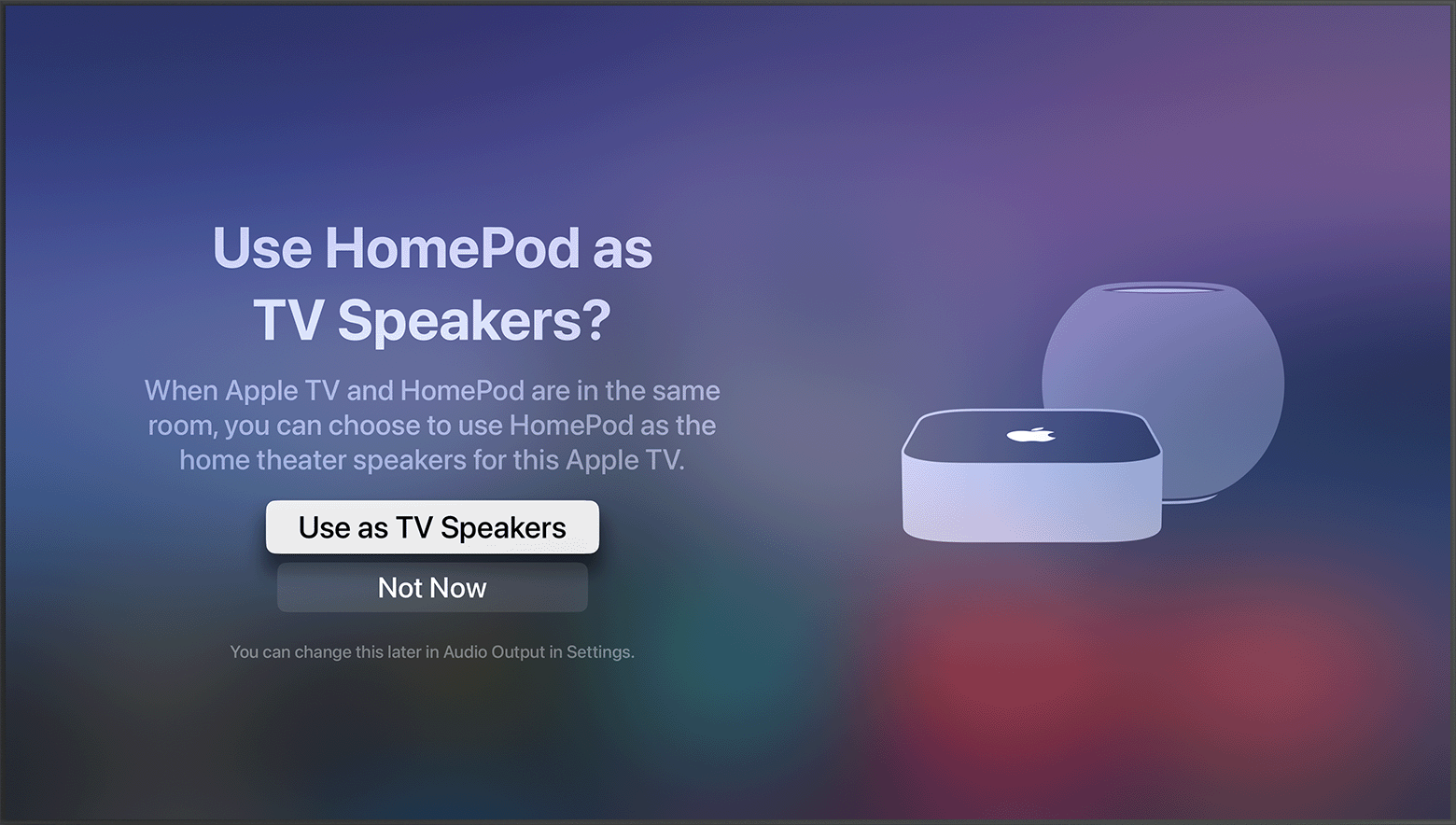
Turn on your Apple TV. You'll be asked if you want to Use HomePod speakers as Apple TV speakers.
Select Use as TV Speakers to turn on home theater audio.
If you don't see the setup screen
You can manually turn on home theater audio with your Apple TV, or your iPhone or iPad.
With Apple TV: From the Home Screen on Apple TV, select Settings, select Video and Audio, then select Audio Output. Select the HomePod or stereo pair that you want to use for home theater audio.
With iPhone or iPad: In the Home app, tap Apple TV, tap the gear icon in the lower-right, then scroll down and tap Default Audio Output. Select the HomePod or stereo pair that you want to use for home theater audio.
Need more help?
Tell us more about what's happening, and we’ll suggest what you can do next.