Use Switch Control on your device to control another Apple device
With Use Other Devices for Switch Control, you can control your other Apple devices remotely on the same Wi-Fi network without adjusting any switch connections. This enables you to navigate your Mac or Apple TV with the same switch setup that you use to control your iPhone.
Use your iPhone, iPad, or iPod touch to control another device
Connect your devices to the same Wi-Fi network.
Sign in to iCloud with the same Apple Account on both devices.
If you want to control a Mac, choose System Settings from the Apple menu on your Mac, click Accessibility in the sidebar, then click Switch Control on the right. Select "Allow platform switching to control your computer."
Using your switch to navigate the Switch Control menu, select Device.
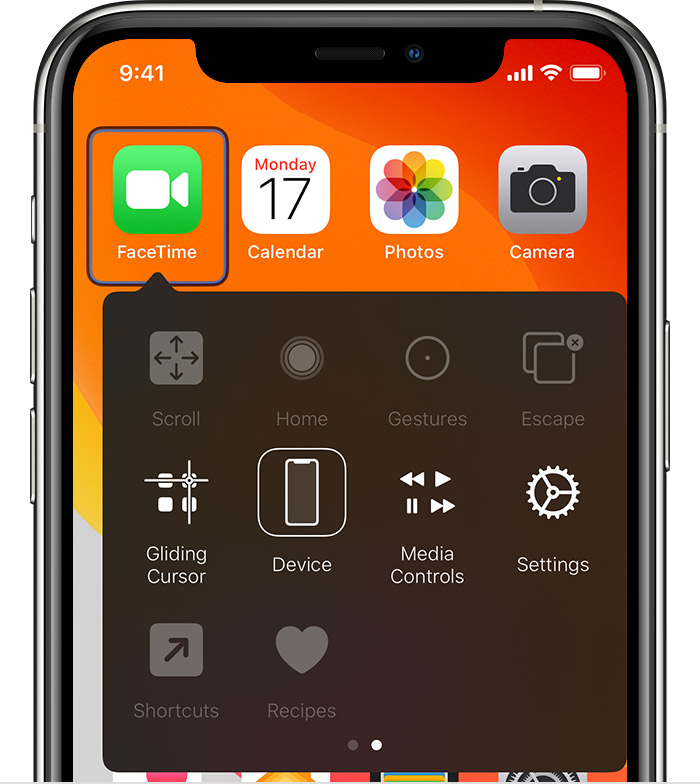
Select Use Other Device.
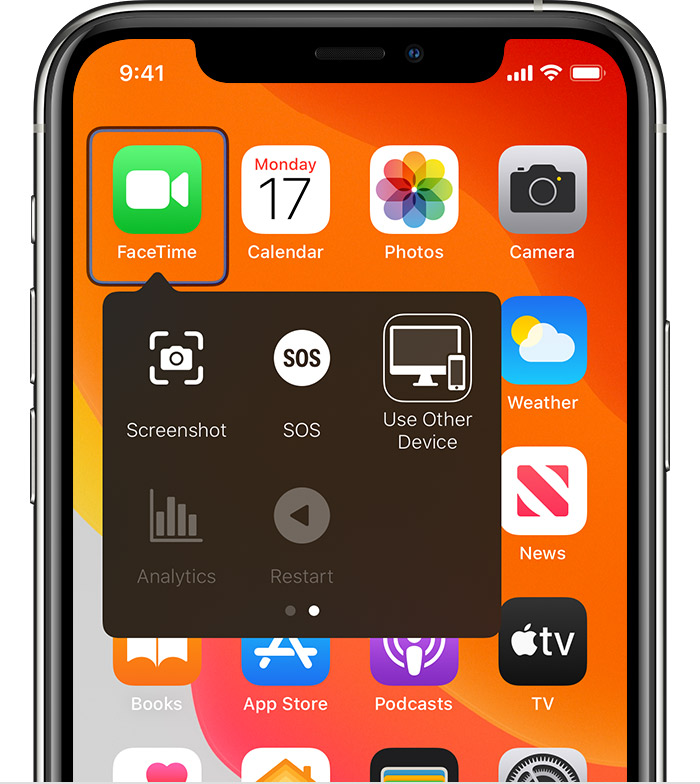
Select the device that you want to control, then select Connect. Now you can use the switch connected to your iPhone, iPad, or iPod touch to control the other device.
Use your Mac to control another device
Connect your devices to the same Wi-Fi network.
Sign in to iCloud with the same Apple Account on both devices.
Using your switch to navigate the Switch Control Home panel, select Devices.

Select the device that you want to control, then select Connect. Now you can use the switch connected to your Mac to control the other device.
Stop controlling another device
To stop controlling another device, press and hold your switch for ten seconds. Your switch will control the original device again. Or use the following steps.
Stop controlling a Mac
Using your switch to navigate the Switch Control Home panel, select Devices.
Select Disconnect. Your switch will control the original device again.
Stop controlling an iPhone, iPad, or iPod touch
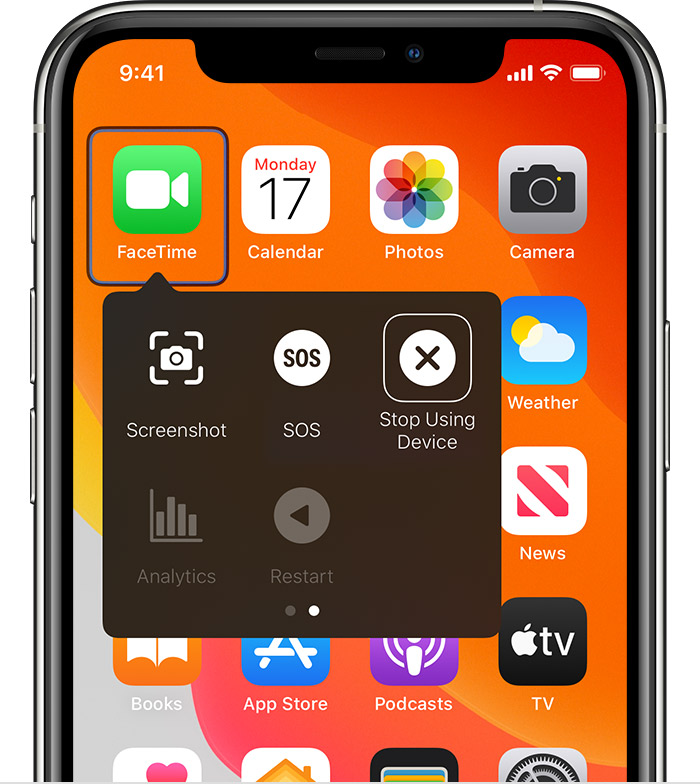
Using your switch to navigate the Switch Control menu, select Device.
Select Stop Using Device. Your switch will control the original device again.
Turn off Switch Control
If you'd like to turn off Switch Control entirely, follow these steps for your device:
Turn off Switch Control on an iPhone, iPad, or iPod touch
Use your switch to open Settings, tap Accessibility, then tap Switch Control and turn the setting off. Or triple-click the Home button or the Side button on certain models at any time to exit Switch Control.
Turn off Switch Control on a Mac
Use your switch to choose System Preferences from the Apple menu . Click Accessibility in the sidebar, then click Switch Control and turn off Switch Control.
Need more help?
Tell us more about what's happening, and we’ll suggest what you can do next.
